Solve a tet volume
Find the displacement and the stress of a tet volume under loads
A tet volume item can find its own displacement and stress under loads. The solve is a linear static finite element analysis. Its results become fields of the volume, and Tet ▸ Field shows them with a legend. This page tells how to set up a solve, how to read the result, and what to do when a solve fails.
Before you solve
You need:
- A tet volume item. Bake one from an SDF item or fill a mesh with tetrahedra, see Work with mesh and tet volume items.
- One region that holds the part, and one region that loads it. The next section tells how to make them.
- A saved scene. The solve writes its result as a file next to the volume's file.
Make the regions
A region is a named shape in the scene. It says where a support or a load acts. A region is parametric: when the volume is baked again, the region selects again on the new mesh.
- Click Add in the scene tree, then Region.
- In the region's row, set its Kind:
- Node for a support. It selects the nodes of the volume inside the shape.
- Surface for a load. It selects the outer faces of the volume whose center is inside the shape.
- Set the shape and its size in the row, or drag it with the gizmo in the viewport.
The viewport draws each region as a translucent shell, cut to the tet volumes it can select on, so you see where it acts. A hidden region draws nothing.
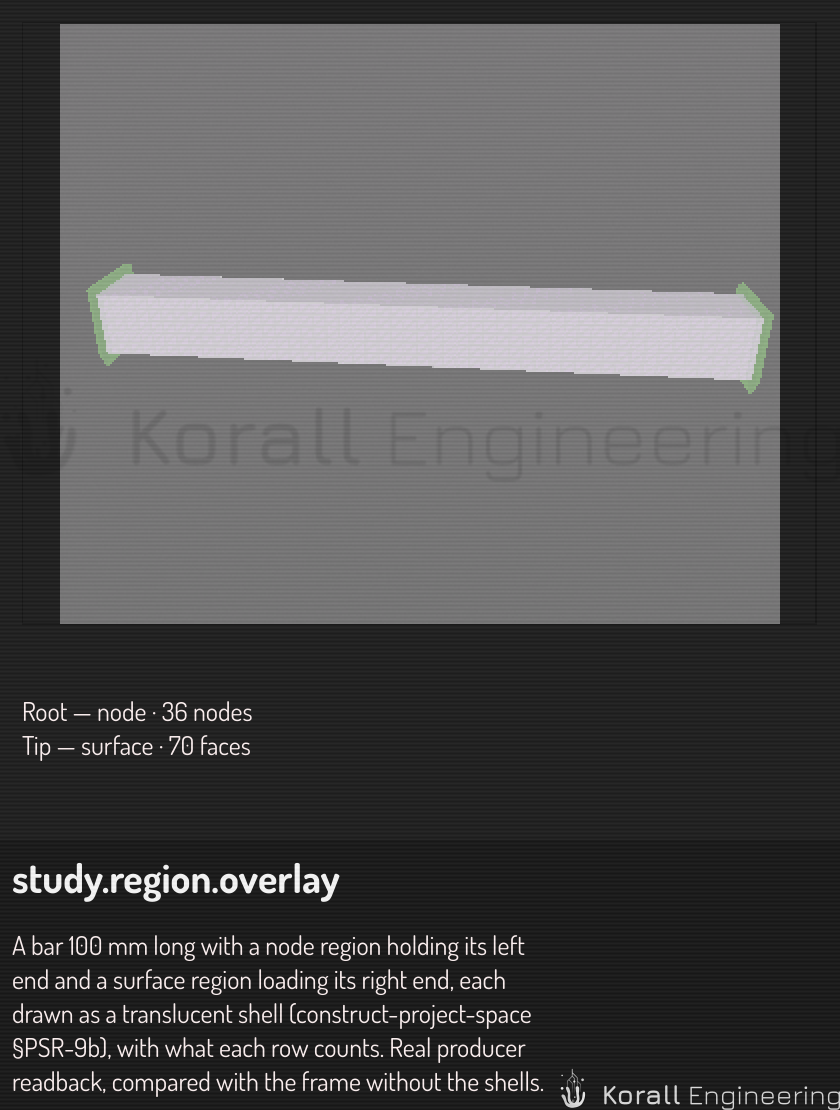
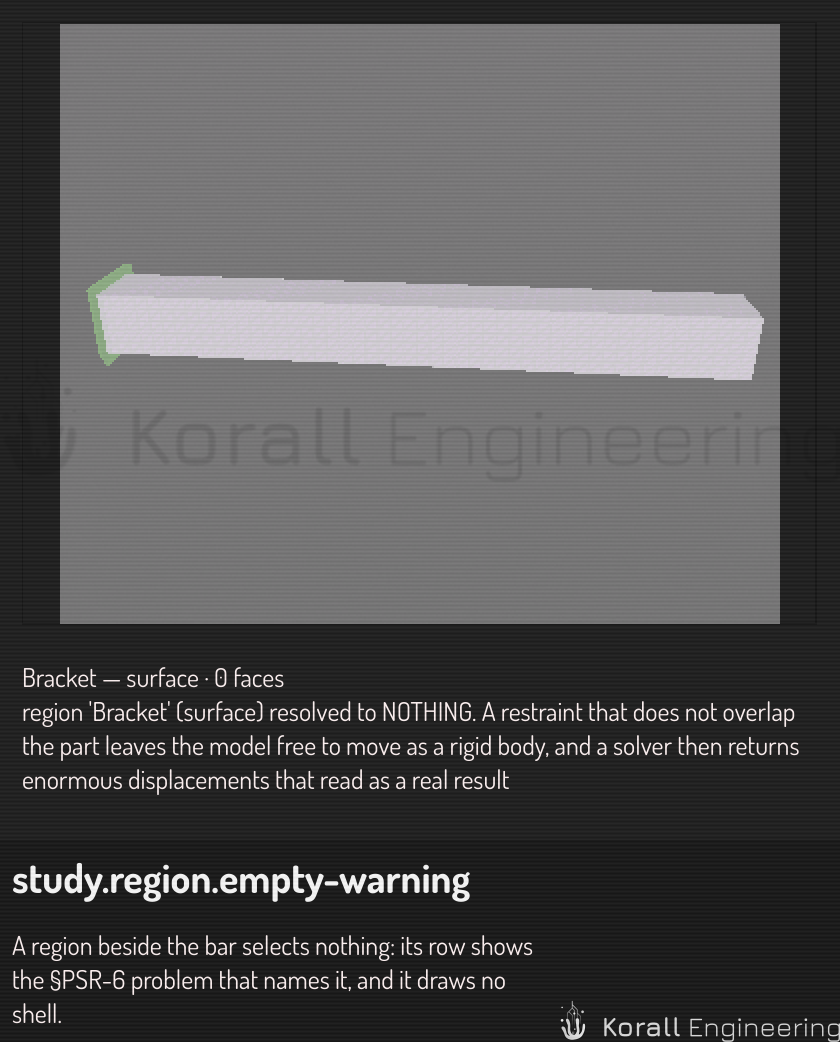
The row shows what the region selects on each tet volume, for example "surface · 12 faces". A region that selects nothing shows an error mark and draws no shell. A solve with such a region does not start, because a support or a load that holds nothing gives a wrong answer.
See the loads and the supports
When the volume has the setup of a solve, the viewport can show it. Choose Tet ▸ Show loads and supports. The volume then shows:
- An arrow for each force, at the center of its region, along the force. The arrow touches the part where the force pushes and starts at the part where the force pulls.
- Arrows for each pressure, at points over its region, at a right angle to the faces. A positive pressure points into the part.
- Three small cones with hatched bases at the nodes that each support holds.
A label gives the size and the unit of each load, for example "100 N", and "Fixed" for a support. A label behind the part does not show. The glyphs keep their size on the screen at every zoom, and they move with the part when it shows its deformation. The region shells stay: the shell shows where a condition acts, and the glyph shows what it is.
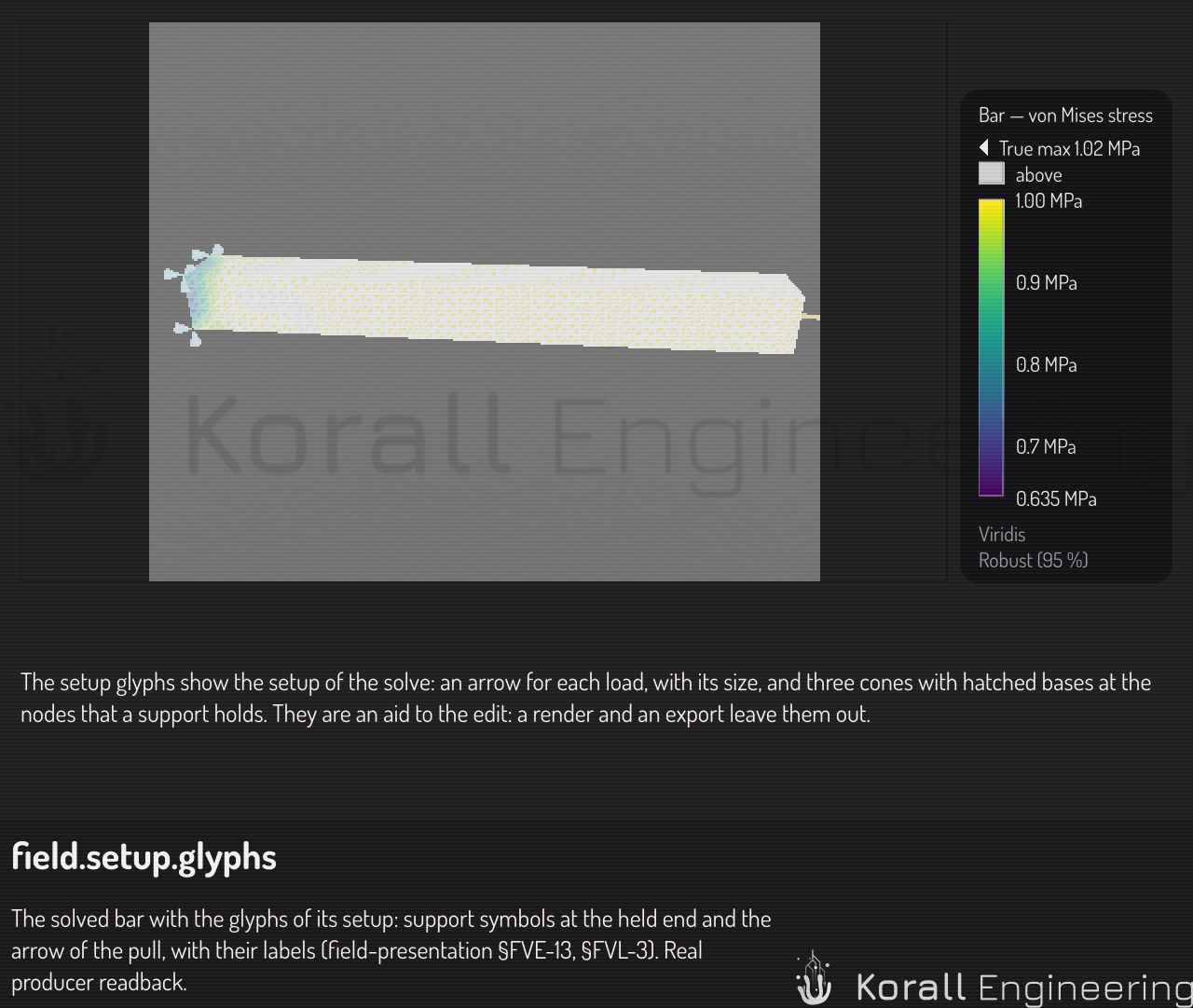
The glyphs grow with the part: a pressure arrow is 4 % of the diagonal of the volume's box, a force arrow longer and a support cone shorter, and each keeps a least size on the screen. The Size row of the setup sets Model or Screen, and Share of the part sets the 4 %.
The setup glyphs help you edit. A render and an export do not show them. When a region of the setup selects nothing, its glyph does not show, and the row of the setup presenter says why. The Solve dialog sets the setup: see the next section.
Solve
- Right-click the tet volume row.
- Choose Tet ▸ Solve…. The Solve dialog opens.
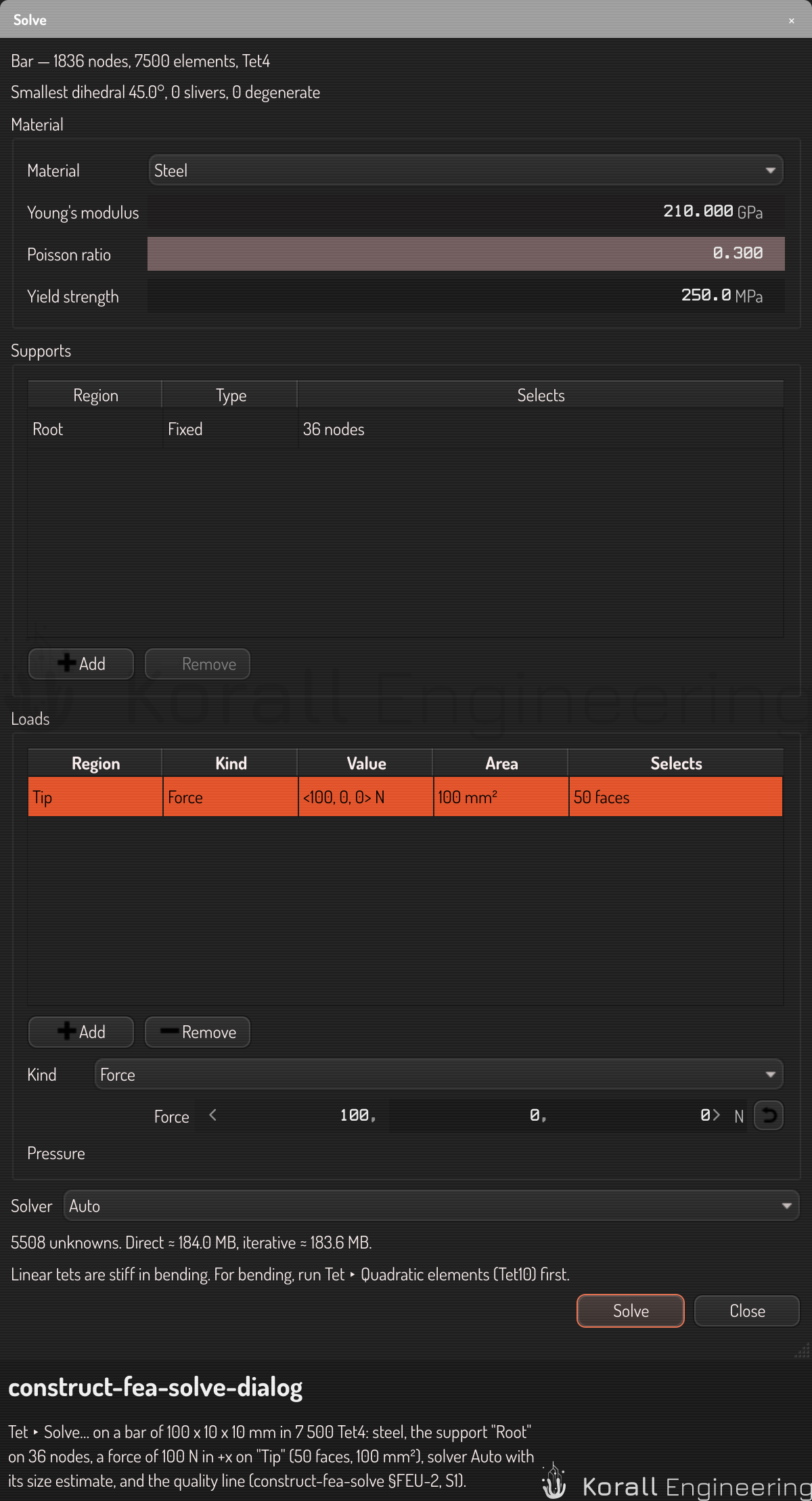
The dialog has these parts:
| Part | What you set |
|---|---|
| Header | Nothing. It names the volume, its node and element count, and its quality: the smallest dihedral angle, the slivers and the degenerate tetrahedra |
| Material | Steel, aluminum, titanium, PLA, ABS or Custom. Custom takes the Young's modulus in GPa, the Poisson ratio, and the yield strength in MPa. A yield strength of 0 gives no factor of safety |
| Supports | One row per support. Choose a region of kind Node. Each support holds its nodes still in all three directions |
| Loads | One row per load. Choose a region of kind Surface, then Force or Pressure below the table. A force is a total in N, in world axes, spread over the faces by their area. A pressure is in MPa and pushes into the part |
| Solver | Auto, Direct or Iterative. Auto picks Direct up to 15 000 unknowns, about 5 000 nodes, and Iterative above. The line below shows the unknowns and the memory that each choice needs. A choice that needs more memory than this computer has is disabled, and its tooltip says why. See Solve sizes |
Each row shows what its region selects now. A load row also shows the area of its faces in mm², so you can compare a pressure with a force. A count of 0 shows in the error color, and Solve stays disabled.
The units are mm, N and MPa. The scene is in mm, so a force in N gives a displacement in mm and a stress in MPa.
- Click Solve. The dialog closes, unless you pinned it by its title bar. A pinned dialog stays open while you move a region.
The row of the volume shows the progress: "Resolving regions", "Waiting for a machine", "Solving", then "Fetching the result". You can work in the scene while the solve runs. The solve runs on this computer, or on a node that you paired with.
The next time you open the dialog for the same volume, it shows the setup of the last solve.
Read the result
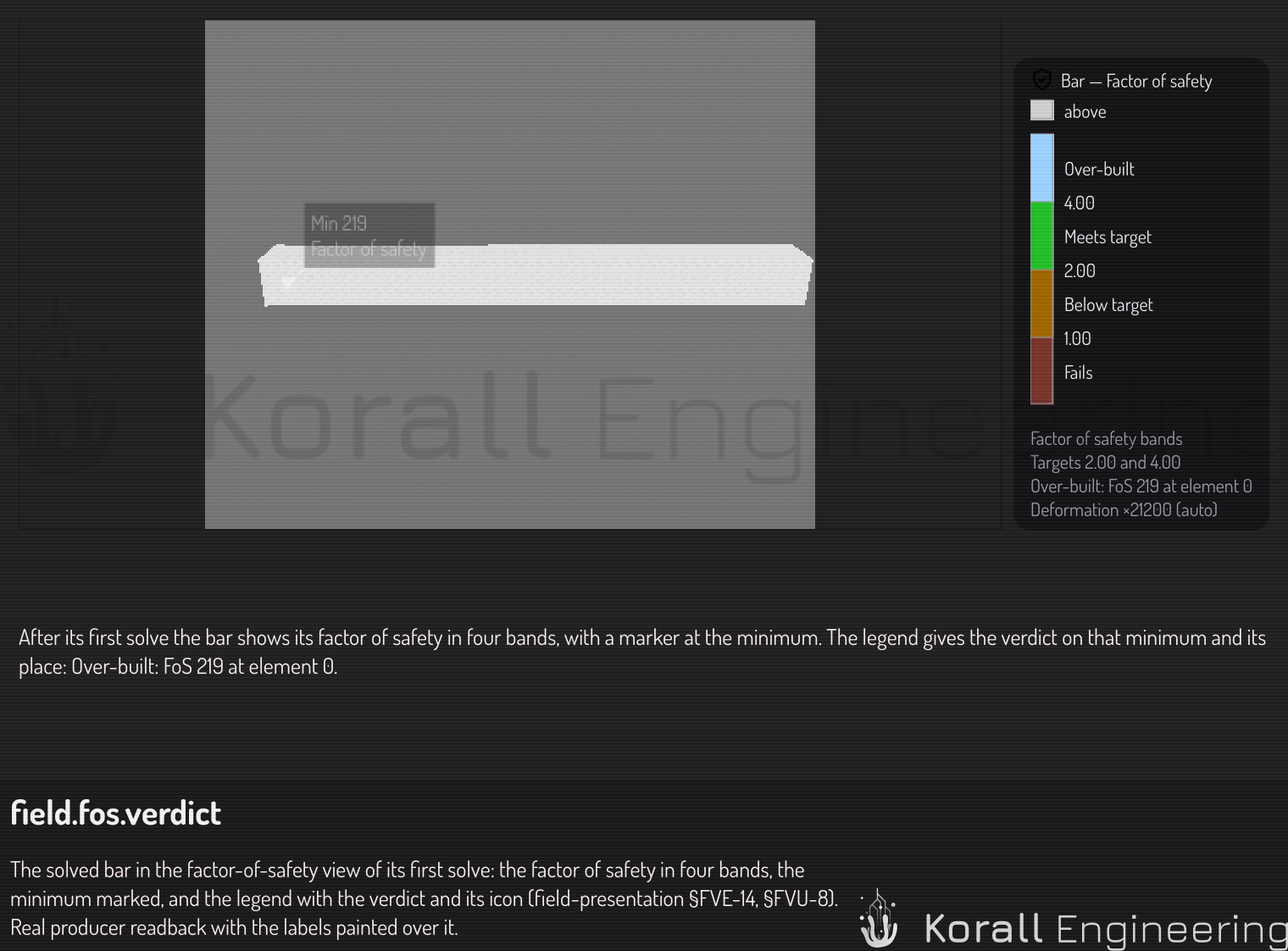
When the first solve of a volume ends, the volume shows its factor of safety, and a legend appears at the bottom right of the viewport. The factor of safety of an element is the yield strength of the material divided by the von Mises stress of the element. Under 1, the material yields. A message also gives the largest displacement, the largest stress and the smallest factor of safety.
This view has four parts:
| Part | What it shows |
|---|---|
| Deformation | The volume moves by its displacement, at the automatic scale. The legend gives the scale. See See how the part moves |
| Color | The factor of safety of each element, in four bands |
| Marker | A label at the smallest factor of safety, with its value |
| Setup | The loads and the supports of the solve. See See the loads and the supports |
The bands and the target
The colors make four bands. The bands meet at 1 and at two targets: the target T, 2 by default, and the over-built limit U, 4 by default.
| Band | Factor of safety | Verdict |
|---|---|---|
| Fail | Less than 1 | Fails |
| Warn | From 1 to less than T | Below target |
| OK | From T to less than U | Meets target |
| Over-built | U and more | Over-built |
Each band has its name on the legend, so a color is not the only sign of the band. The color bar ends at 15. A factor of safety above 15 shows as "≥ 15", but each number that Construct gives is the true value.
To change the targets, open the box of the volume. Set the Target row (T) and the Over-built at row (U) of its color presenter.
The verdict
The verdict is the band of the smallest factor of safety of the volume. It shows in two places:
- In the caption of the legend. An icon of the verdict shows before the title of the legend.
- In the Verdict row of the volume's box, below the Field row.
The verdict gives the band, the smallest value and the element of that value, for example "Below target: FoS 1.6 at element 3 112". The value is the smallest value of the solve, not the end of the color bar. The marker shows that element in the viewport. Fails and Below target show in the warning color. Each verdict has an icon. Meets target and Over-built have the same icon.
A material with no yield strength has no factor of safety. The volume then shows the von Mises stress at its nodes, and the Verdict row says "No yield strength: factor of safety not shown".
Tet ▸ Factor of safety view turns the view off and on. When it is off, the volume shows the von Mises stress. When it is on, the volume shows the factor of safety again, and each presenter that you changed keeps your changes. This entry has no key. You can set a key in the shortcut settings.
Other fields
Tet ▸ Field lists the four result fields with their units:
| Field | What it is |
|---|---|
| Displacement (mm) | How far each node moved |
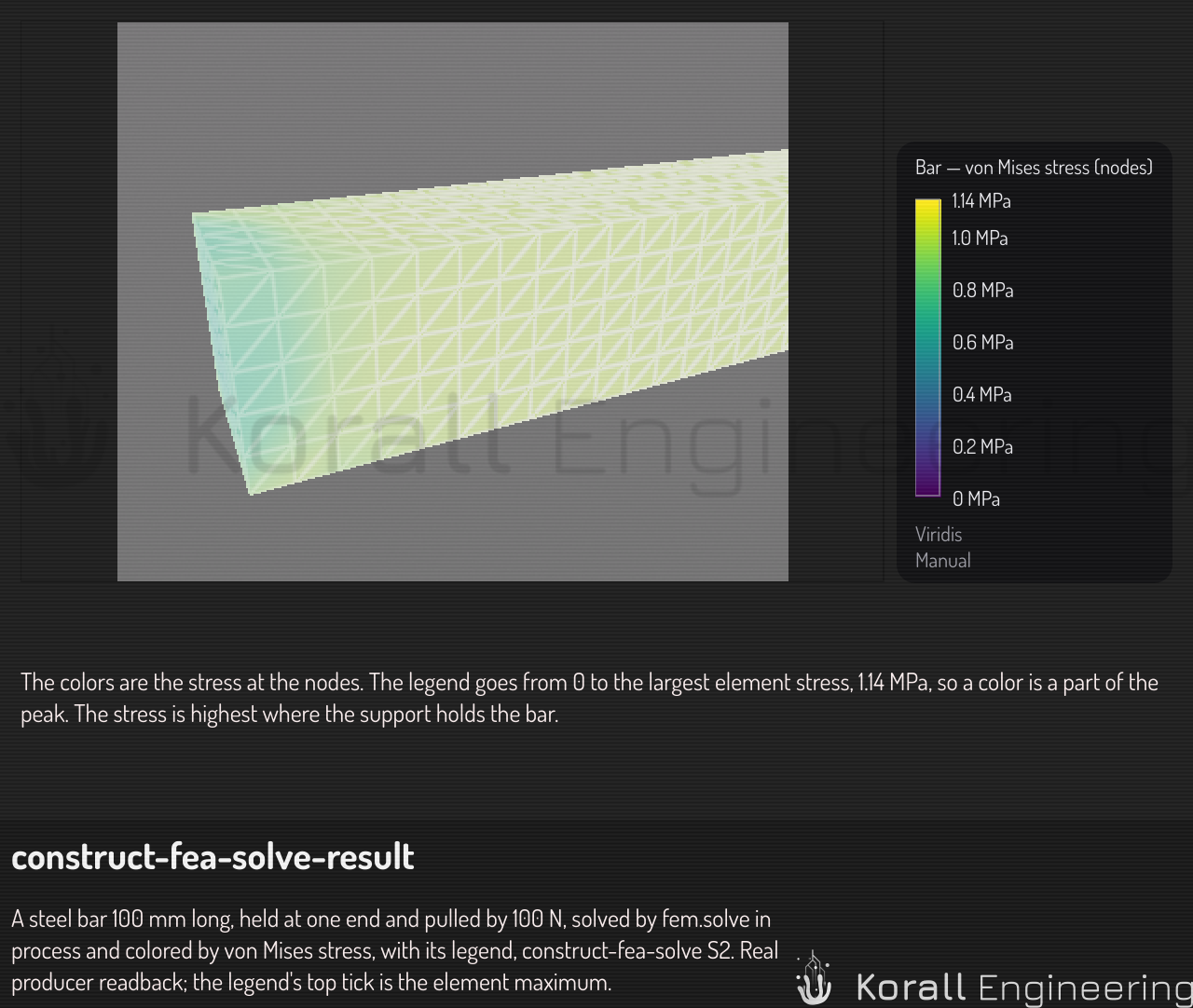
| von Mises stress (nodes) (MPa) | The stress at each node: the mean of the elements around it. It looks smooth |
| von Mises stress (elements) (MPa) | The stress of each element. It shows the peak that one element carries |
| Factor of safety | The yield strength divided by the stress of each element. Under 1, the material yields |
Each stress field gets its own robust range. The node field lowers a peak that one element carries, so the element field shows the higher maximum.
The solve stores the stress tensor, and Construct computes each of these fields from it when it shows the field. After the four fields, the menu lists the derived fields of the stress, for example "Tresca stress (stress)". The field kernels reference lists every value it can compute.
To see where the part is in tension and where it is in compression, choose
Signed von Mises stress (stress). It is the von Mises stress with the
sign of the mean stress: plus where the material is pulled, minus where it
is pushed. Its range is symmetric about 0, in the cool-warm map, so 0 is
the middle color.
A solve writes one load case. A field set from a file can vary over load cases, modes, time steps or iterations. Then the box of the volume has one row for each axis, below the Field row, and every presenter shows the value that the row chooses. See The presentation rows.
The legend gives the item, the field, the colormap, the range mode and five values. Each field gets the range mode of its kernel:
| Field | Range mode |
|---|---|
| A stress | Robust (95 %): from the smallest value to the 95th percentile |
| Displacement | Full: from the smallest to the largest value |
| Factor of safety | Targets 2 and 4: from 0 to 15, in the fos-bands map |
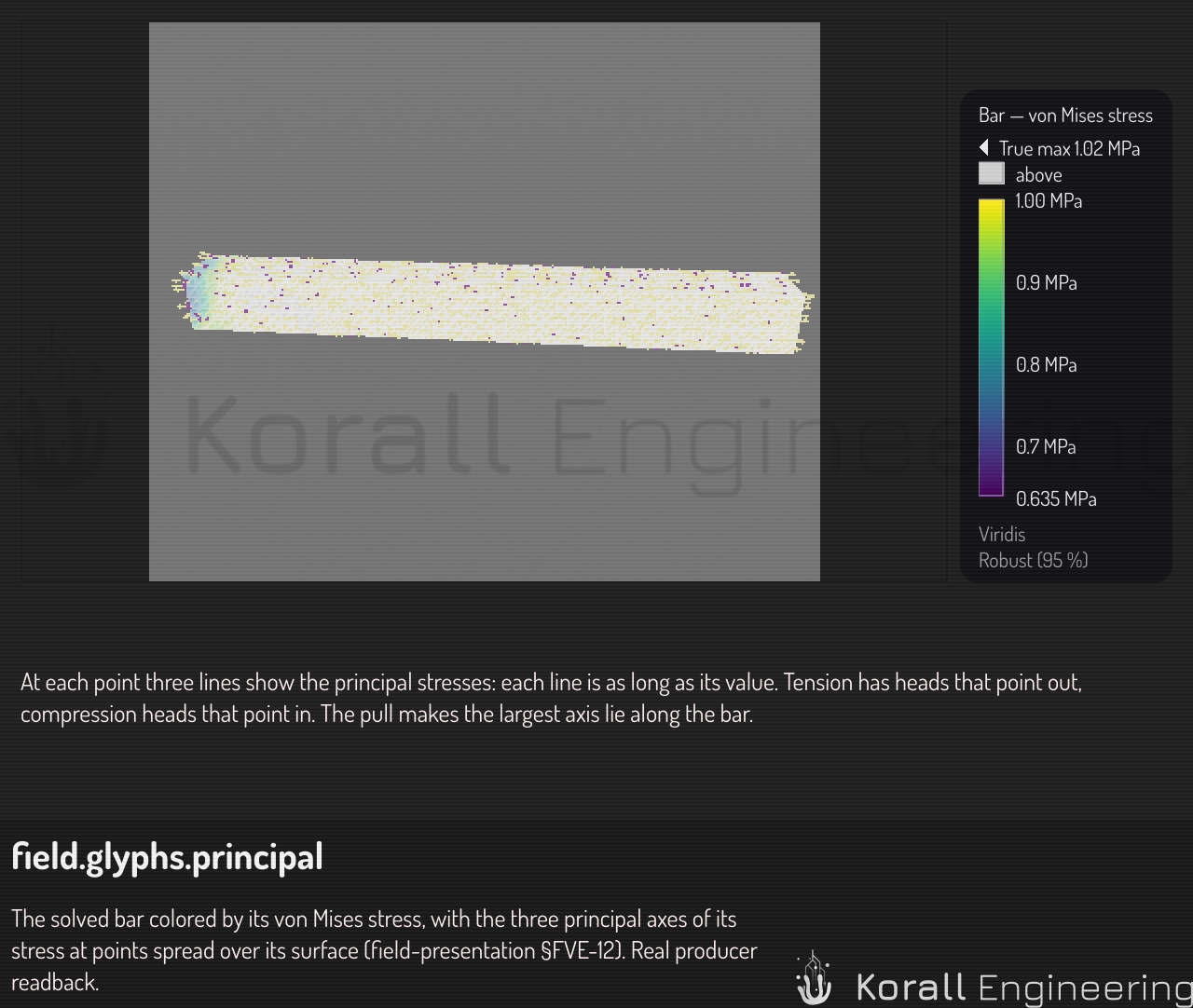
When you change from the factor of safety to a stress, the stress gets its own range mode and colormap. A robust range ends at the 95th percentile of the stress, so one peak element does not make the rest of the part one color. The line over the bar of the legend gives the true maximum, "True max" and the value.
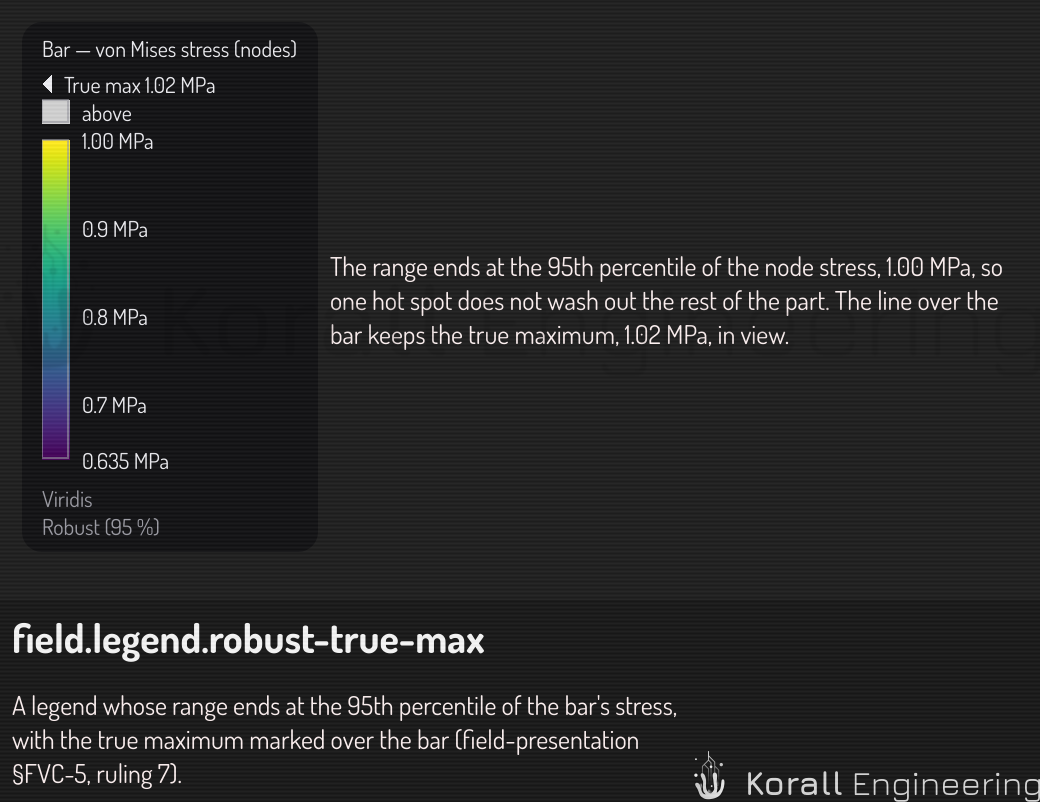
To change the range, drag an end of the legend's bar, or right-click the legend and choose Range ▸. The box of the volume has the same choices in the rows of its color presenter. See Color an item by a value.
A mark ≥ at the top says that some values are above the range, and ≤ at the bottom that some are below it. When several items show the same field with the same range, they share one legend. A shared legend of the factor of safety gives the verdict of the smallest value of its items.
The legend is part of the viewport, not of the scene. A rendered image shows it only when you ask for it:
- Right-click the volume's row and choose Tet ▸ Export field image….
- The Export tab of the Rendering dialog opens, with Field overlays on. Set the file and the size, then click Queue Export. See Export a rendered animation.
The image then shows the legends in the lower right corner, and the labels
of the markers and the probes. The option is on by default when an item
shows a field. The OPAL task view.snapshot takes the same choice in its
argument overlays. See View tasks.
A thumbnail never shows the legend.
A second solve of the volume keeps what the volume shows. Undo removes the results and the factor-of-safety view in one step. When the results go, the presenters that show them go too, and the next solve sets the factor-of-safety view again.
See how the part moves
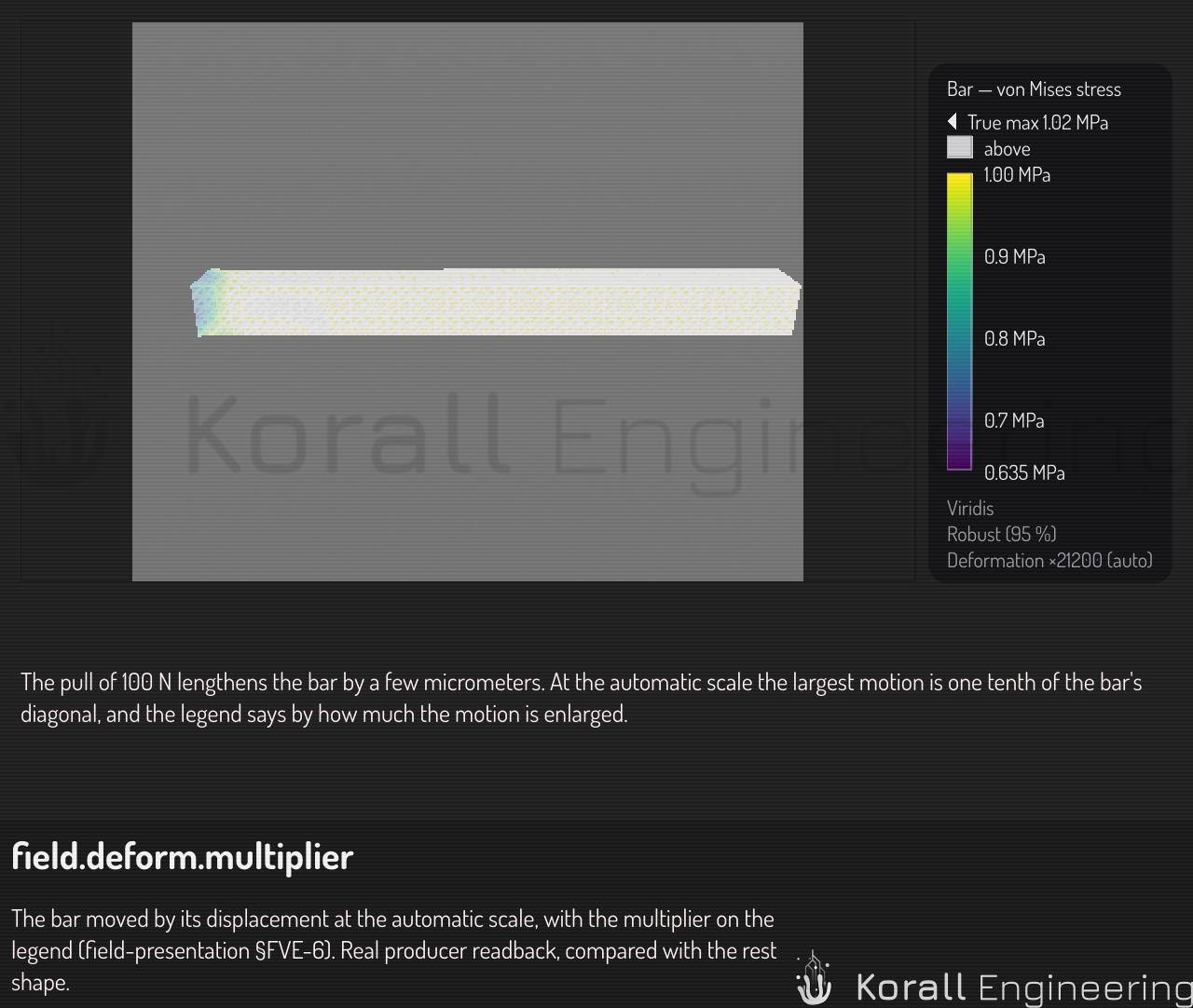
The displacement of a solve is often too small to see. Tet ▸ Show deformed moves the volume by its displacement, enlarged by a scale:
- Right-click the volume's row.
- Choose Tet ▸ Show deformed.
The scale is automatic: the largest motion becomes one tenth of the diagonal of the volume's box. The legend and the row of the deformation show the scale, for example "Deformation ×280 (auto)". Always read it: a deformed shape with no scale looks like a real motion.
To change the scale, choose Tet ▸ Deformation scale:
| Choice | Scale |
|---|---|
| Auto | The largest motion is one tenth of the box diagonal |
| 0.5×, 2×, 5× of auto | The automatic scale times the factor |
| True scale | The real motion, a scale of 1 |
| Off | No motion |
A row of the deformation in the volume's box sets the same scale, and also the fraction of the diagonal (Auto size) and a scale of your own (Custom scale).
To compare with the rest shape, add a Ghost: open the volume's box and choose Add presenter ▸ Ghost. The ghost is the undeformed shape, drawn translucent over the moved one. Its Style row also offers the edges only, as a wire. A ghost shows only while the deformation moves the volume.
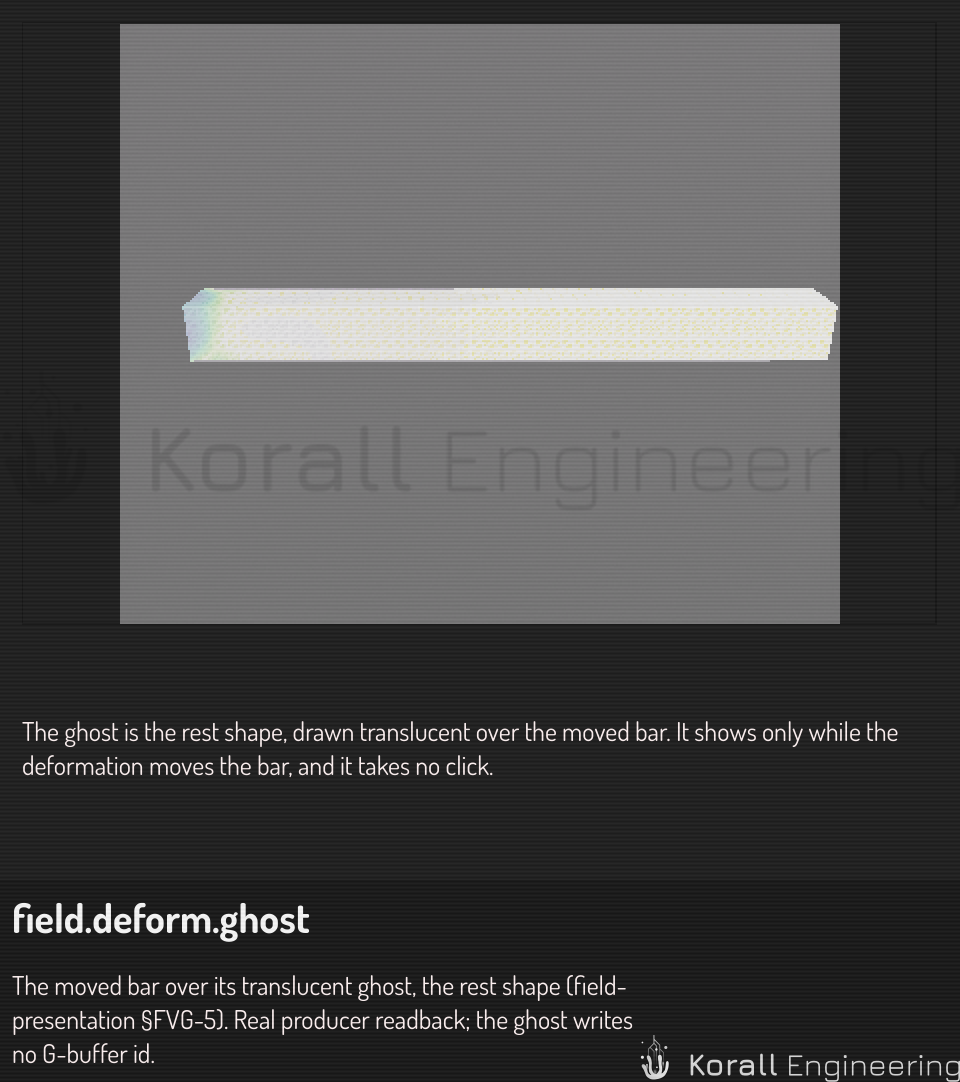
Tet ▸ Animate deformation moves the volume from its rest shape to the deformed shape and back, again and again. One cycle takes two seconds. The Period row changes it. The animation changes only the view. The document stays as it is, and there is nothing to undo.
While a volume animates, a playback strip shows above the legends, at the bottom right of the viewport:
| Control | What it does |
|---|---|
| Play or pause | Stops the animation where it is, or plays it on from there |
| The slider | While paused: moves every animated volume to that point of its cycle |
| The speed | 0.25×, 0.5×, 1× or 2× of the period |
| The cycle | Ping-pong (rest, deformed, rest), Full (−1 to 1, for a mode shape) or Once |
| The scale | Auto, 0.5×, 2× or 5× of auto, or the true scale |
Play, pause, the slider and the speed change only the view. The cycle and the scale are part of the deformation's row, so a change of them is one step to undo, for every volume that animates. Space plays or pauses while the pointer is over the viewport. To bind another key, open the shortcut settings and find Play or pause the animation.
The colors follow the load during the animation. A linear solve is exact at every part of its load, so at the start of the cycle the stress is 0 and the colors are calm, and they grow to the solved field as the part deforms. The factor of safety falls from very high to its solved value. The value under the pointer is the one at the same point of the cycle. The legend keeps the range of the full load. The row of the deformation says "colors follow the load". To keep the solved colors on the moving part, switch off Colors follow the load in that row.
The labels of the markers move with the part, in step with the frame on the screen. They do not dim while the animation plays.
Find the weak spot
Markers show where a field is largest or smallest. To add them, right-click the volume's row and choose Tet ▸ Show min and max. Tet ▸ Show peaks also marks 3, 6 or 10 local peaks. You can also open the box of the row and choose Add presenter ▸ Markers.
The markers mark the field that the volume shows. Each marker is a dot at the place, a leader line and the value, for example "Max 412 MPa". A stress or a displacement marks its largest value, and a factor of safety its smallest. The Show row chooses the smallest, the largest or both. The Peaks row also marks the highest local peaks, up to 20.
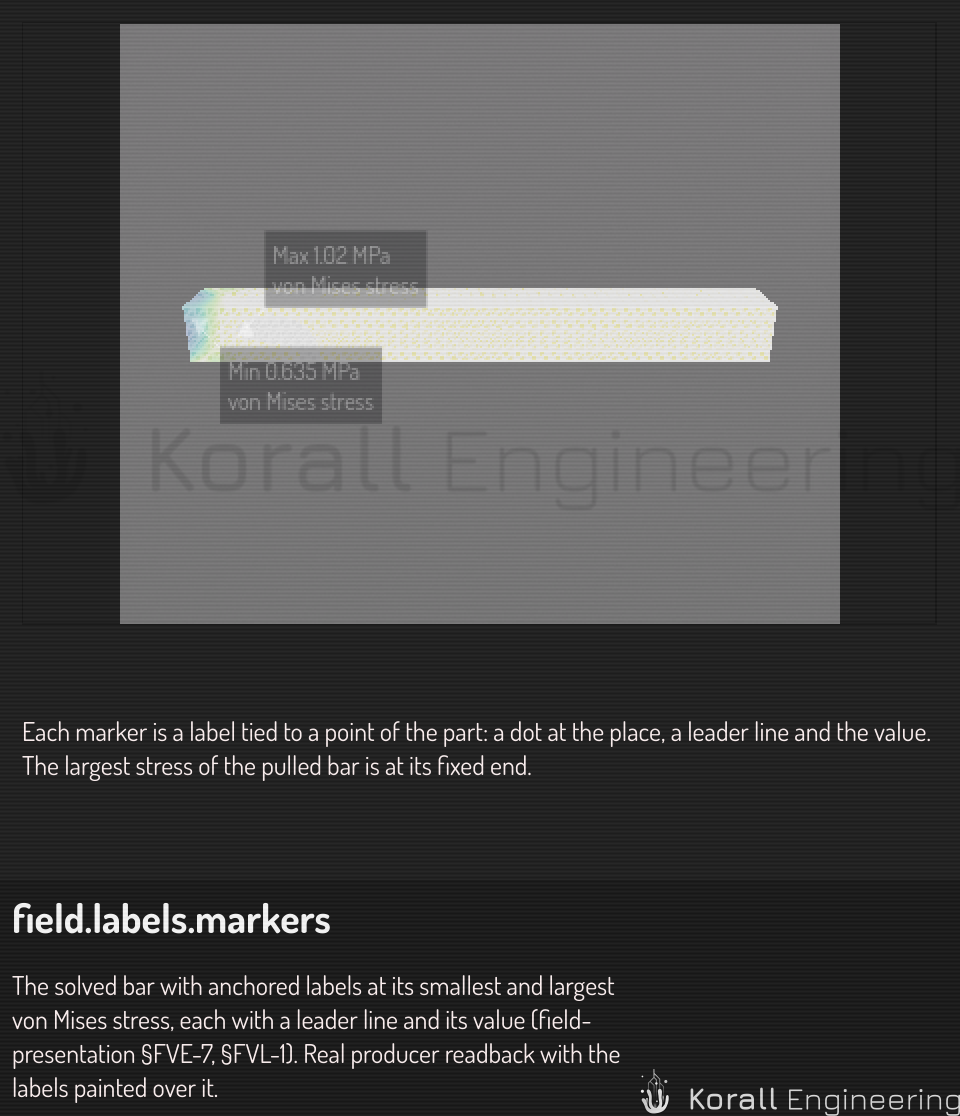
A peak at a support is often a corner of the model, not a real weak spot: the stress at a sharp corner grows when the mesh grows finer. A marker on the cut side of a cut plane does not show while Scope is Visible.
A marker whose place is inside the part shows dimmed, with a dashed leader. See How fields are shown.
Read a value under the cursor
Move the pointer over the volume. The readout in the corner of the viewport adds a line with the value of the shown field at the point, for example "von Mises 182.4 MPa (interpolated)". The legend marks the same value with a tick. "Interpolated" means that the point is between the nodes: the value is weighted from the values at the corners of the element. On a deformed volume, the value belongs to the point of the part as modeled that moved under the pointer.
Probe values
A probe is a pinned point of the volume. It shows every field at that point, and it keeps the point, not the value: after a new solve or a change of the shown field, it reads the new value at the same place.
To pin probes:
- Right-click the volume's row and choose Tet ▸ Add probe.
- Click on the volume. Each click pins one probe, named P1, P2 and so on.
- Press Esc to stop.
Each probe draws as a label with its name and the value of the shown field. A probe inside the part, behind a surface or a cut, draws dimmed. The Probes tab of the left panel lists the probes of the selected volume with every field at each: the point, how the value came to be (interpolated, snapped, element, outside) and the order of the interpolation (linear, or quadratic in a Tet10 element). The three rows under the table give the smallest, the largest and the mean value of each column.
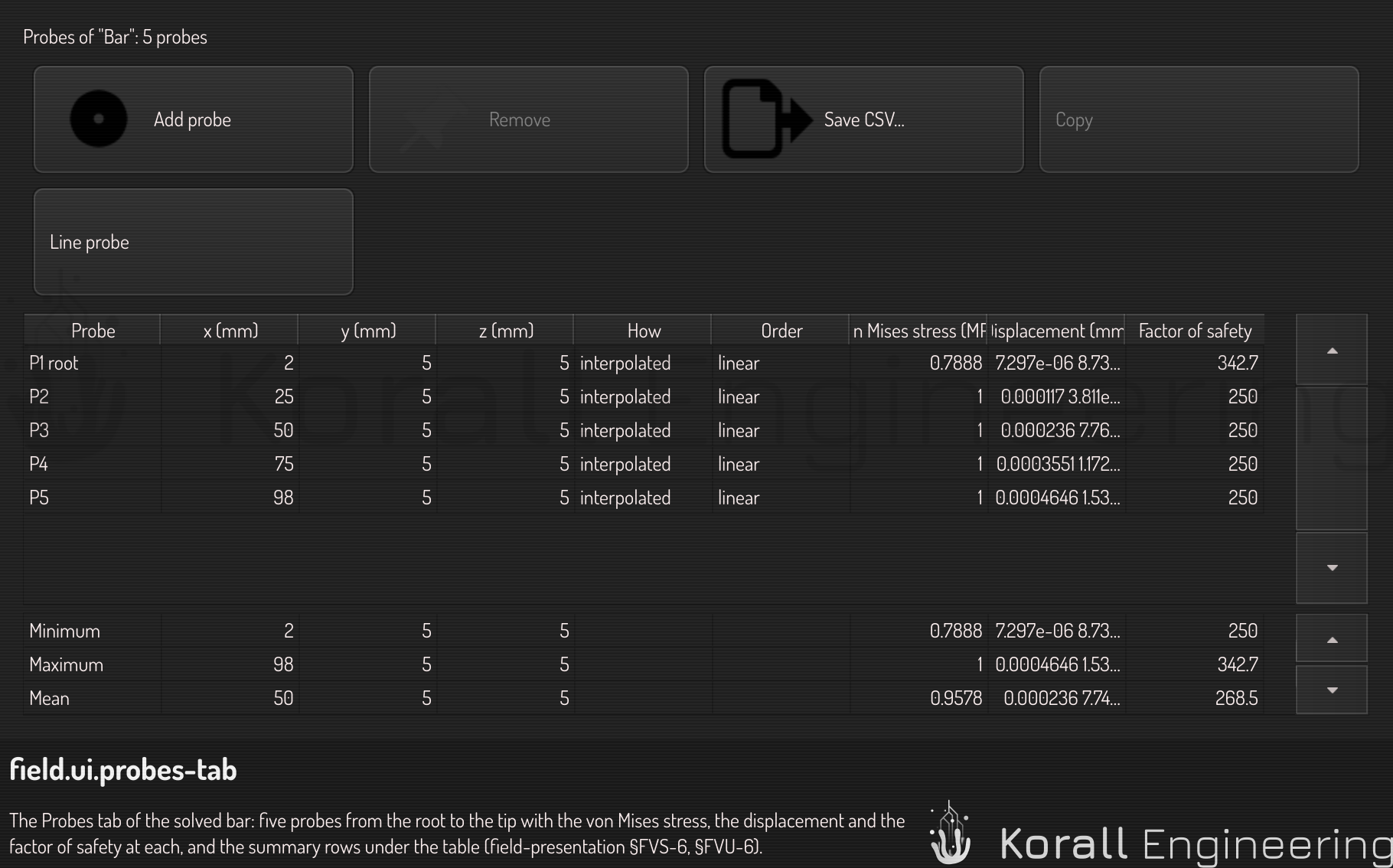
In the table:
- Click a row to select its probe label in the viewport. Click a probe label to select its row.
- Double-click a row, or press Enter, to frame the probe.
- Press Delete to remove the selected probes. Each change is one undo step.
- Press Ctrl+C to copy the selected rows as tab-separated text, with the header row. A spreadsheet pastes them as columns.
- Click Save CSV… to write every probe to a file. The file uses
.as the decimal mark and names the unit in each header cell, in every language setting.
A probe outside the mesh after a remesh stays. Its row says "outside" and gives the distance to the mesh.
Plot a field along a line
- Choose Tet ▸ Line probe, or Line probe in the Probes tab.
- Click the start of the line on the volume, then its end.
The Probes tab shows a graph of the shown field along the line, at 200 even steps. The x axis is the distance from the start. A step outside the mesh is a gap in the line, not a zero. Move the pointer over the graph to mark the step on the part.
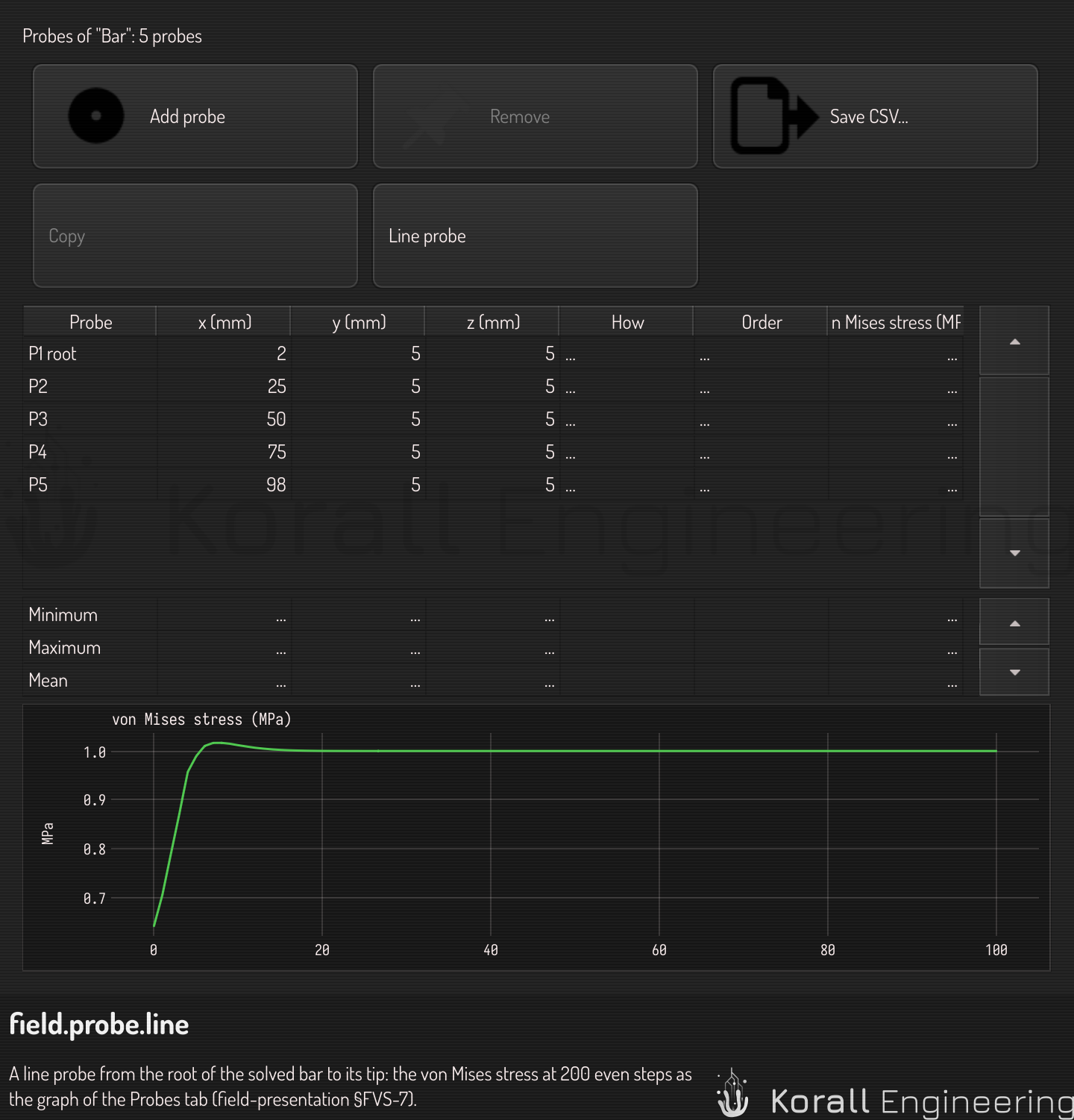
The statistics over a region
The OPAL task construct.field.statistics gives the count, the smallest and
the largest value with their places, the mean, the integral and the measure
of a field over a region: the volume of a Volume region, the area of a
Surface region, the length of an Edge region. The measures are those of the
part as it shows in the scene, so a scaled part gives a scaled integral. A
Node region has no integral.
Look inside
The surface shows only the outside of the part. To see the field inside, cut the volume open with cut planes, or show only the elements where a value passes a limit.
Cut planes colored by the field
- Open the box of the volume's row.
- Turn on the Cut plane row. The volume gets a cut presenter with one plane, at the center of the volume.
- Set Axis, Offset and Flip for the plane.
- To add a plane, click Add plane in the box of the cut presenter. A new plane goes on the next axis, at the center of the volume. A volume has up to six planes. Remove plane removes the last one.
You can also choose Add presenter ▸ Cut planes.
Each plane removes the half of the volume on one side. A part of the volume shows only when it is on the kept side of every plane that is on. The face of each cut is a cap. A cap shows the field in the same colors and with the same legend as the surface, so a color on the cap and on the surface means the same value where they meet. The caps move with the part when it shows its deformation. To show the cuts without caps, turn off Caps.
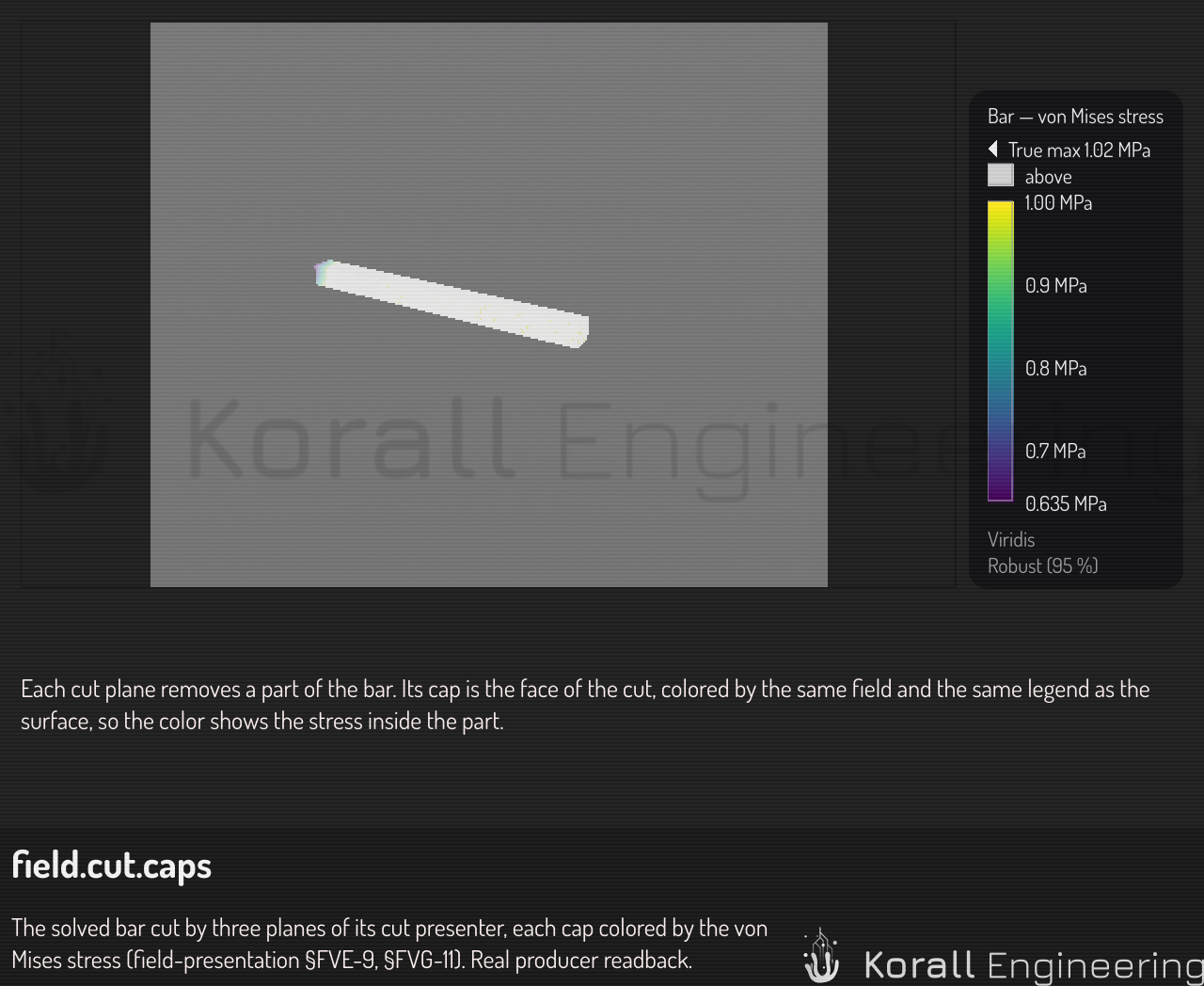
On a large volume, the caps of a new plane position need some time. Until they are ready, the viewport shows the caps of the last position. When the planes keep no part of the volume, nothing shows and the row of the cut presenter says "The planes keep nothing".
Show only where the factor of safety is below 2
- Right-click the volume's row and choose Tet ▸ Threshold….
- In the dialog, set Test to Below, Above or Between.
- Set Value. For Between, also set High value.
- Click OK.
The volume then shows only the elements whose value passes the test. The dialog tests the field that the volume shows. For a field at the nodes, an element shows when one of its nodes passes: no element with a failing node hides. The elements that stay make a closed surface. Where they end inside the part, that surface shows the field too.
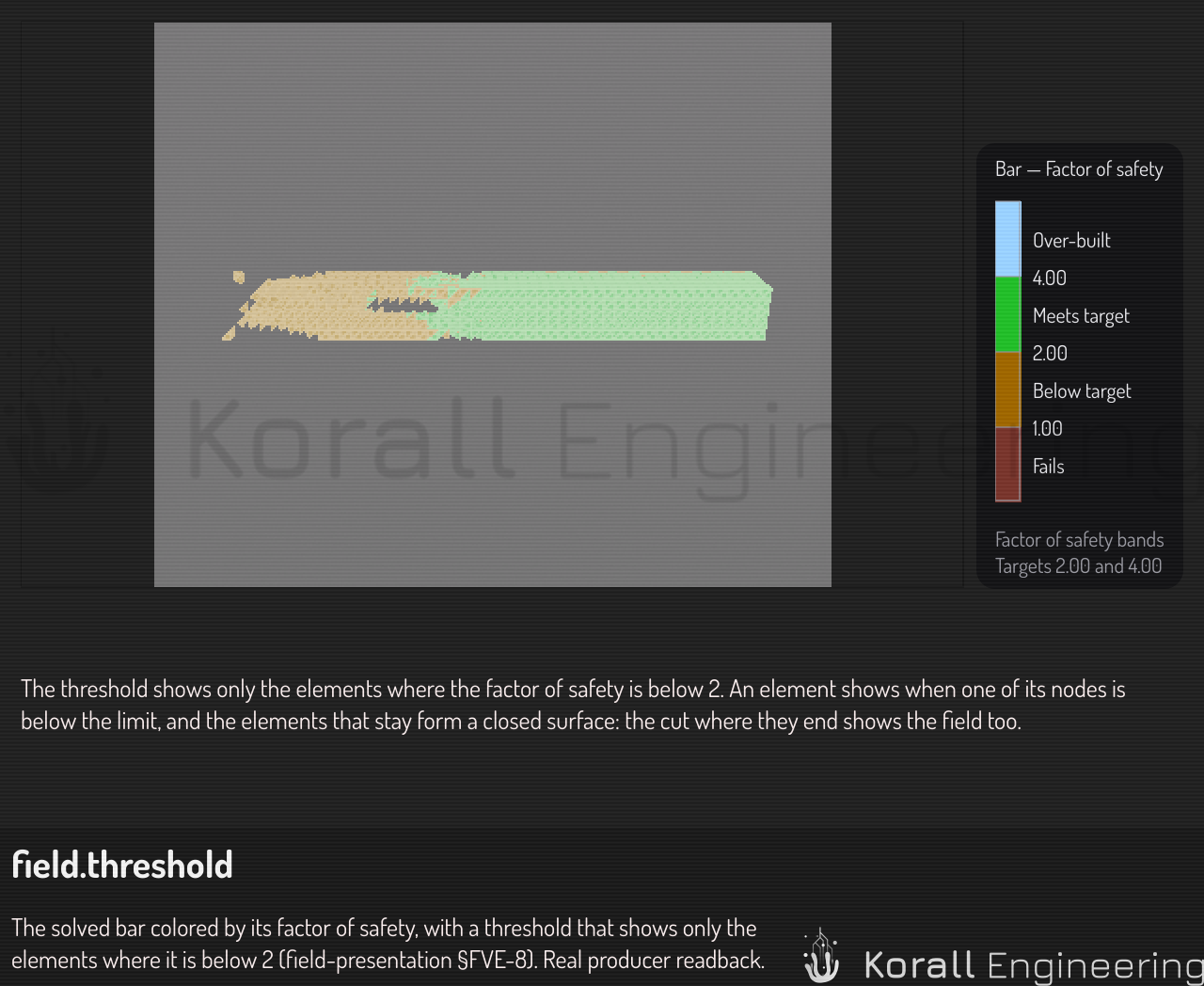
A new threshold without a test of its own takes a default. For the factor of safety it is Below, at the value under which a quarter of the elements are. For any other field it is Above, at the value over which a quarter of the elements are. When no element passes, nothing shows and the row of the threshold says "No element passes".
The cut planes and the threshold work together: an element shows when it passes the threshold and is on the kept side of every plane.
Compare two solves
Each solve of a volume goes into its history. The history keeps the last eight solves. To keep the solve that shows for longer, right-click the volume's row and choose Tet ▸ Keep this solve. A kept solve does not drop from the history.
To show an earlier solve beside the volume:
- Change the setup and choose Tet ▸ Solve… again. For example, double the load.
- Right-click the volume's row and choose Tet ▸ Compare with ▸.
- Choose an earlier solve. Each entry shows the time of the solve and its largest stress.
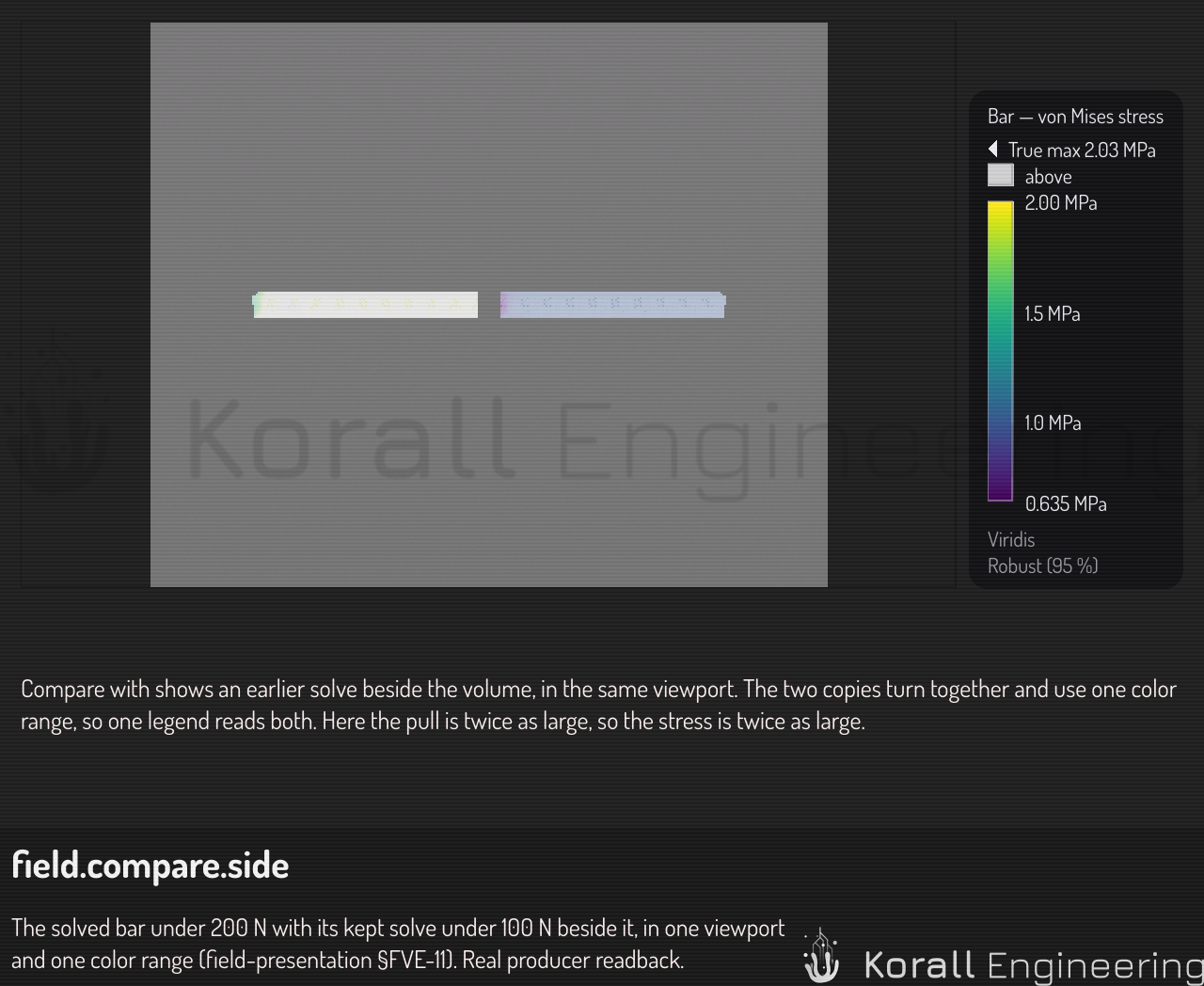
The earlier solve shows beside the volume, in the same viewport. The two copies turn together when you move the camera. They use one color range, so one legend reads both. The second copy is an aid for the viewport: it takes no click, and a render, an export and a thumbnail do not show it.
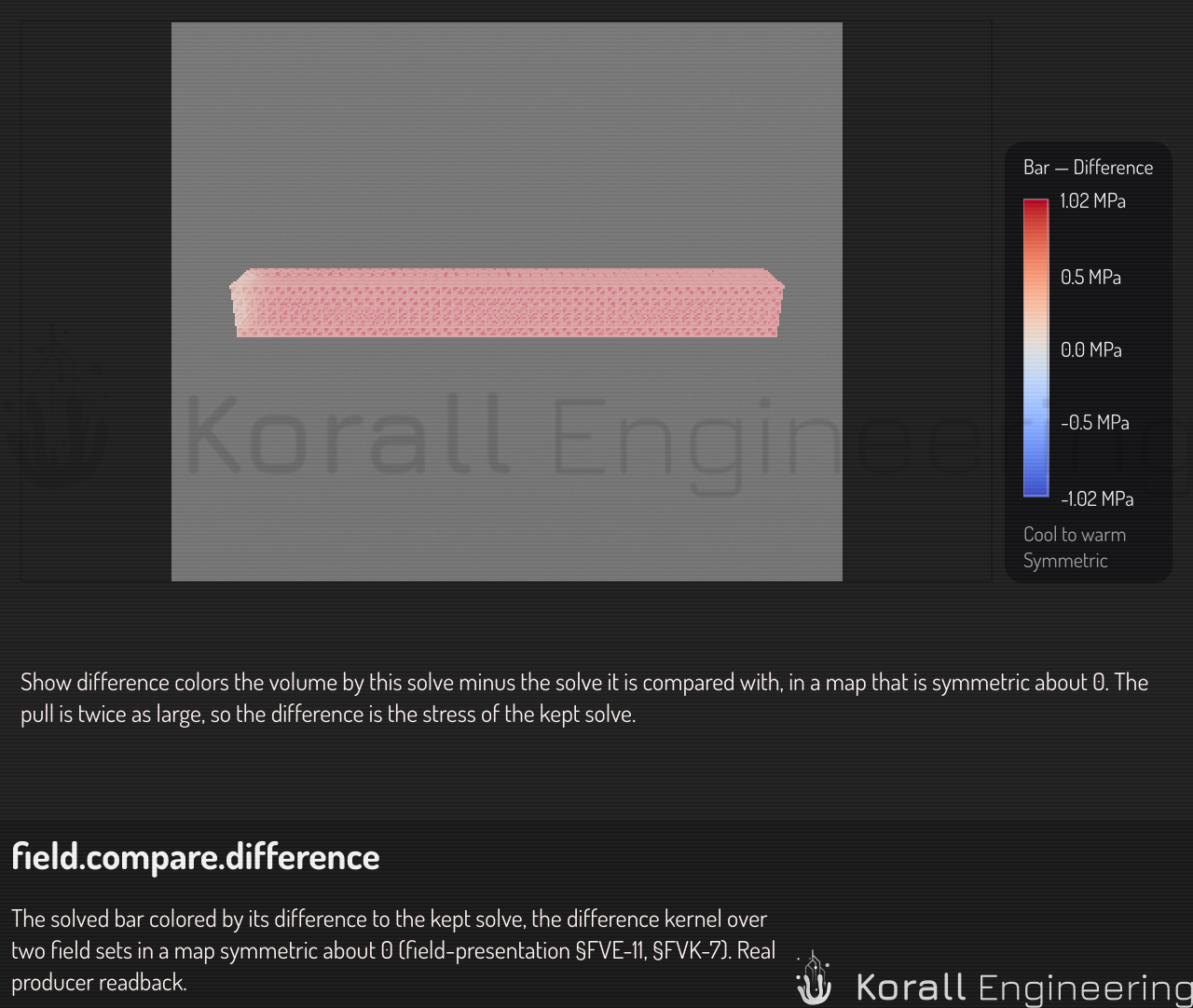
To see what changed, choose Tet ▸ Show difference. The volume then shows this solve minus the earlier solve. The map is symmetric about 0, so a color shows if a value went up or down. Choose Show difference again to show the field as before. Tet ▸ Compare with ▸ Off stops the comparison.
When the earlier solve is on another mesh, for example after Tet ▸ Quadratic elements, its values come onto this mesh at each node, and the legend says "interpolated". A node outside the earlier mesh has no value. When the file of an earlier solve is gone, its entry says "not available" and you cannot compare with it.
Show arrows and principal axes
The color shows one value at each point. Glyphs show a direction too.
- Tet ▸ Show glyphs draws arrows of a vector field, such as the displacement.
- Tet ▸ Show principal axes draws the three principal axes of a tensor field, such as the stress. Each axis is a pair of lines through the point, as long as its value. Tension has heads that point out. Compression has heads that point in.
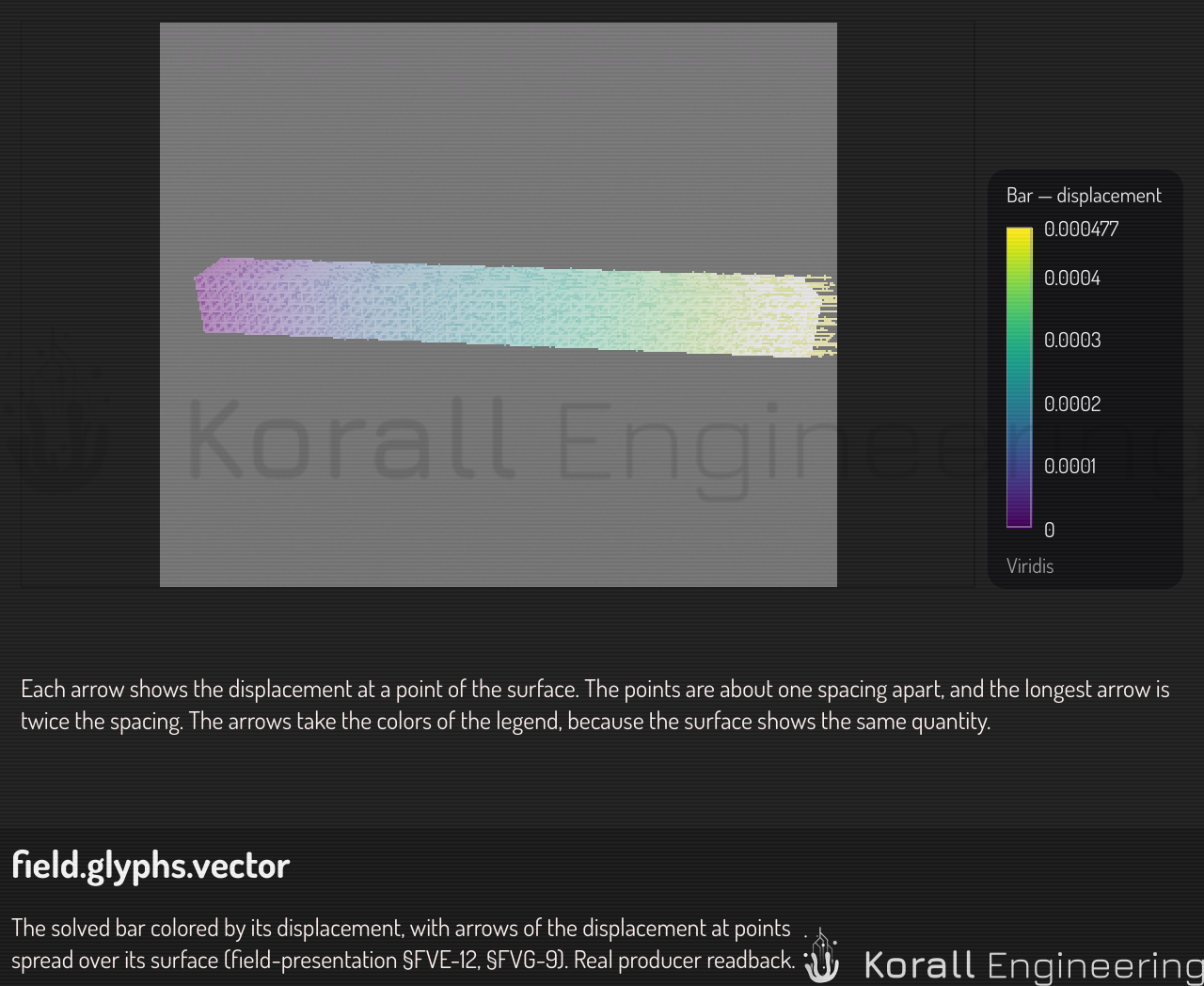
The glyphs sit at points spread over the surface, about one Spacing apart. The spacing is a part of the diagonal of the volume's box: 0.025 by default. With Length set to Scaled, the longest glyph is twice the spacing. With Uniform, every glyph has the same length. Set Where to Section to put the glyphs on the caps of the cut planes. The glyphs follow the cut planes and the threshold, and they move with the part when it shows its deformation.
When the surface shows the same quantity, the glyphs take the colors of its legend: for example, arrows of the displacement on a volume colored by the displacement. Otherwise the glyphs take a colormap of their own over their own range.
A volume shows at most 20 000 glyphs. When the spacing asks for more, the row of the glyphs presenter says so: set a larger spacing to show a glyph at every point. A mesh item can show glyphs too, from Mesh ▸ Show glyphs.
When the result is out of date, and when it goes
The results stay with the volume until something makes them wrong:
| You do this | The results |
|---|---|
| Move, turn or scale the volume, or one of its parents | Stay, and the legend says "Out of date: the part moved" |
| Change or remove a region that the solve used | Stay, and the legend says which region |
| Bake ▸ Regenerate the volume | Go: the volume is new. The setup stays, so Solve… opens with it |
| A Tet ▸ operation, for example Remove degenerate tets | Go, in the same undo step as the operation |
| Tet ▸ Remove results | Go, with the setup. Undo brings them back |
Nothing solves again by itself. Choose Tet ▸ Solve… when you want a new result.
When the solve fails
A failed solve does not change the volume. A message says why:
| Message | What to do |
|---|---|
| Support "Base" selects no node of "Part" | Move or resize the region so that it covers part of the volume |
| The volume mixes Tet4 and Tet10 elements | Bake the volume again, or run Quadratic elements on all of it |
| 3 tets have no volume | Run Tet ▸ Remove degenerate tets first |
| Piece 2 of 3 has no support | A part of the volume is not joined to the rest. Hold each piece, or remove the loose one |
| The supports of piece 1 lie on one line | The part can turn about that line. Add a support off the line |
| The solve did not reach an answer | Hold the part with more supports, or improve the tetrahedra |
| The iterative solver did not converge | Choose Direct in the dialog |
| Load "Tip" is zero | Give the load a value |
Accuracy
- Linear tetrahedra are stiff in bending. A beam of Tet4 elements bends less than a real beam. For a part that bends, run Tet ▸ Quadratic elements (Tet10) before the solve. The dialog shows a note when the volume is Tet4.
- Slivers give a less reliable stress. A sliver is a tetrahedron with a dihedral angle under 5°. The solve warns when the volume has slivers. Tet ▸ Improve (collapse, swap, smooth) removes many of them, before Quadratic elements (Tet10). See Improve a tet volume.
- A finer volume gives a better stress near corners and holes. Bake again with smaller cells where the stress is high.
Script it
The OPAL task construct.tet.solve runs the same solve:
{"task": "construct.tet.solve", "args": {
  "item": "Bar",
  "material": "steel",
  "supports": [{"region": "Root", "type": "fixed"}],
  "loads": [{"region": "Tip", "kind": "force", "value": [100, 0, 0]}]
}}
It waits for the result and returns the largest displacement, the largest
stress and the smallest factor of safety. With "wait": false it returns
the job id at once, and the OPAL chat shows the result card when the job
ends. construct.tet.remove_results removes the results.
With "present": true, the default, the solve also animates the
deformation and marks the largest von Mises stress and the largest
displacement, next to the smallest factor of safety. These changes are in
the undo step of the solve, so one undo removes them with the result.
"present": false keeps the view of Read the result.
The output presentation is JSON that says what the view shows after the
solve:
| Key | What it holds |
|---|---|
present |
The value of present that applied |
deform |
The deform presenter: id, shown, scaleMode, preset, animate, cycle, period |
animating |
true when the deformation animates |
color |
The color presenter: id, shown, field, rangeMode, colormap, and targets for the bands of the factor of safety |
markers |
Each markers presenter: id, shown, field, show |
marks |
minFactorOfSafety, maxVonMises and maxDisplacement: which of the three marks are on |
setup |
true when the setup shows |
next |
The tasks that add the rest, each with task, args and does: the animation, the missing markers and a von Mises view. Each step runs as it is |
After a solve, the OPAL chat shows a result card below the row of the task: a small table with the nodes, the elements, the unknowns, the material, the largest displacement, the largest von Mises stress, the smallest factor of safety and the yield strength, the solver and the time. The card is part of the conversation, so the history, a restored conversation and the PDF export show it too. A bake, a mesh or tet step and a video export show a card of their own numbers.
construct.view.legends lists the legends as the viewport shows them, and
construct.scene.get_item reports the solve, whether its results are
out of date, the presentation and the field set. construct.region.add
makes a region.
construct.tet.history lists the kept solves of a volume, the oldest first,
and pin keeps one. construct.tet.compare compares with one of them, by
its index, in side or difference mode:
{"task": "construct.tet.compare", "args": {"item": "Bar", "with": 0, "mode": "difference"}}
construct.field.verdict gives the verdict of the factor-of-safety view:
the smallest factor of safety (minFos), its element (place), the band
(verdict), the text of the legend (text) and the targets (targets):
{"task": "construct.field.verdict", "args": {"item": "Bar"}}
To change what the volume shows, use construct.presentation.set on its
color presenter. A field can be a name or a kernel over named inputs. After
the factor-of-safety view, set the range mode and the colormap back to
auto, so that the new field gets its own:
{"task": "construct.presentation.set", "args": {
  "item": "Bar",
  "id": "color-1",
  "params": {"field": {"kernel": "von_mises", "inputs": {"tensor": "stress"}},
             "rangeMode": "auto", "colormap": "auto"}
}}
The value tasks read a field and change nothing. A field can be a name or a kernel, shown or not:
| Task | What it gives |
|---|---|
construct.field.sample |
The values at point, with their units and how each came to be, as the hover readout gives them |
construct.field.extremes |
The smallest (min), the largest (max) or the n highest peaks (peaks), each with its place |
construct.field.quantile |
The value under which the fraction q of the surface or of the volume is |
construct.field.range |
The smallest and the largest value with their places, and the count of values that are not numbers |
construct.view.labels |
The labels of the markers and the probes as the viewport shows them |
{"task": "construct.field.sample", "args": {"item": "Bar", "point": [90, 5, 5],
  "fields": [{"kernel": "von_mises", "inputs": {"tensor": "stress"}}, "displacement"]}}
{"task": "construct.field.extremes", "args": {"item": "Bar", "kind": "min",
  "field": {"kernel": "factor_of_safety", "inputs": {"tensor": "stress", "limit": "yield"}}}}
{"task": "construct.field.quantile", "args": {"item": "Bar", "field": "displacement", "q": 0.95}}
The probe tasks pin, list and export probes. construct.probe.add_many pins
up to one million in one undo step, and construct.probe.list reads them a
page at a time:
{"task": "construct.probe.add", "args": {"item": "Bar", "point": [90, 5, 5]}}
{"task": "construct.probe.list", "args": {"item": "Bar", "offset": 0, "limit": 100}}
{"task": "construct.probe.export_csv", "args": {"item": "Bar", "path": "/tmp/probes.csv"}}
{"task": "construct.probe.line", "args": {"item": "Bar", "a": [0, 5, 5], "b": [100, 5, 5], "samples": 50}}
{"task": "construct.field.statistics", "args": {"item": "Bar", "field": "displacement", "region": "Tip"}}
To look inside, add a cut or a threshold presenter.
construct.field.count gives how many elements or nodes of a field are in
an interval, and their fraction:
{"task": "construct.presentation.add", "args": {"item": "Bar", "kind": "cut",
  "params": {"planes": "[{\"axis\":1,\"offset\":5}]"}}}
{"task": "construct.presentation.add", "args": {"item": "Bar", "kind": "threshold",
  "params": {"test": "below", "value": 2}}}
{"task": "construct.field.count", "args": {"item": "Bar", "field": "factor_of_safety", "high": 2}}
To change the range of a legend, use construct.legend.set. It changes each
item that shares the legend, in one undo step:
{"task": "construct.legend.set", "args": {
  "legend": 0,
  "range": {"mode": "manual", "min": 0, "max": 250}
}}