Mesh and tet volume items
Tell the two passenger types apart, color them by a value and process a mesh
A tri mesh item and a tet volume item are finished geometry in the scene. A bake makes them from an SDF branch, and an import makes them from a file. This page tells how to import them, how to tell the two types apart, how to color them by a value and how to process them.
Import a mesh or a tet volume
- Point at the gap in the scene tree where the item must go. A tag appears in the gap. Click its Mesh button. Or click Import… in the Things finder. Or choose Import mesh or tet volume… in a row's menu.
- Choose the file. The dialog lists the formats that Construct reads: STL, OBJ, PLY and VTK.
- The item appears at once with a progress mark, and fills in when the file is read.
The file decides what the item is:
| The file holds | It becomes |
|---|---|
| Triangles or other faces | A tri mesh item. An OBJ with several materials becomes one item per material, in one undo step |
| Linear tetrahedra | A tet volume item. Faces in the same file are dropped, because the volume draws its own surface |
| Other volume elements, such as hexahedra | Nothing. The import names what the file holds |
The item lands where you opened the import: under the group of that gap, or at the root. The item keeps the path of its file, relative to the saved scene. When the file changes on disk, Construct offers to reload it.
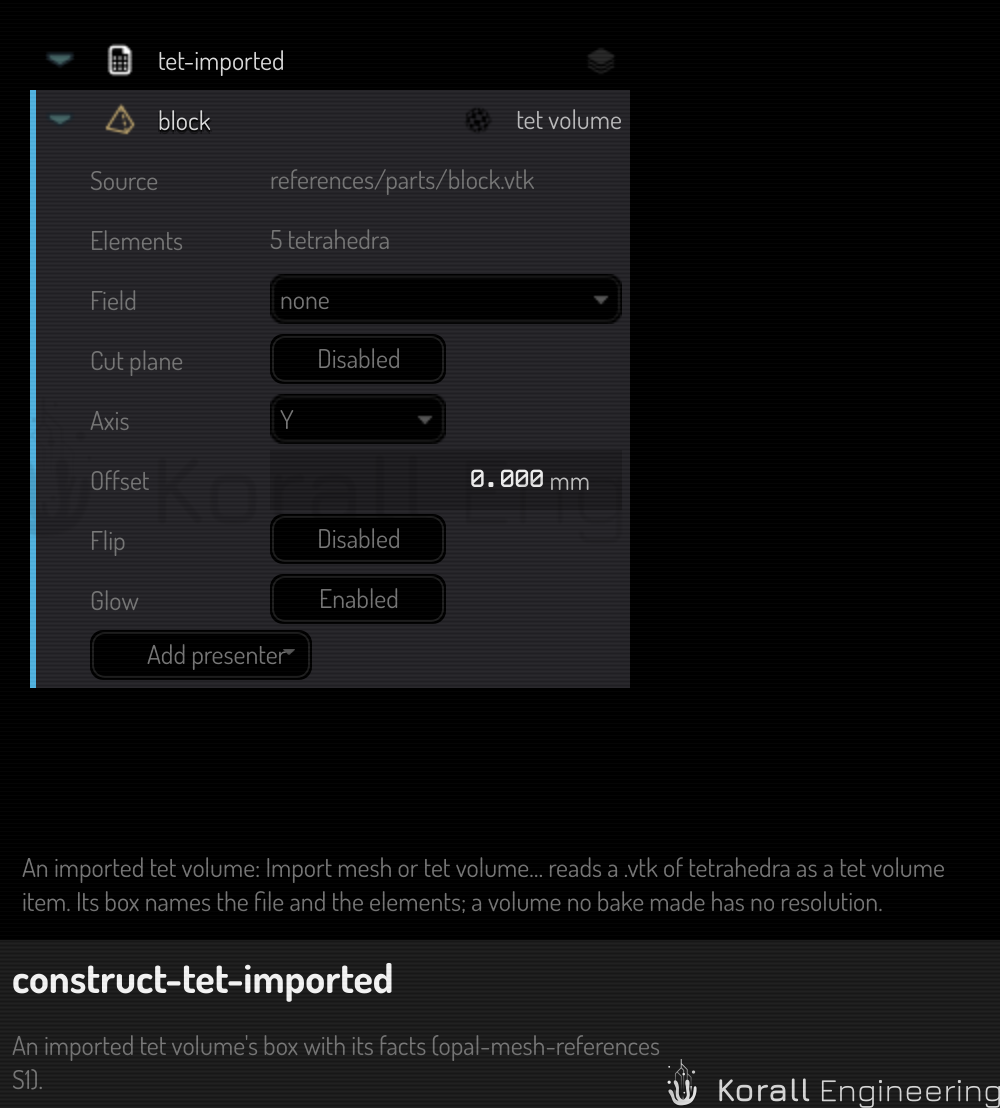
The OPAL task construct.item.import_file does the same. OPAL uses it when you
give it a model file as a reference, see
Ask OPAL to look at your scene.
Tell a mesh from a tet volume
From the outside, a tet volume looks like a tri mesh: you see the triangles of its boundary. The viewport gives each type its own tone, so you can tell them apart.
- A tri mesh shows the primary color of the palette, turned by half a turn of hue.
- A tet volume shows the primary color, turned by three quarters of a turn.
- Both types draw the edges of their triangles, a little lighter than the surface.
- The scene tree row shows the same tone as the viewport.
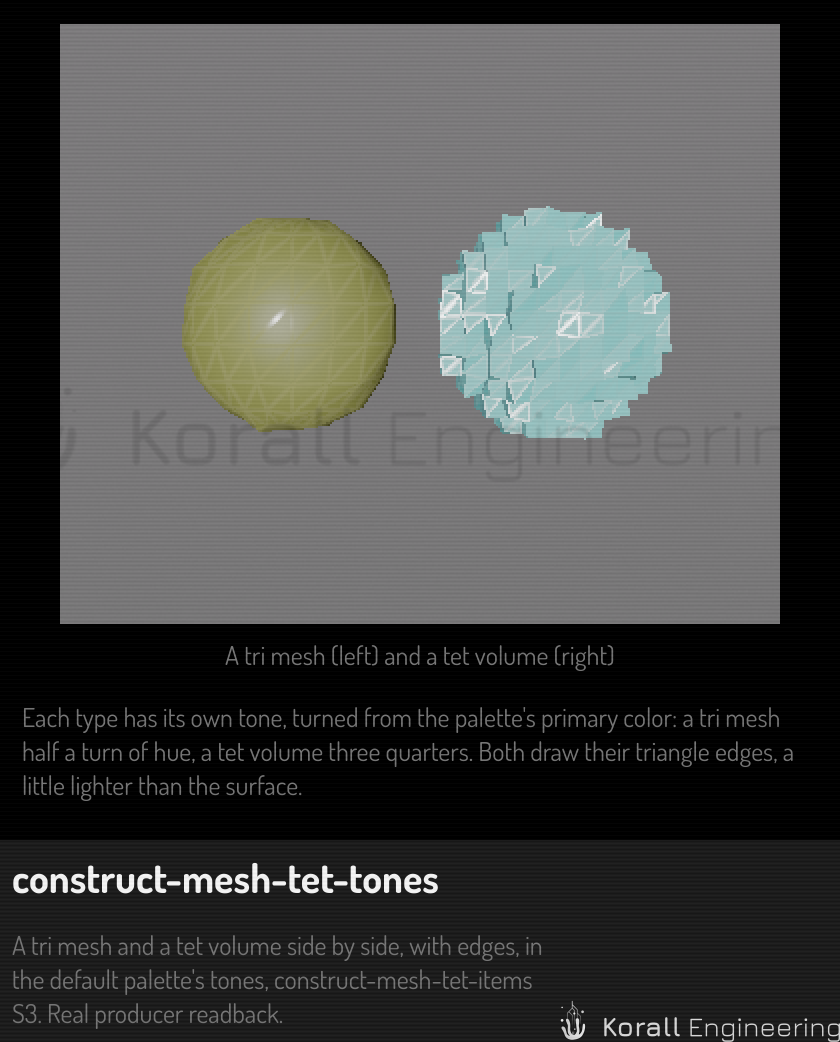
If you give the item a material, the material colors the item instead of the tone. A hovered or selected item shows its outline only.
Color an item by a value
An item can show a scalar field of its asset through a colormap. To choose the field:
- Right-click the mesh row or the tet volume row.
- Choose Mesh ▸ Field or Tet ▸ Field.
- Choose a field, or none to show the tone again.
The menu lists the fields that the item's asset stores under Stored, then the derived fields under Derived. A tri mesh always has dihedral, the largest angle between two faces at each vertex. A tet volume always has quality, volume, depth, skewness and radius ratio. A result of a simulation that is stored in the file shows as one more field. A derived field is a field kernel that fits the stored fields. The menu shows it by its label and its inputs, for example "von Mises stress (stress)".
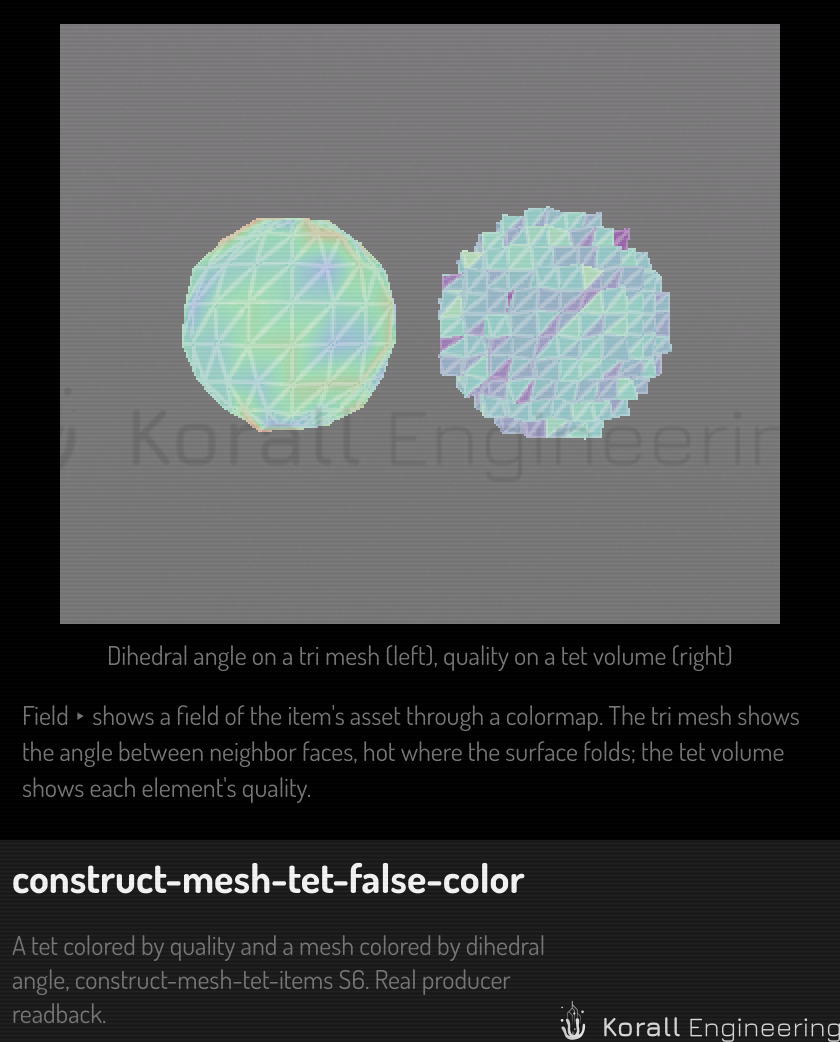
The menu of an item has more entries for its fields. On a mesh, Mesh ▸ has Show min and max, Show peaks, Show glyphs, Show principal axes, Add probe, Line probe, Export probes as CSV… and Export field image…. A probe of a mesh lies on its surface. The Tet ▸ entries are in Work with a tet volume.
The presentation rows
What an item shows of its fields is its presentation: an ordered list of presenters. Each presenter shows the fields in one way:
| Presenter | What it shows | Items |
|---|---|---|
| Color | The surface in the colors of a field | Mesh, tet volume |
| Markers | Labels at the smallest and the largest value, and at the peaks | Mesh, tet volume |
| Probes | Pinned points that show every field there | Mesh, tet volume |
| Glyphs | Arrows of a vector field, or the principal axes of a tensor field | Mesh, tet volume |
| Deformation | The volume moved by a vector field, times a scale | Tet volume |
| Ghost | The rest shape over the moved volume | Tet volume |
| Cut planes | Up to six planes that cut the volume open, with caps in the colors of the field | Tet volume |
| Threshold | Only the elements where a value passes a test | Tet volume |
| Setup | The loads and the supports of a solve | Tet volume |
Solve a tet volume shows each presenter on a solved part.
Click the arrow of the item's row to open its box. The box of a mesh or a tet volume has these rows:
| Row | What it does |
|---|---|
| Field | The field of the color presenter. It has the same choices as the Field ▸ menu |
| Glow | Bloom on the item, on by default. While the item shows a field, it does not glow: bloom would change the colors that the legend names |
| Load case, Mode, Time, Iteration | One row for each axis that the fields vary over, when it has more than one value. Every presenter of the item shows the value that the row chooses. A time and an iteration have a Play button: it steps through the values, ten a second. When you stop it, the item keeps the value where it stopped, as one undo step |
| A presenter header | The name of the presenter kind and the field that it shows. Its buttons fold the parameter rows, show or hide the presenter, move it up or down, and remove it |
| The parameter rows | The parameters of the presenter, below its header. The rows of the color presenter are open by default |
| Add presenter | A menu of the presenter kinds that the item takes. A kind is disabled when the item already has the most of it, for example a second Color |
Each change is one undo step, and one drag of a number is one step. Undo restores the field that the item showed before.
When a presenter draws nothing, its header tells you why, in the warning color. For example, the field is not in the item's field set, or a ghost has no deformation to show. The presenter stays in the list, so a new solve that writes the field shows it again. A field row offers only the fields that its presenter takes: a deformation takes a vector field, and a threshold takes a scalar field.
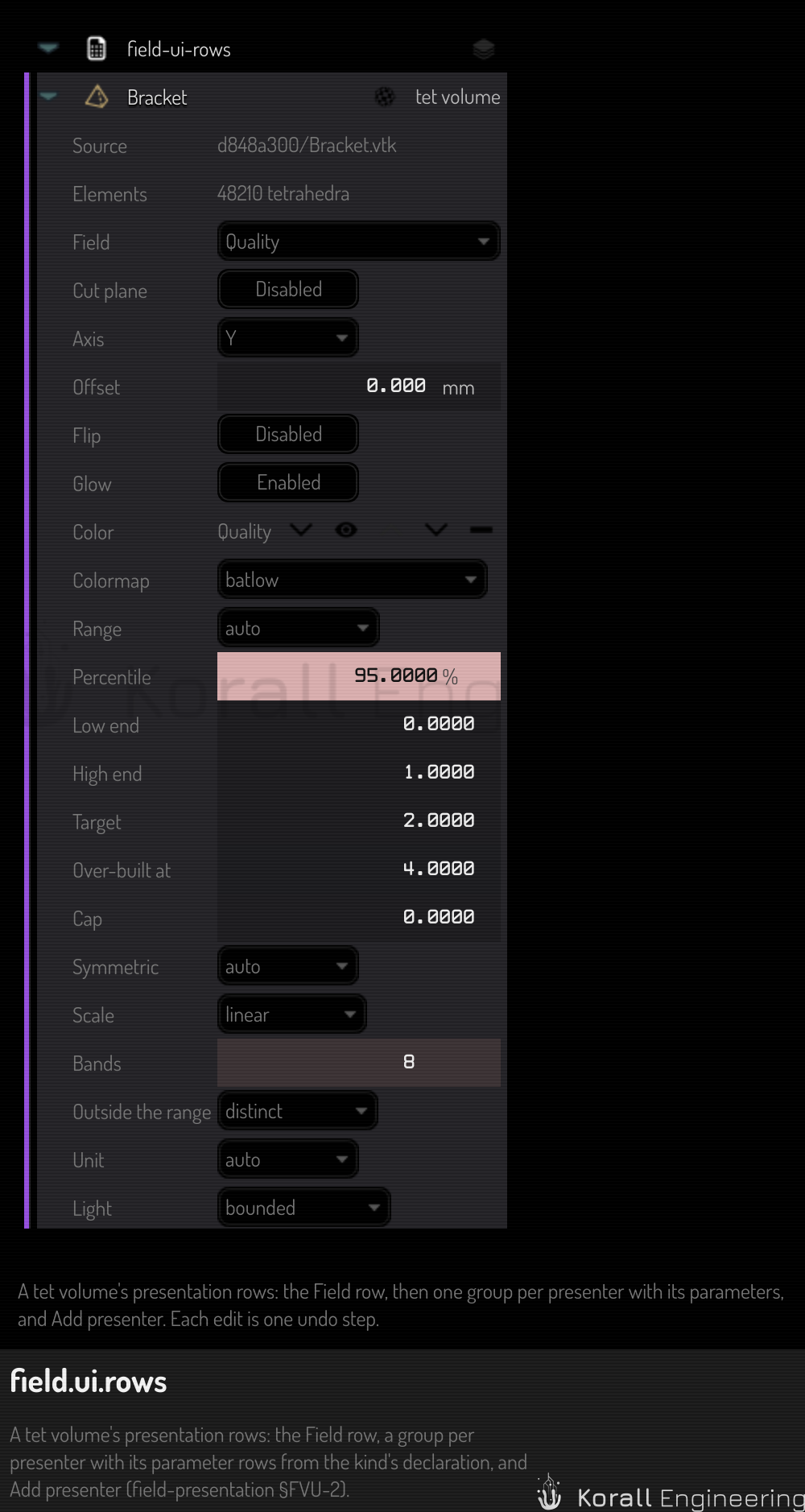
The color presenter has these parameter rows:
| Row | What it sets |
|---|---|
| Colormap | The table of colors. auto uses the field's own map, for example heat for the dihedral angle. Else it uses fos-bands for a targets range, cool-warm for a signed field and viridis for a field that is not negative |
| Range | How the two ends of the range are chosen. See the range modes below |
| Percentile | The high end of a robust range, from 50 to 100 %. The default is 95 |
| Low end, High end | The two ends of a manual range |
| Target, Over-built at | The two thresholds of a targets range. The defaults are 2 and 4 |
| Cap | The high end of a one-sided range, shown as "≥" and the cap. 0 uses the cap of the field's kernel, which is 15 for the factor of safety |
| Symmetric | auto, on or off. On makes the range plus and minus the largest absolute value, so 0 is the middle. auto is on for a signed field |
| Scale | linear or log. A range that holds 0 or a negative value refuses log, and the legend says why |
| Bands | 0 for a smooth map, or 2 to 24 flat steps of color |
| Outside the range | distinct, clamp or hide. See Values outside the range |
| Unit | auto, or a unit of the same dimension. The legend and the hover text change. The colors do not change |
| Light | bounded or flat. Flat shows the exact colors of the legend |
The Range row has these modes:
| Mode | The two ends |
|---|---|
| auto | The default of the field's kernel: robust for a stress, such as von Mises stress, targets for the factor of safety, and full for the other fields |
| full | The smallest and the largest value of the field |
| robust | The smallest value and the percentile of the Percentile row. One peak element then does not make the rest of the part one color |
| manual | The values of the Low end and High end rows |
| targets | 0 to the cap. The bands of fos-bands meet at 1, at the target and at the over-built threshold |
A new field keeps the colormap and resets a manual range.
The legend
When an item shows a field, a legend appears at the bottom right of the viewport. It gives the item, the field and its unit, the colormap and five values of the range. Its caption names the range mode, for example "Robust (95 %)", "Manual" or "Targets 2 and 4". For a robust range, a line over the bar gives the true maximum of the field. A mark ≥ at the top says that some values of the field are above the range, and ≤ at the bottom that some are below it. Items that show the same field with the same range and colormap share one legend. At most three legends show. A last line counts the others. The legend is part of the viewport, not of the scene. A rendered image shows it only with the option Field overlays of the render export. Tet ▸ Export field image… and Mesh ▸ Export field image… open the render export with that option on. See Read the result.
The legend takes the mouse:
| Do this | Result |
|---|---|
| Drag the top or the bottom end of the bar | A manual range. The range changes while you drag. The release makes one undo step |
| Double-click an end | A box for the value of that end. Enter applies the value, and Esc cancels |
| Right-click, then Range ▸ | Full, Robust (95 %), Manual or Targets. Then the toggles Symmetric and Log |
| Right-click, then Reset range | The default range mode of the field |
| Right-click, then Unit ▸ | The units of the field's dimension |
| Right-click, then Colormap ▸ | The colormaps by kind. The rainbow maps show "not perceptual" |
| Right-click, then Bands ▸ | Smooth, 6, 8, 10 or 12 bands |
A legend that several items share changes all of them, in one undo step. Its tooltip gives the count, for example "Range of 3 items".
Process a mesh
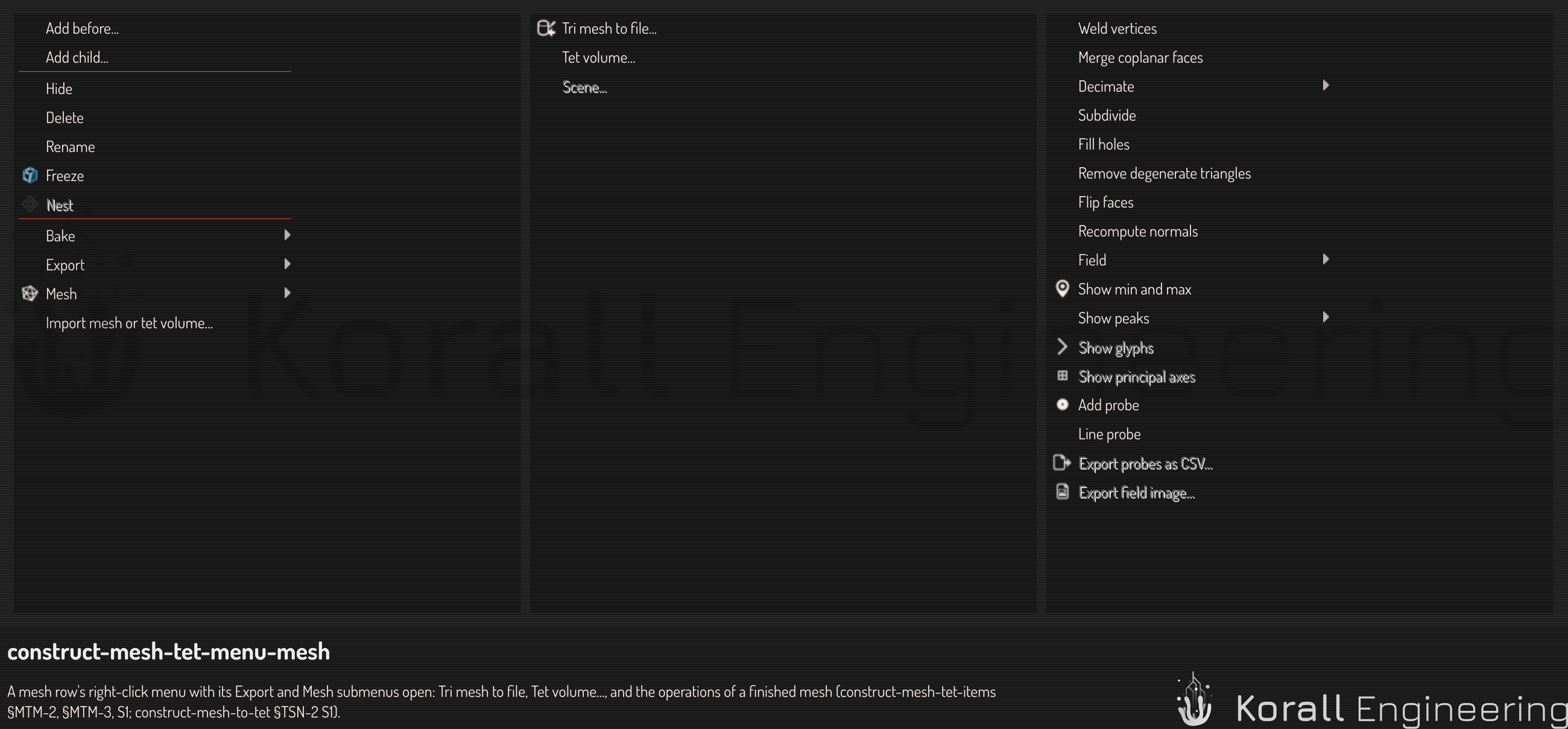
The Mesh ▸ submenu of a mesh row holds the operations that work on a finished mesh:
| Entry | What it does |
|---|---|
| Weld vertices | Joins the vertices that are at the same position |
| Merge coplanar faces | Joins the neighbor triangles that are in one plane |
| Decimate ▸ 50 % · 25 % · 10 % | Keeps that part of the triangles and keeps the shape as near as it can |
| Subdivide | Splits each triangle into four and smooths the surface |
| Fill holes | Closes each hole of up to 100 boundary vertices |
| Remove degenerate triangles | Removes the triangles that have no area |
| Flip faces | Turns each triangle to face the other way |
An operation changes the item. It does not add a new item.
- The operation runs as a job, and the row shows that it is busy. You can work in the scene while it runs.
- The job writes the result as a new file next to the old file.
- The item then uses the new file, and the viewport draws it.
Each operation is one undo step. Undo goes back to the old file, which stays on disk while an undo or a redo step can use it. When you save the scene, the app deletes the files of operations that no item and no undo step uses. It looks only in the scene's own bake folders, and it keeps a file that another scene in the same folder uses. If you delete the item, or undo an earlier operation on it, while the job runs, the scene ignores the result of the job.
The item records each operation that it got. If you regenerate a baked mesh, the bake runs again from its SDF branch with the settings of the first bake, and then each recorded operation runs again, in the same order.
The operations that need an SDF field, for example the surface projection of the export dialog, are not in this menu. A finished mesh has no field.
Work with a tet volume
The Tet ▸ submenu of a tet volume row holds:
| Entry | What it does |
|---|---|
| Remove degenerate tets | Removes the tetrahedra that have no volume |
| Laplace smooth | Moves each inner node toward the middle of its neighbours. See Improve a tet volume |
| Skewness smooth | Moves the inner nodes of the most skewed tetrahedra to make them less skewed |
| Face and edge swap (2-3, 3-2) | Replaces two tetrahedra by three, or three by two, where that makes them less skewed |
| Sliver collapse | Removes slivers by joining two inner nodes of each |
| Improve (collapse, swap, smooth) | Runs the three above in rounds, until a round does not help |
| Quadratic elements (Tet10) | Adds a node at the middle of each edge, for a more accurate solve. Do it last |
| Field | Chooses the field that colors the volume. See Color an item by a value |
| Show deformed | Moves the volume by its displacement, at a scale that makes the motion visible. A check shows that it is on. See See how the part moves |
| Deformation scale | Auto, 0.5×, 2× or 5× of auto, True scale or Off |
| Animate deformation | Moves the volume from its rest shape to the deformed shape and back. The document does not change |
| Show min and max, Show peaks | Marks the extremes or the local peaks of the shown field. See Find the weak spot |
| Show glyphs, Show principal axes | Draws arrows of a vector field, or the principal axes of a tensor field. See Show arrows and principal axes |
| Show loads and supports | Draws the setup of the solve. See See the loads and the supports |
| Factor of safety view | Turns the factor-of-safety view of a solved volume off and on. See Read the result |
| Add probe, Line probe, Export probes as CSV… | Pins probes, plots a field along a line, and writes the probes to a file. See Probe values |
| Export field image… | Opens the render export with the legends and the labels in the image |
| Export animation… | Writes a video of the deformation, or of each value of an axis. See Export a rendered animation |
| Threshold… | Shows only the elements where the field passes a test. See Look inside |
| Quality summary | Shows the quality, the dihedral angles, the skewness in the five quality bands and the radius ratio of the elements |
| Solve… | Finds the displacement and the stress of the volume under loads. See Solve a tet volume |
| Remove results | Removes the fields and the setup of the last solve. Undo brings them back |
| Keep this solve, Compare with, Show difference | Keeps a solve in the history, shows an earlier solve beside this one, and colors the volume by the change. See Compare two solves |
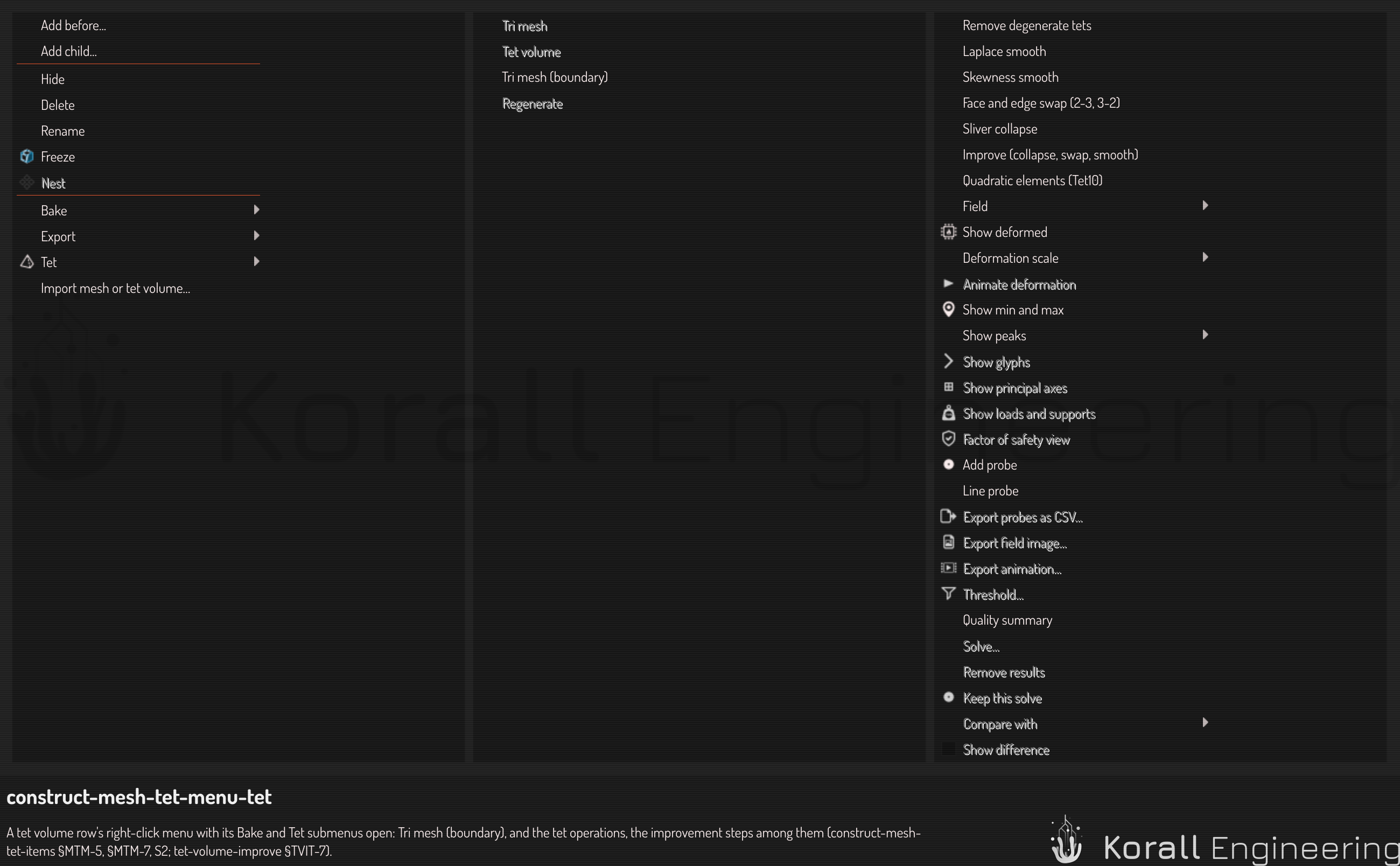
Remove degenerate tets and the improvement entries are operations, as the ones of the Mesh ▸ submenu: one job, one new file and one undo step. The cut plane is in the expanded row of the tet volume. See Cut a tet volume open.
A tet volume that you baked from an SDF item can also regenerate. Choose Bake ▸ Regenerate on its row. The bake runs again with the settings of the first bake, and then each recorded operation runs again.
Solve… runs a linear static analysis of the volume: you give a material, the regions that hold the part and the regions that load it, and the volume gets its displacement and its stress as fields that Tet ▸ Field shows. See Solve a tet volume.
The quality of a tetrahedron is its shortest edge divided by its longest edge. A regular tetrahedron has quality 1. A sliver, which has one very short edge, has a quality near 0. The solver gives a less accurate result in slivers, so a volume with many elements under 0.1 needs a finer bake, or the steps of Improve a tet volume.
Two more measures show how far a tetrahedron is from a regular one:
-
Skewness goes from 0, a regular tetrahedron, to 1, a flat one. It is the measure that commercial meshers use for tetrahedra, with these bands:
Skewness Quality 0 to 0.25 Excellent 0.25 to 0.5 Good 0.5 to 0.75 Fair 0.75 to 0.9 Poor 0.9 to under 1 Sliver 1 Degenerate -
Radius ratio is 1 for a regular tetrahedron and grows without limit for a needle or a sliver.
Improve a tet volume
The improvement entries of Tet ▸ make the worst tetrahedra of a volume better without changing its surface:
- The surface does not move. Only the nodes inside the volume move, and only the tetrahedra inside it change.
- The highest skewness never gets worse. The mean skewness can rise a little while the highest falls, as in other meshers: the steps fix the worst tetrahedra first.
Use them in this order, or choose Improve to run the first three in rounds:
- Sliver collapse removes the slivers (skewness over 0.985) by joining two inner nodes of each.
- Face and edge swap replaces groups of two or three tetrahedra by a better group that fills the same space.
- Skewness smooth moves the inner nodes of the tetrahedra over 0.75.
- Quadratic elements (Tet10) comes last: the other steps refuse a Tet10 volume.
Laplace smooth improves the mean quality rather than the worst tetrahedra.
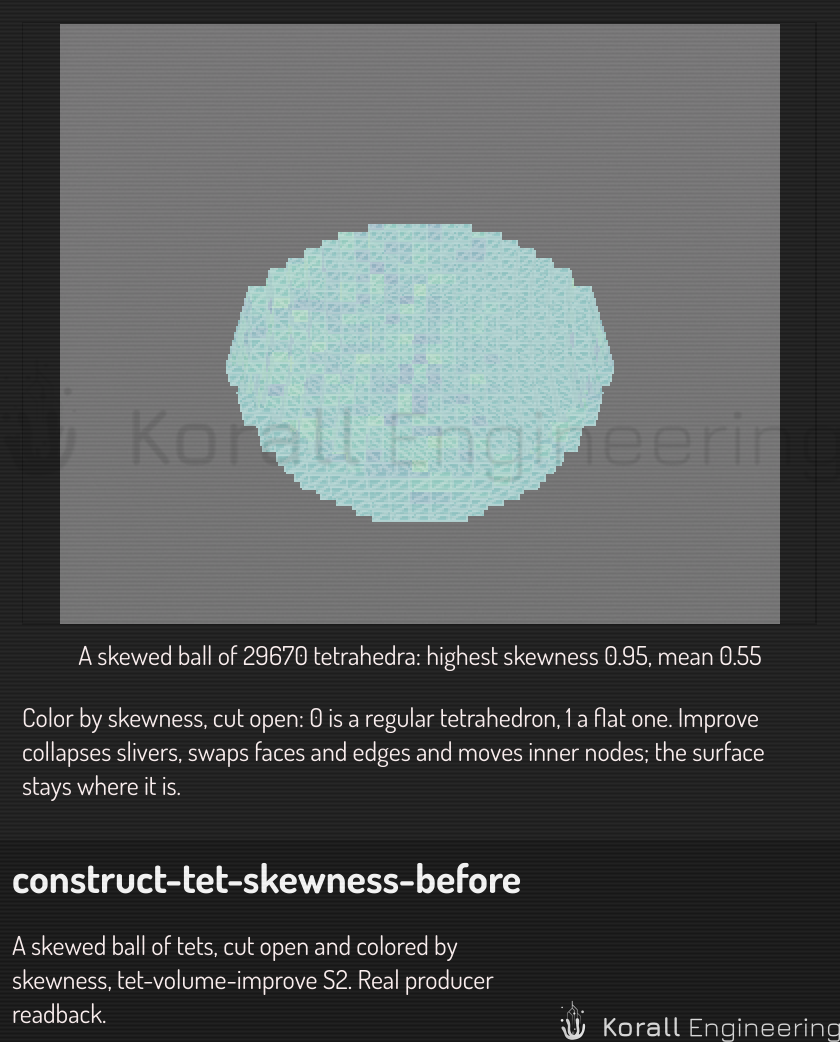
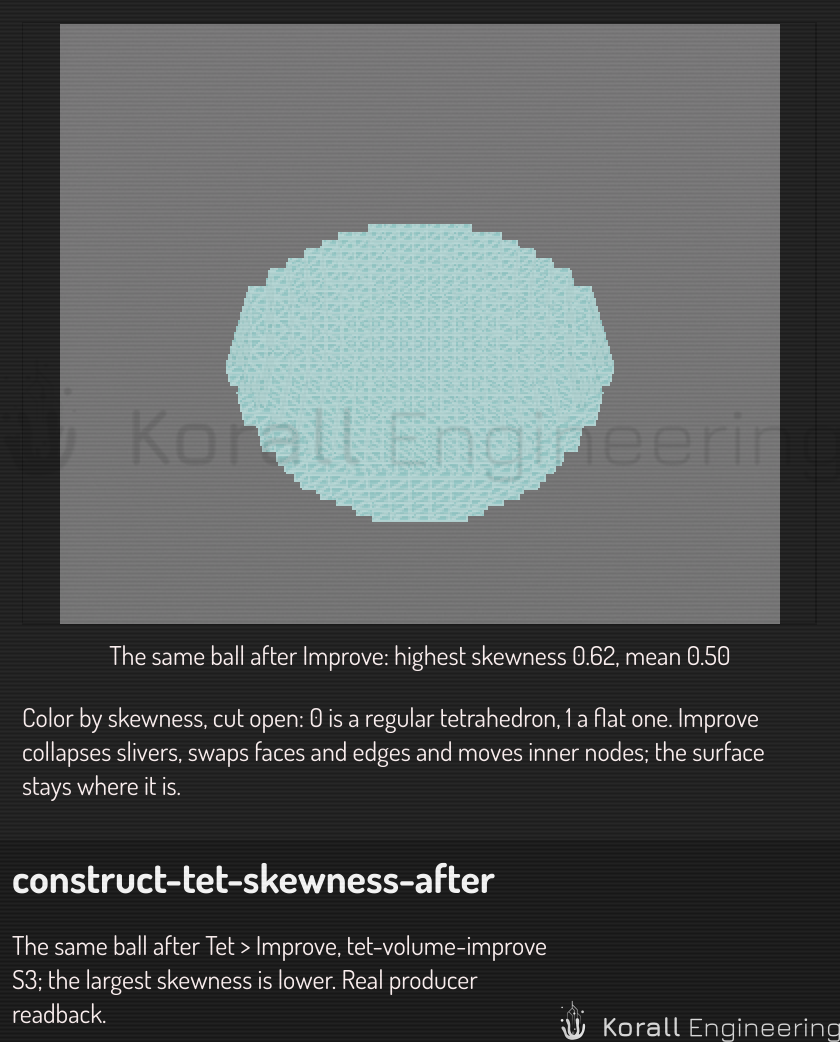
To see the gain, choose Tet ▸ Quality summary before and after, or color the volume by skewness.
Run it on another computer
Each operation runs as a construct.mesh_process job, which any computer of
your farm that offers it can run. To send these jobs to the farm, set the
placement of the type to farm, for example with the OPAL task
batch.policy.set and perType construct.mesh_process=farm. The file goes
to the other computer and the result comes back as one undo step.
Fill a mesh with tetrahedra
A closed tri mesh, for example an STL part that you imported, becomes a tet volume that the solver can use:
- Right-click the mesh row.
- Choose Bake ▸ Tet volume to add the volume to the scene, or Export ▸ Tet volume... to write it to a VTK file.
- Set the options in the dialog, then click Bake or Export.... An export then asks for the file.
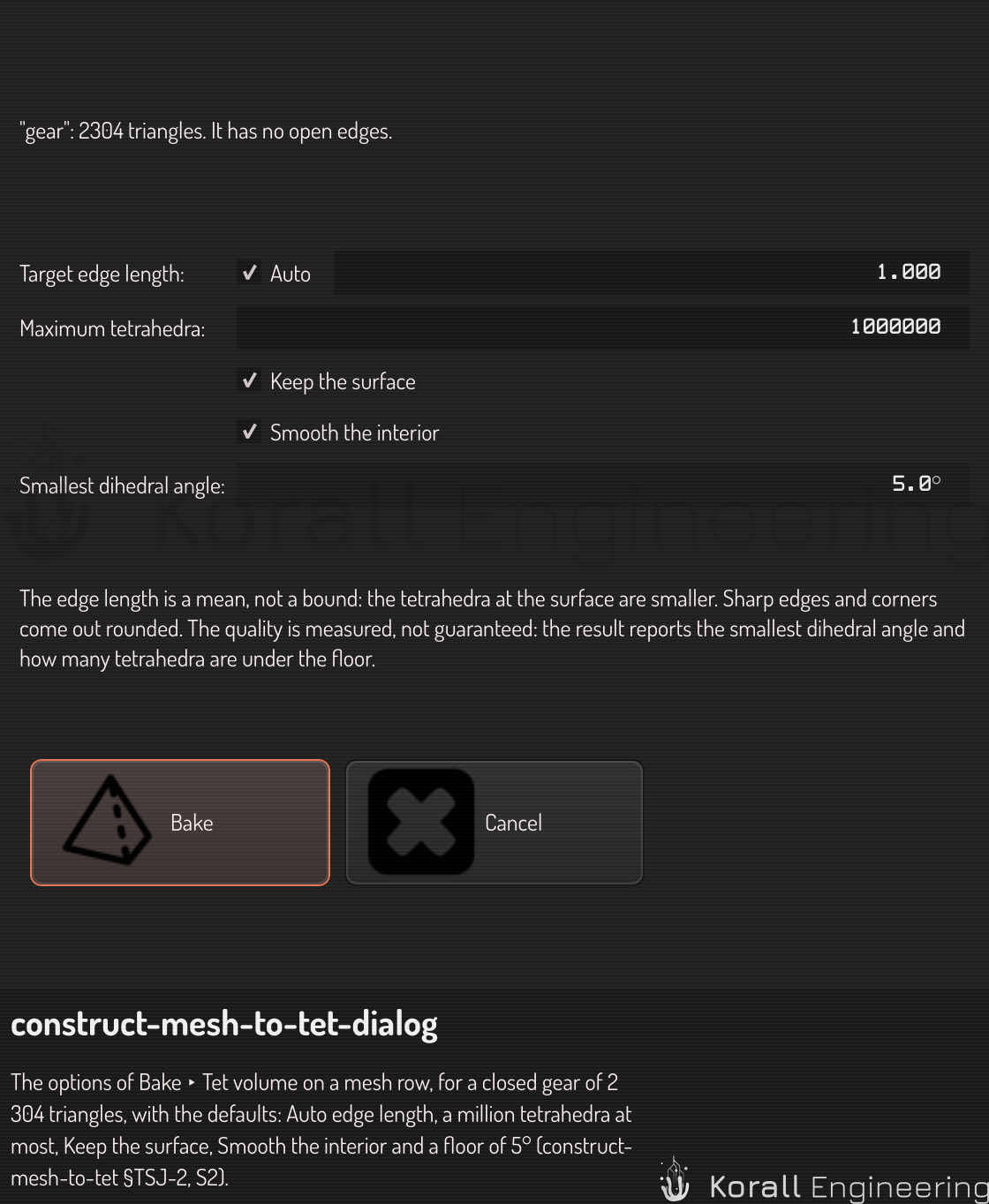
| Option | What it does |
|---|---|
| Target edge length | The mean edge length of the tetrahedra, in the units of the mesh file. Auto lets the maximum count set it |
| Maximum tetrahedra | The most tetrahedra the volume can have, 1 000 000 by default. When the edge length would make more, the edges get longer. If the volume still has too many, nothing is made, and the message names an edge length that fits |
| Keep the surface | Moves each node on the outside of the volume onto the surface of the mesh, when that does not make a tetrahedron worse than the smallest angle |
| Smooth the interior | Moves the inner nodes in three passes, to improve the worst tetrahedra |
| Smallest dihedral angle | The floor of the quality report: the result counts the tetrahedra with an angle under it. 5° by default |
The dialog shows the name of the mesh and its triangle count, and its open edges when the mesh is loaded. When the mesh has a scale in the scene, the dialog says what the edge length is there.
The edge length is a mean, not a bound: the tetrahedra at the surface are smaller. The quality is measured, not guaranteed.
Keep the surface puts each outer node on the mesh's surface, but not each outer face. Between its three nodes a face is flat, so over a curved part it lies a little inside or outside the mesh. Sharp edges and corners come out rounded, and a part thinner than about one edge length can be lost. A node that would make a tetrahedron worse than the smallest angle stays where it is.
The job runs as a bake does, and the row shows its progress. When it ends, a message gives the count of tetrahedra and the range of their dihedral angles. It also tells you when:
- the mesh has open or over-shared edges. The fill closes each hole, and you get the volume.
- some tetrahedra have an angle under the floor. Choose Tet ▸ Field ▸ quality on the volume to see where they are.
- some outer nodes stayed off the surface to keep the tetrahedra valid.
A mesh that encloses no volume, for example a single sheet, gives no volume, and the message says why.
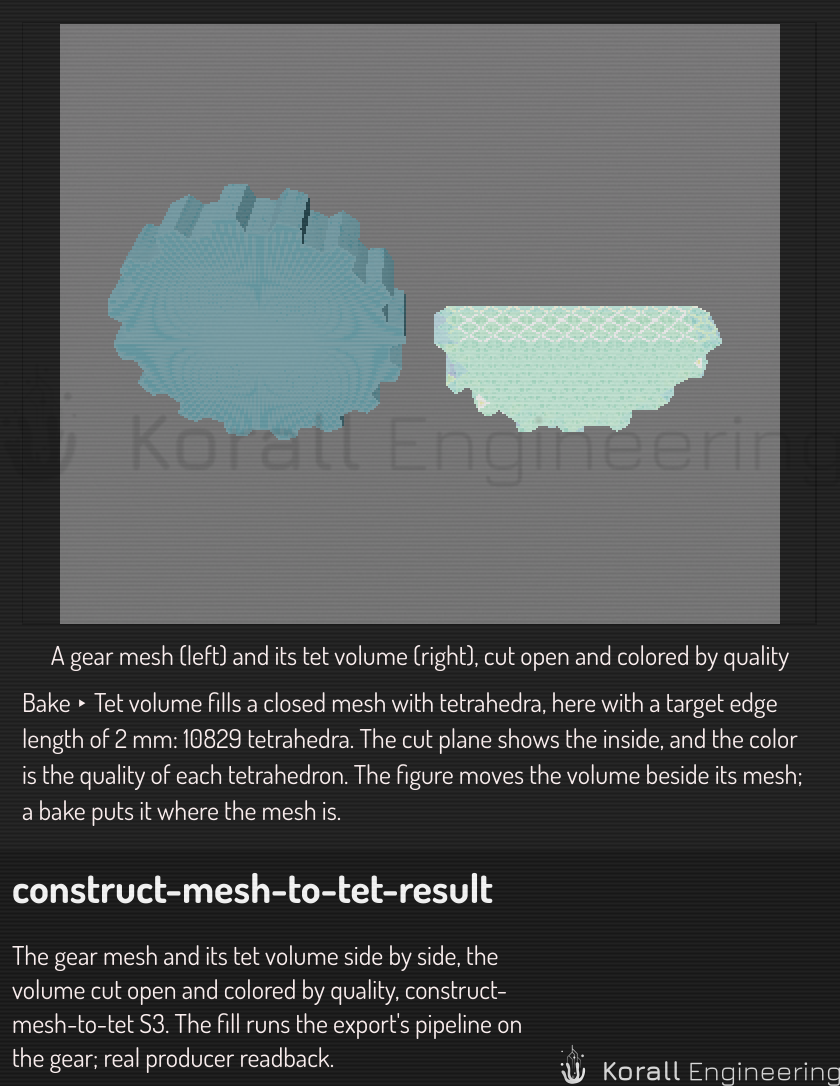
The figure shows a gear and the volume made from it with a target edge length of 2 mm. The volume is moved beside the mesh, cut open with a cut plane on the Y axis, and colored by quality.
The new volume sits where the mesh is, with the same parent and transform, and is named after the mesh. It keeps the options. Choose Bake ▸ Regenerate on the volume row to fill the mesh again with the same options: it uses the mesh as it is now, so after a Mesh ▸ operation on the mesh, Regenerate fills the changed mesh.
Cut a tet volume open
A cut plane shows the inside of a tet volume: the part on one side of the
plane is not drawn, and the cut face, the cap, shows the inside. Each plane
is perpendicular to one axis of the volume. The planes belong to the cut
presenter of the volume. It holds up to six planes.
- Click the arrow of the tet volume's row to open its box.
- Click Cut plane so that it reads Enabled. If the volume has no cut presenter, this adds one.
- Choose the Axis: X, Y or Z.
- Drag the Offset box up or down, or double-click it and type a value in mm. The plane moves along the axis while you drag.
- To keep the other half, click Flip so that it reads Enabled.
- To cut with one more plane, click Add plane in the box of the cut presenter. Each new plane has its own Cut plane, Axis, Offset and Flip rows. Remove plane removes the last plane.
A part of the volume shows only when it is on the kept side of every plane that is on. Each cap shows the field of the volume in the colors of its legend, so a cap and the surface show the same value where they meet. To show the cuts without caps, turn off Caps in the box of the cut presenter.
Each change is one undo step, and one drag of the offset is one step. To show the whole volume again, click Cut plane so that it reads Disabled, or hide the cut presenter. The axis and the offset stay for the next cut.
The cut changes only what the viewport shows. A bake or an export uses the whole volume.
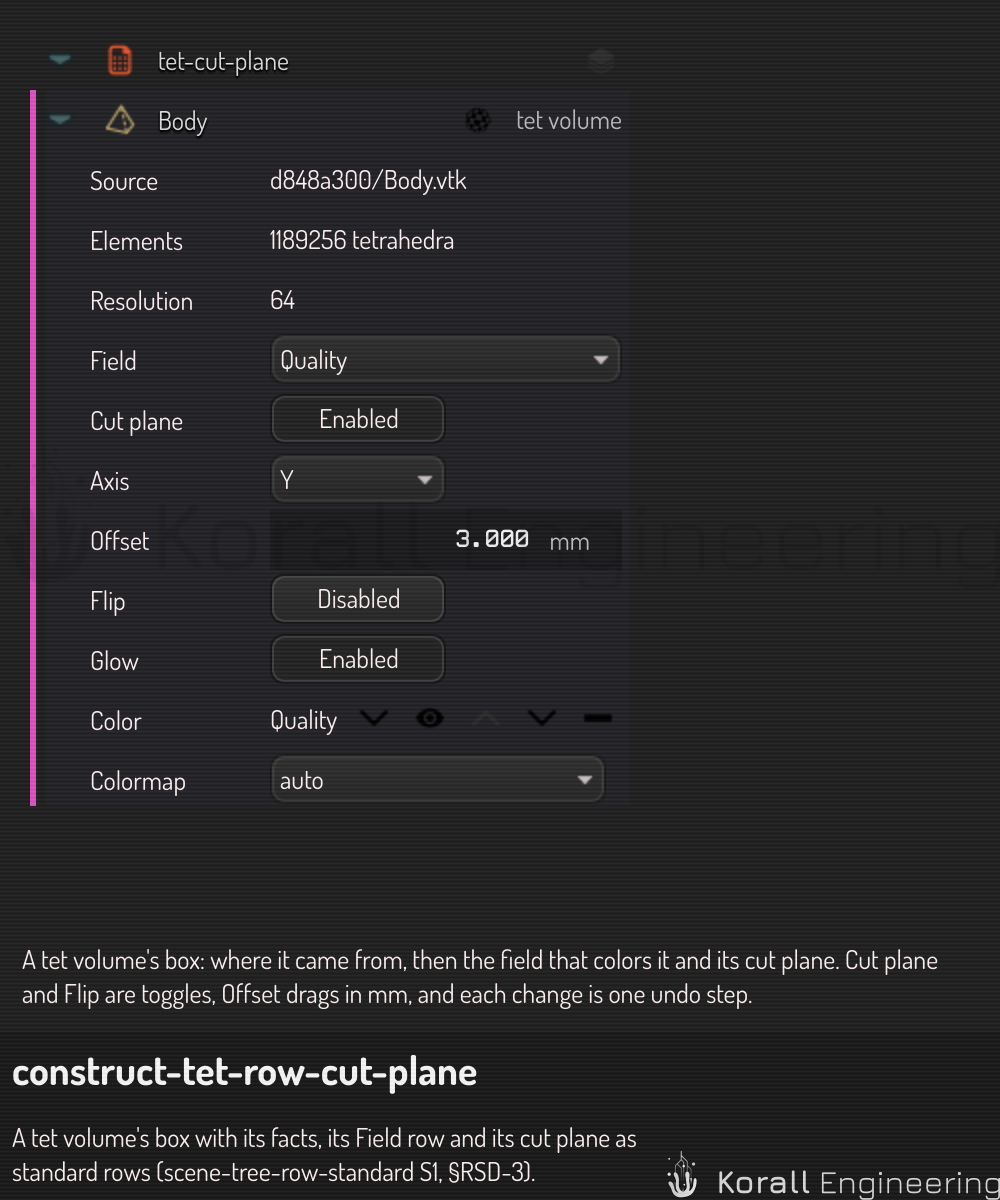
In OPAL, add the cut presenter with construct.presentation.add and change
it with construct.presentation.set. The planes parameter is a JSON list
of {axis, offset, flip, enabled}, with the axis 0 for X, 1 for Y and 2 for
Z. Plane 0 is the plane of the Cut plane rows:
{"task": "construct.presentation.add", "args": {"item": "Body (tet)", "kind": "cut",
  "params": {"planes": "[{\"axis\":1,\"offset\":3}]"}}}
{"task": "construct.presentation.set", "args": {"item": "Body (tet)", "id": "cut-1",
  "params": {"planes": "[{\"axis\":1,\"offset\":3,\"flip\":true}]"}}}
construct.scene.get_item lists the planes as cutPlanes.
Turn a tet volume into a tri mesh
To get a tri mesh of a tet volume's outside, right-click the tet volume row and choose Bake ▸ Tri mesh (boundary). A new mesh item appears next to the volume, with the same parent and the same transform.
- The mesh has the exact positions of the volume's outer nodes. Nothing is welded, smoothed or simplified.
- The mesh shades flat, as the volume does, so the two look the same. Where both show, the viewport draws a fine checker of the two tones.
- A field of the volume, for example a simulation result, goes with each outer face to the mesh.
- The mesh is written as a VTK file next to the scene, so its fields stay with it. Save the scene before you bake.
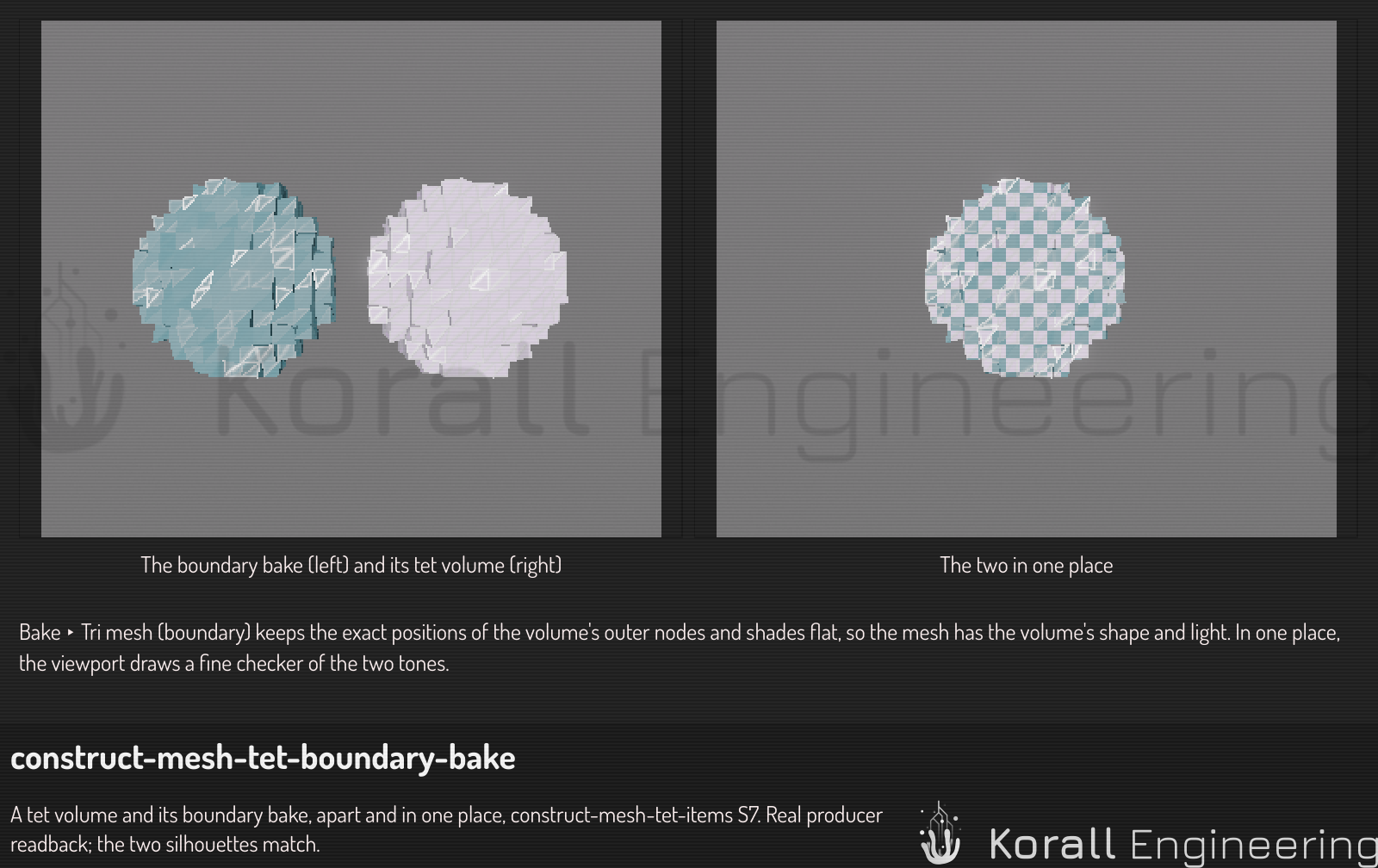
To make the mesh lighter, use the Mesh ▸ submenu on the new row, for example Decimate ▸ 50 %. Undo removes the mesh. Regenerate on the mesh runs the bake again from the volume, then each operation that the mesh got.
The cut planes of the volume do not cut the bake. The bake is the whole outside.
Export a mesh or a volume to a file
A mesh or a tet volume writes to a file as it is, with no meshing options:
- Right-click the row.
- Choose Export ▸ Tri mesh to file... or Export ▸ Tet volume to file....
- Choose the file in the save dialog.
A mesh writes to STL, OBJ, PLY or VTK. A tet volume writes to VTK only, because the other formats cannot hold tetrahedra.
To write the outside of a tet volume as a tri mesh, choose Export ▸ Tri mesh (boundary) to file... on the tet volume row. It writes the same surface as the boundary bake, to STL, OBJ, PLY or VTK, and adds nothing to the scene.
To fill a mesh with tetrahedra and write the volume to a file, choose Export ▸ Tet volume... on the mesh row. See Fill a mesh with tetrahedra. See Bake and Export for the SDF branch side.
Script it
Each menu entry on this page has an OPAL task that runs the same code:
| Task | What it does |
|---|---|
construct.bake with kind tri_boundary |
Bake ▸ Tri mesh (boundary) |
construct.bake with kind tet_from_mesh |
Bake ▸ Tet volume on a mesh row. It takes the options of the dialog: edgeLength (0 is Auto), maxTets, keepSurface, smoothInterior and minDihedralDeg |
construct.passenger.process |
One Mesh ▸ or Tet ▸ operation. It takes any step of the chain, for example qemDecimate(0.33) or tetImprove(rounds=4). A tet improvement step reports the highest skewness before and after |
construct.tet.quality |
The numbers of Tet ▸ Quality summary: the skewness bands, the highest and mean skewness, the radius ratio and the eight worst elements |
construct.item.import_file |
Import a mesh or a tet volume from a file |
construct.presentation.add |
Add presenter. It takes kind and optional params, for example {"field": "quality"} |
construct.presentation.set |
The Field row and the parameter rows of one presenter, by its id, for example color-1. enabled shows or hides it |
construct.presentation.list, construct.presentation.remove, construct.presentation.move |
The presenter headers: list, remove and move up or down |
construct.presentation.kinds |
Each presenter kind, its parameters, the item types that take it, and the reason when it does not draw yet |
construct.legend.set |
The legend's menu and its drag, for each item that shares the legend, in one undo step |
construct.presentation.add with kind cut, then construct.presentation.set |
The cut plane rows of a tet volume. Plane 0 of the planes list is the plane of the Cut plane rows |
construct.item.export_file with kind as_is or tri_boundary |
Export ▸ ... to file |
construct.item.export_file with kind tet_from_mesh |
Export ▸ Tet volume... on a mesh row, to a .vtk path, with the same options |
construct.scene.get_item |
The counts, the bounds, the fields, the recorded operations and the file of an item. A baked item also shows its source as sourceItemId and its options as bakeSettings. An item with a presentation or a field set also shows its presentation and its fieldSet |
This plan bakes a tet volume, bakes its boundary, decimates the mesh to half and exports it:
{
  "steps": [
    {"task": "construct.bake", "args": {"item": "Body", "kind": "tet", "cells": 64},
     "produces": {"tet": "itemId"}},
    {"task": "construct.bake", "args": {"item": "${tet}", "kind": "tri_boundary"},
     "produces": {"boundary": "itemId"}},
    {"task": "construct.passenger.process", "args": {"item": "${boundary}", "step": "qemDecimate(0.5)"}},
    {"task": "construct.item.export_file", "args": {"item": "${boundary}", "path": "body.ply"}}
  ]
}
Run it with construct opal plan.json scene.construct. Each step prints its
time.
This plan fills an imported mesh named gear with a tet volume:
{
  "steps": [
    {"task": "construct.bake", "args": {"item": "gear", "kind": "tet_from_mesh", "edgeLength": 1.0}}
  ]
}
The quality of the volume is measured, not guaranteed. The result of the bake
holds the numbers: tetQuality has the dihedral range and belowFloor, the
count of tetrahedra under the quality floor. A script that needs a minimum
reads tetQuality.minDihedralDeg or belowFloor and stops on its own.