Export a rendered animation
This walkthrough takes you from "I have a scene" to "I have a 60-frame PNG sequence on disk". It sets how clean each path-traced frame gets, and it reads the progress of the running render. Then it shows the one tweak that produces an MP4 instead.
1. Build a scene with motion
Open Construct and add (or load) any SDF scene. To prove the animation
loop is working, pick one numeric parameter — e.g. a translate's x
or a sphere's radius — and bind it to an expression:
- Select the instance.
- In the parameter panel, switch the parameter from Literal to Expression.
- Enter an expression that varies with
time, for examplesin(time * 2.0) * 3.0.
The time variable is built-in. During a render export it is updated
each frame to frame / fps.
2. Open the Rendering window
Click the Rendering button in the toolbar. The window shows the settings of the render job of this scene: what it writes, at which size, and how fine it renders.
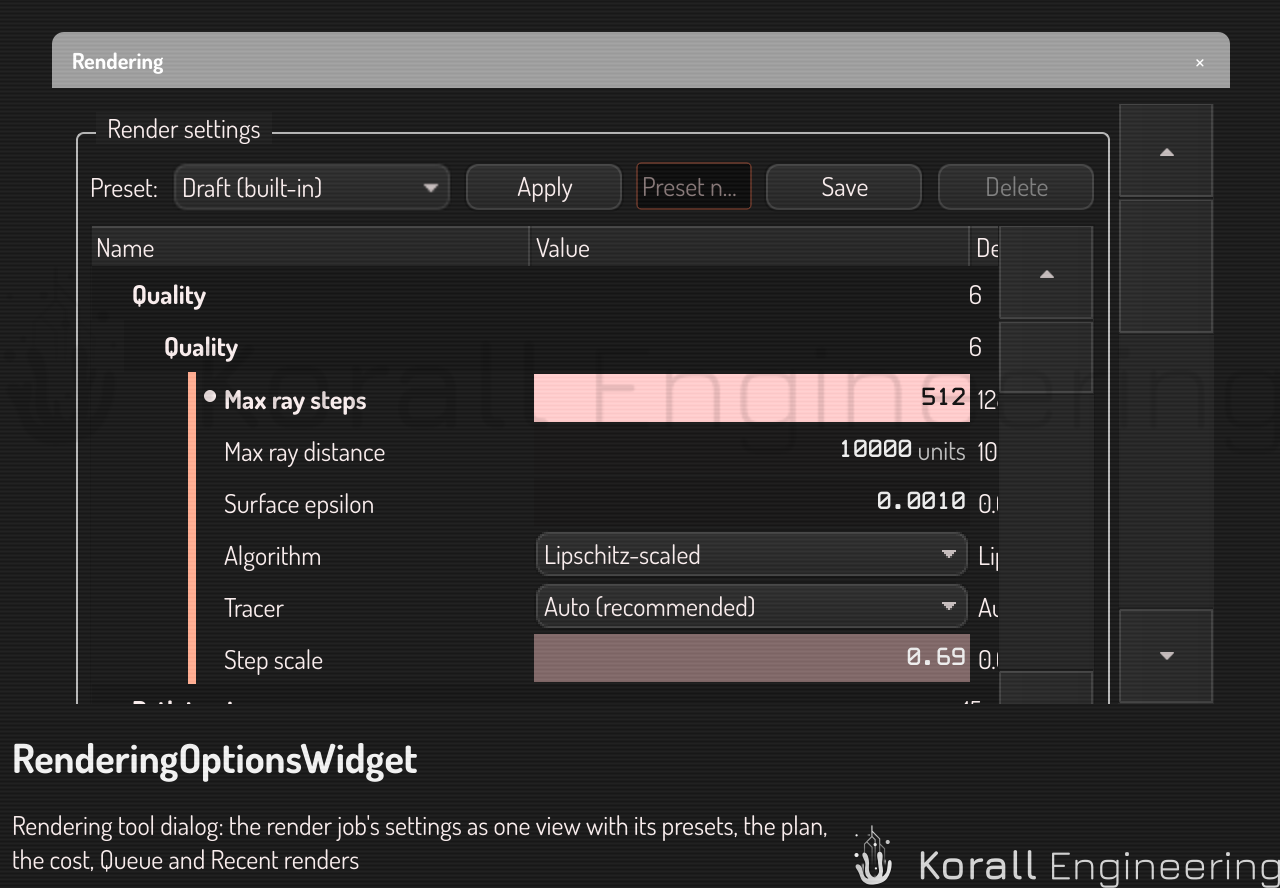
Each row of the window is a setting of the construct settings. The same rows are on the settings page, in the Output category. A change in one place is the same change in the other. The window shows the rows at the Render job level, which is saved with the scene. So a scene opens with its render set up as you left it. A value that the render job does not set comes from the scene, and Revert all removes every value the render job sets itself. See Settings scopes.
3. Pick a preset (or save your own)
The bar at the top of the window applies a preset to the render job. Draft, Standard and Final are built in: they set the path-tracing samples, the noise threshold and the bounces. A preset writes only the settings it holds. Your frame range, your codec and your file names stay.
To save your own preset, set the rows, type a name and click Save. See Save a preset. The presets of the window are the presets of the construct settings, so a preset saved here appears on the settings page too.
4. Set what the render writes
The rows that matter for a first render:
- Media type: Images for the still-image walkthrough.
- Image format: leave at PNG.
- Image series files: the default is like
/home/you/Videos/construct-%Y-%M-%D_%h:%m:%s/frame-%04f.%e.%fis the frame number, four digits by default (%6fgives six).%eis the extension of the image format, so the name follows a change of format. The%Y…%stokens become the date and time when you queue the render. On Windows and Android the time reads14-05-09, because a file name there cannot hold:. - Camera: a camera of the scene, or Editor view, which renders what the viewport shows at the size of the viewport.
- Size multiplier: the size of the camera times this number.
- Existing files: Overwrite is fine for the first run.
Below the render settings are the scene's First frame, Last frame and Frame rate. The timeline uses the same three values. Set the first frame to 1 and the last frame to 60, at 30 frames a second: two seconds of motion.
The line under the settings shows what the render writes: the size, the frame count and the first file. If the render cannot be queued, the line says why and what to change, and Queue render stays gray. For example, a series template with no frame token gives one file for every frame.
5. See what it costs
Click Measure. Construct renders three frames of this scene at this size and quality, writes nothing, and shows the time of one frame and of the whole range. A path-traced frame can take seconds, so the measure runs only when you click it. When you change the size or the quality, the line asks you to measure again.
6. Queue and watch
Click Queue render. The job runs in the background, and Recent renders shows its progress and its last frame. Click the thumbnail to see the frame full size.
When the job finishes, open the output folder. You have frame_0001.png to
frame_0060.png. Step through them to see the expression-bound parameter
move.
To write a video instead, set Media type to Video, then choose the Container and the Codec. The lists show the containers and codecs that passed the codec check of this computer. While the check runs at startup, the lists are empty. The render writes one file.
A build of Construct without the multimedia feature cannot write video. The plan line tells you so.
To render the frames on other machines, turn on Render on the farm and set Frames per farm job. The button then reads Render on the farm, and the plan line says how many jobs the render makes. See Render on other machines.
8. A video of the deformation or of a time step
A tet volume with solve results can move in the viewport: the deformation goes from the rest shape to the deformed shape and back, and an axis (time steps, modes or iterations) plays its values. You can write that motion to a video file.
Before you start:
- The volume must show its deformation (Tet ▸ Show deformed), or its results must have an axis with more than one value.
- In the Rendering window, choose a video Container and Codec. The animation uses them, and also the Camera, the size and the frame rate of the render job.
To export the video:
- Right-click the tet volume in the scene tree.
- Select Tet ▸ Export animation….
- Select the file name and the folder, then click Save.
Construct puts one render job in the queue. Open the Jobs panel to see its progress.
What the video shows:
- The deformation. When the volume shows its deformation, the video is one cycle of it: the period of the deformation times the FPS. The default period is 2 s, so at 30 FPS the video has 60 frames. The animation does not need Animate deformation to be on.
- An axis. When the volume does not show its deformation, the video shows each value of its first axis, ten values a second. Before the job starts, Construct builds the fields of each value. With a large volume this can take some time. A message tells you when the job starts.
- One legend for all frames. The color range of the legend is the range over all values of the axis, and the deformation scale is the same in each frame. A range that changes between frames makes a video that you cannot read.
- The labels. The legend, the deformation scale and the markers show in each frame.
If Export animation… is gray, its tooltip gives the reason. A build of Construct without the multimedia feature cannot write video. A volume with no deformation and no axis has nothing that moves.
To do the same from a plan, use the OPAL task
construct.field.export_video. For example:
{"task": "construct.field.export_video",
 "args": {"item": "Bar (tet)", "path": "/tmp/bar.mp4", "animation": "pingPong"}}
animation is pingPong (the deformation) or axis (each value of
axis). Or give frames, one {phase, axisValue} for each frame. The
phase goes from 0 to 1. In the default cycle, 0 is the rest shape and 0.5
is the full deformation. Add "wait": true to get the file and its size
when the job is done.
Write the deformation's frame as an expression
Export animation… writes one cycle. To decide yourself which deformation frame each rendered frame shows, write an expression in the deform presenter, and render with Queue render. The render can have any length.
- Open the tet volume in the scene tree, then open its Deformation presenter.
- In Phase, click the expression button and type an expression of the animation clock. The phase is 0 to 1 of the cycle.
- To step through modes, time steps or load cases, choose the Step axis and write an expression in Axis step: the index of the value to show.
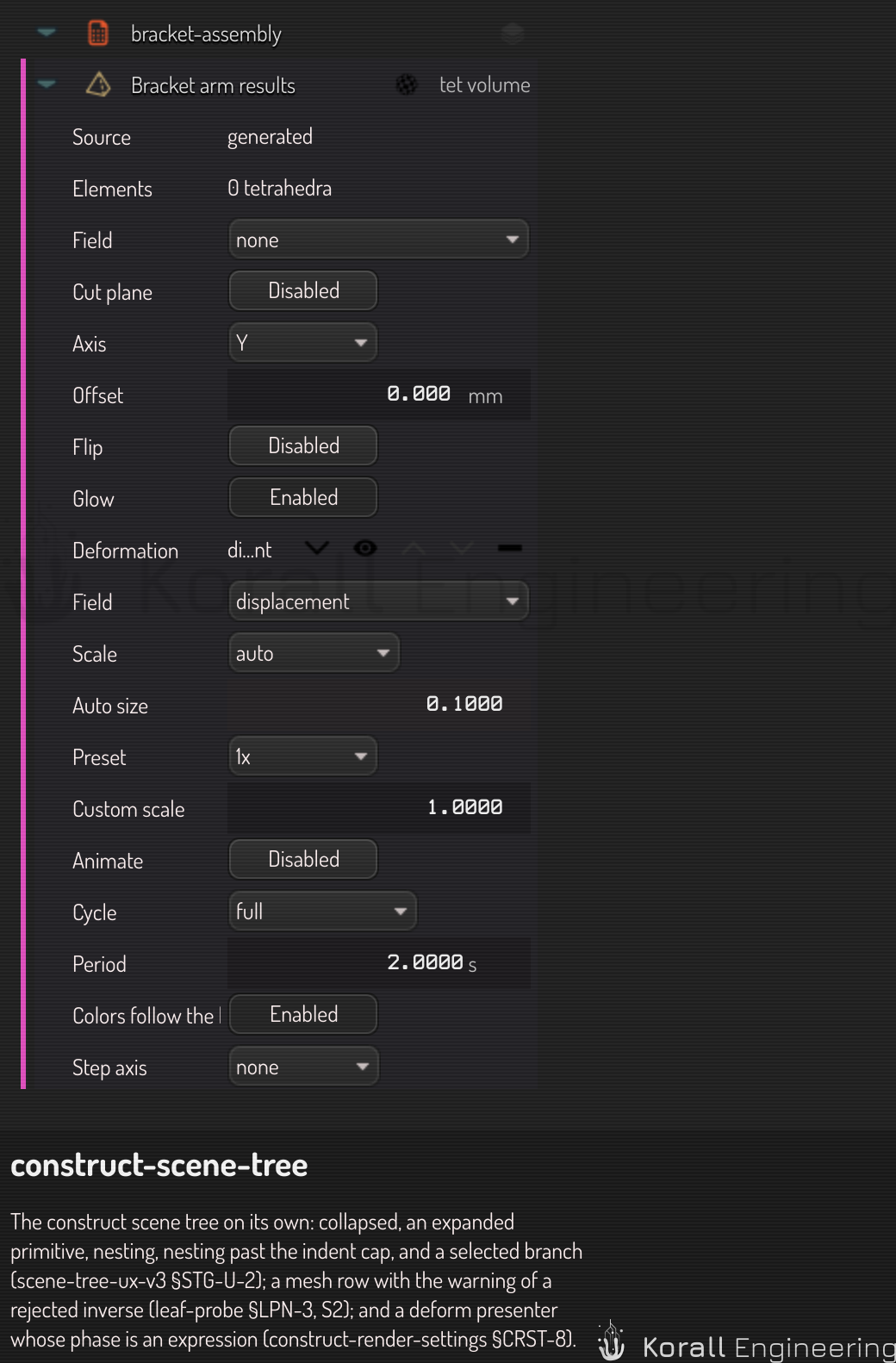
Examples:
= fract(time / 2)loops every 2 s.= anim.frame < 120 ? anim.frame / 120 : 1deforms once over 120 frames, then holds.= anim.frame / 10in Axis step shows the next value every 10 frames.
The timeline plays the same expression in the viewport. To give the phase
back to the view clock, click the row's reset: the row shows −1, not set.
From a plan, set them with construct.presentation.set:
{"task": "construct.presentation.set",
 "args": {"item": "Bar (tet)", "id": "deform-1", "params": {"phase": "= fract(time / 2)"}}}
A render that steps an axis waits until the fields of each value it reaches are built, then starts. One render steps one axis.
Script it
The render settings are config rows at the level renderjob. Read and set
them with the config tasks:
{"task": "config.set",
 "args": {"id": "output.mediaType", "value": "image", "level": "renderjob"}}
Three construct tasks do the rest:
construct.render.capabilitieslists the image formats, the containers and codecs of this computer, and the last measured frame cost.construct.render.measurerenders three frames and answers the seconds per frame and for the whole range.construct.render.queuequeues the render as Queue render does, and it refuses what the button refuses, with the same message.setwrites values at the render-job level first, as one undo step.waitwaits for the files.
{"task": "construct.render.queue",
 "args": {"set": {"output.multiplier": 0.5}, "wait": true}}
construct.render.export renders one file or series with values for that
render only: a path, frames, fps, size and a quality preset. It
writes nothing into the scene, and it is refused for the same reasons.
For a turntable, see Make a turntable video.
Render on other machines
Turn on the setting Render on the farm in the Rendering window, and its button Render on the farm renders the frames on other machines that have a GPU. This computer writes the files. The scene goes to them packed with every file it reads (its meshes, its tet volumes and their fields), and each job renders Frames per farm job frames, 10 by default. A message says when the jobs start and when the files are written. Recent renders does not list the farm's jobs; the batch window does. Measure always renders on this computer.
construct.render.queue follows the same two settings, output.farm and output.farmChunk. A call
can name its own farm and chunk:
{"task": "construct.render.queue",
 "args": {"farm": true, "chunk": 20, "wait": true}}
- The jobs go where the placement chooses: a paired machine with a GPU, or a machine the fleet buys with one (Fleet). A machine without a GPU renders no frame.
- A machine runs the same build as this computer, or it refuses the job and says so.
- When every job is done, this computer writes the images, or encodes the video, where the file template says. A job that fails cancels the others, and the task answers why.
- The frames are the frames this computer would render: the same rows, the same camera, the same deformation expressions.
Tips
- Editing while rendering: feel free. The render job sees a frozen snapshot of the scene at the moment you pressed Queue. Your live edits never affect the in-flight job.
- Canceling a job: click the abort button of its row in Recent
renders, or cancel it from the Jobs panel. Partial output
stays on disk; combine with
Skippolicy to resume later. - Resume a sequence: set Existing files to Skip. Frames that are already present are kept; missing frames are rendered.
- Long sequences: set Last frame to a few thousand if you want. The
filename engine pads frame numbers to whatever width you ask for
(
%6ffor 6 digits, etc.). The expression engine is cheap — 10 000 expansions of a representative template fit comfortably under 50 ms in release builds.
Where do the files end up?
- Single image / sequence: by default under your
~/Picturesdirectory. - Single video: by default under your
~/Moviesdirectory.
The rows Image file, Image series files and Video file hold the three templates. Set them at the New scenes level on the settings page to change where every new scene renders to.
Troubleshooting: modern codecs are unavailable
If the Codec list only offers older codecs (MPEG-2, MPEG-4, Motion JPEG…) and the H.264 / H.265 / VP9 / AV1 entries you expect are missing, one of three things is happening:
- Your GPU's hardware encoder is broken on this driver. This is
the common case on Linux with certain NVIDIA + driver combinations,
where
h264_nvencreaches the encode call and then refuses CPU-side input frames. Construct's probe correctly classifies the whole codec as non-working in this case. On a clean reboot or driver update it usually comes back; you can force a re-probe by deleting the codec stability cache. - Older codecs are filtered for clarity. MPEG-1/2/4 and Motion JPEG show only when the setting Show legacy codecs is on. It is a setting of this computer, in the Output category of the settings page.
- Your Qt build doesn't include software codec fallbacks. Some
Qt distributions ship only an LGPL-licensed FFmpeg without
libx264/libvpx/libaom. In that scenario there is no software path to fall back to when hardware encoders break, and recovery requires a Qt build that bundles those encoders.
If you'd like to know exactly which path a given codec took (hardware
vs software fallback), enable the hidden setting
CodecProbe/ShowCodecTier — entries recovered via the software
fallback are marked "software only" in the list, and a render
refuses them: an export cannot use them yet.