Find and add a definition
The Things finder is the window that adds a definition to the scene: a primitive, an operator, a transform, a modifier, a component or a condensed primitive. You search it by name, see a preview, and add the result where you opened it. Its left lane shows the results as a List or as Flow tiles.
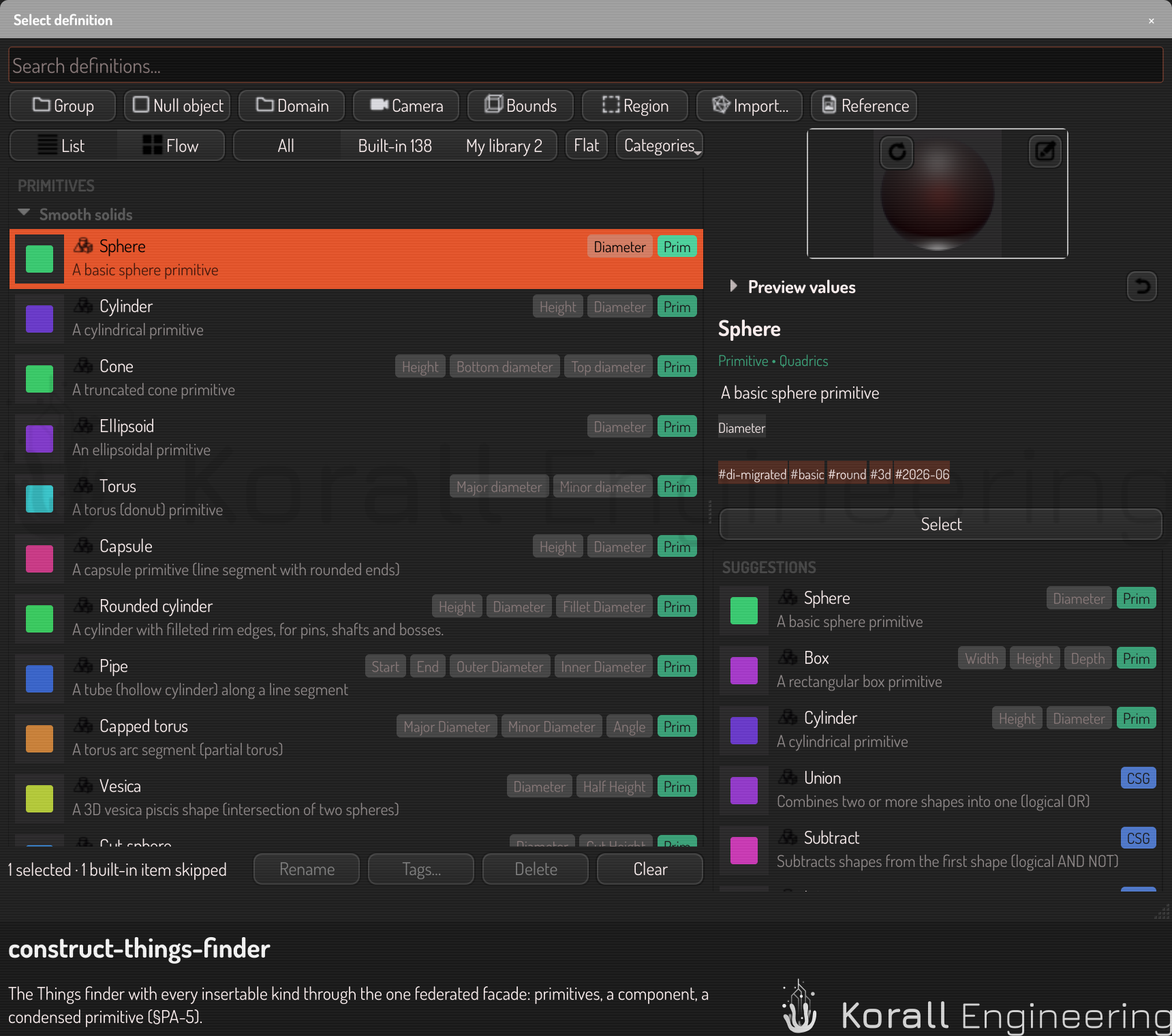
Open the finder
- Point at the gap in the scene tree where the new item must go.
- Click the SDF button of the tag that appears.
You can also choose Add… in the menu of an empty area of the scene tree. The finder opens at the pointer, with the search field ready.
The finder shows what the place you opened it from can use. Wrap in… shows the operators, transforms and modifiers, because a wrapper holds children. Replace with… shows what can stand where the item stands. The definition editor's Open shows no components, because the editor cannot open them. A line under the search field says what is not shown and why, for example "14 components not shown: the editor cannot open them".
In Add…, the bar under the search field adds the items that are not definitions: Group, Null object, Domain, Camera, Bounds, Import… and Reference. A null object is a point with no geometry that holds other items, for rigs such as a turntable (see Make a turntable video). Under an item it lands on that item's origin; at the top of the tree, where the view is looking.
Where an item comes from
The switch beside List | Flow chooses the source:
- All: every item.
- Built-in: the items that come with Construct. You cannot rename, tag or delete them.
- My library: your own items, in your library and in this scene.
- Trash (n): the items you deleted. It shows only when the Trash holds an item.
Each entry shows its count. On All, each category lists the built-ins first, then a thin My library line, then your own items.

An item of your library that you add to a scene is copied into the scene. The scene keeps its copy, so a change or a delete in your library never breaks a scene that uses the item.
Search
Type a part of a name. The results show at once, best first.
A definition comes higher in the results when:
- its name is the text you typed,
- its name starts with the text, or holds it,
- the letters you typed are in its name in the same order, for example
sprfor "Sphere", - a tag or the name of its family holds the text, for example "Platonic" or "Lattices",
- its summary or its description holds the text,
- you used it recently or often,
- it has few parameters.
The letters that matched the name are bold. Press Enter to add the result that is current.
The sections of an empty search
With no text in the search field, the finder lists every definition in sections, in this order. An empty section is not shown.
| Section | What it holds |
|---|---|
| This scene | The definitions that this scene holds and the library does not |
| Primitives | Shapes and scalar fields |
| Components | Components, from this scene and from your library |
| Condensed | Condensed primitives |
| Operators | CSG operators, such as union |
| Transforms | Operators that move, bend or repeat space |
| Modifiers | Operators that change a distance, such as round |
The families of the primitives
The Primitives section is split into families: Smooth solids, Polyhedra, Lattices, Curves and swept forms, Planes, Engineering parts and Fields. Inside a family, the shapes are in the order of their sub-family, for example the boxes before the Platonic solids.
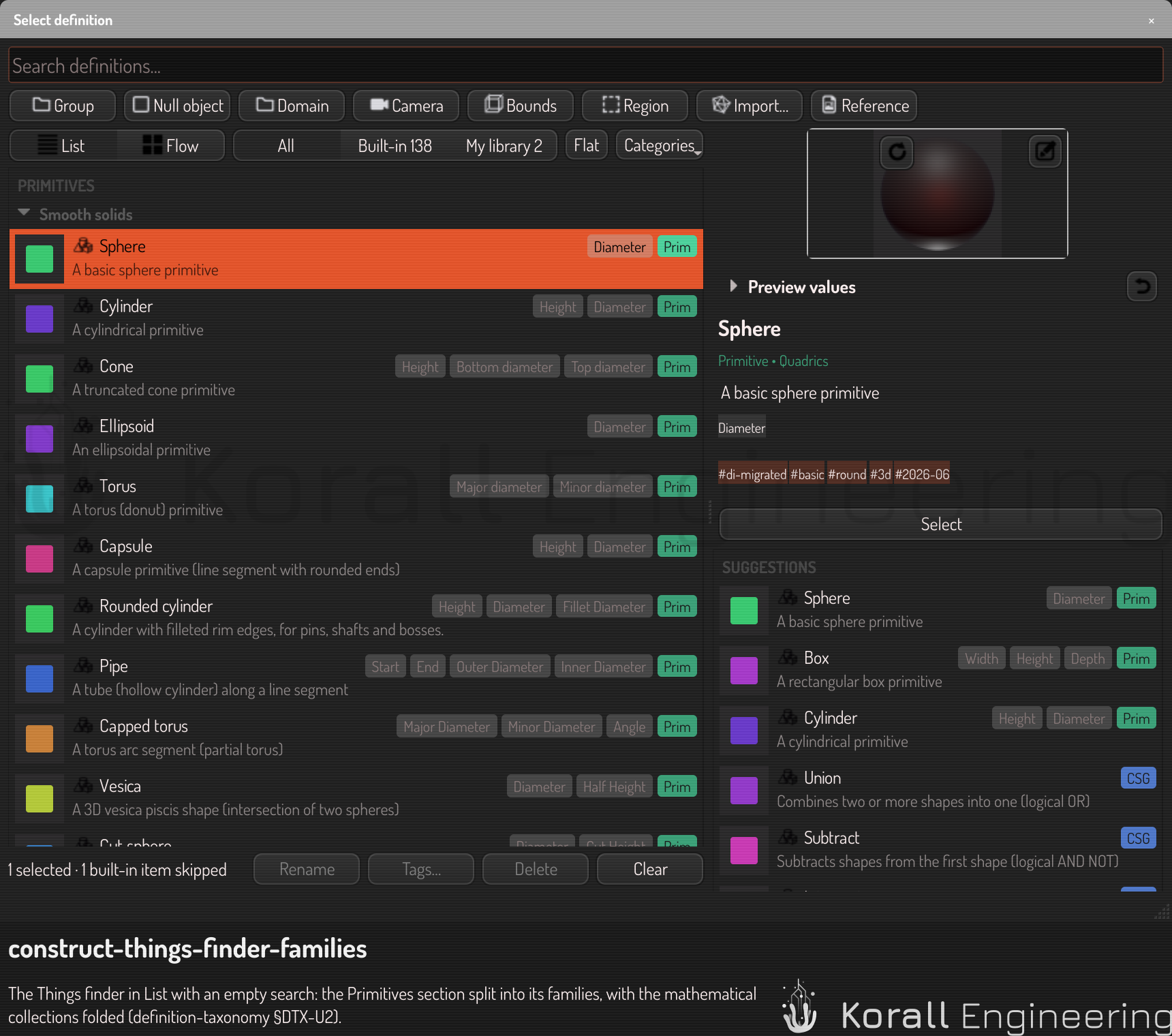
- Click the header of a family to fold it, and click it again to open it. A folded header shows the number of definitions it holds.
- A mathematical collection, such as the Johnson solids, is a sub-family that starts folded, so that it does not crowd the list. Click its header to open it.
- The finder remembers which families you folded or opened.
- A definition with no family, or with a family that the tree does not have, is under Uncategorized, the last family. Give it a family with Tags… (see below).
- Flat lists each family by name, with no sub-families.
Choose the categories and tags
The Categories button opens a list of check boxes: the families, then the tags, each with its count. All, None and Invert change every box at once. With more than 20 entries, a field at the top filters the list.
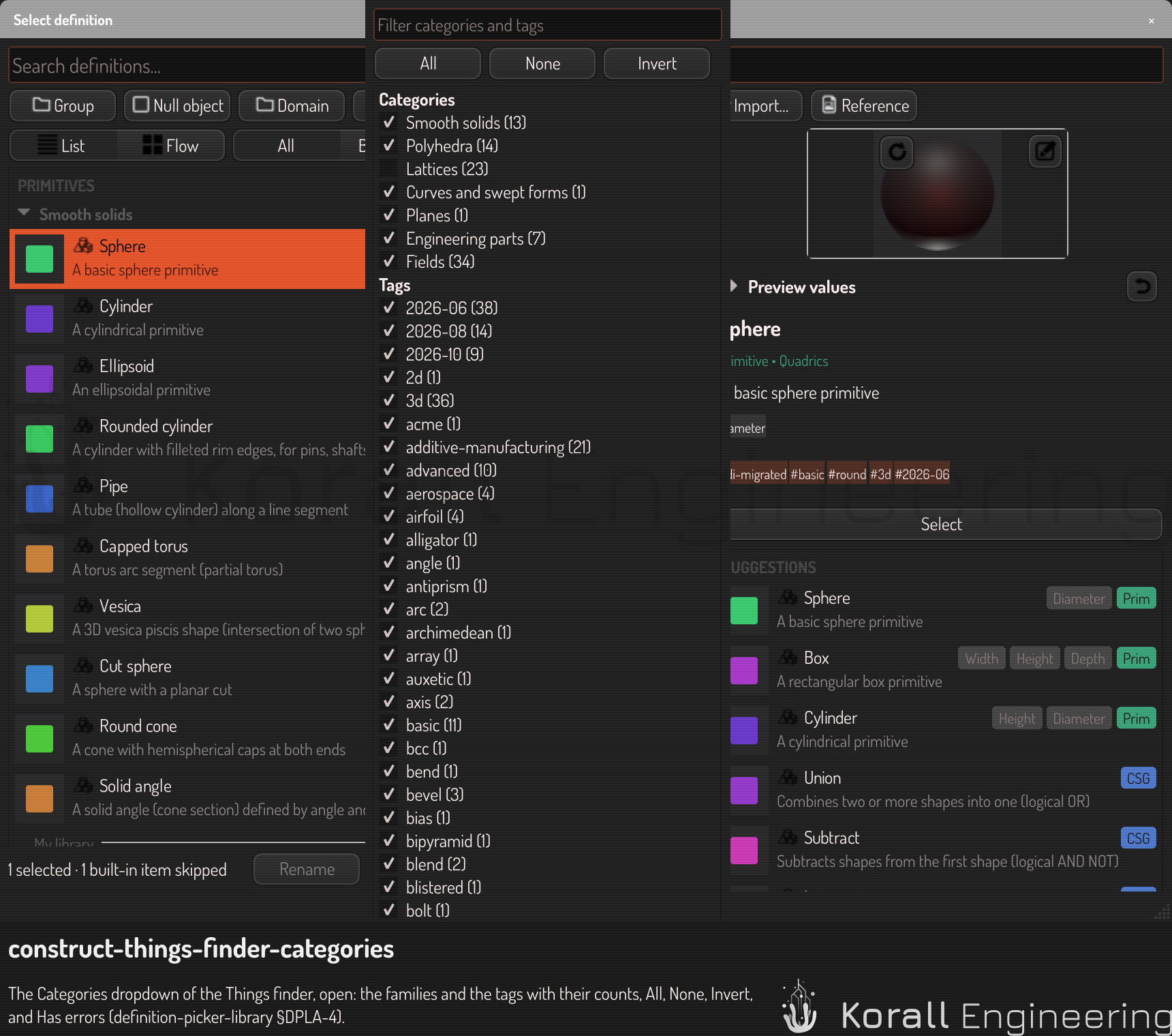
- Clear a family to hide its items, in the list and in a search. The mathematical collections, such as the Johnson solids, are ordinary families here.
- Clear some tags to show only the items that have one of the checked tags. With every tag checked, or none, the tags hide nothing.
- The button says when some boxes are clear, for example "Categories · 12 of 15".
- Has errors shows only your items that fail validation. Construct checks your items in the background after the finder opens, and marks a failing item's picture with a red "!". Its tooltip gives the first finding.
The finder remembers the source, the boxes you cleared and Flat. When a choice leaves nothing to show, the finder says so and offers Show All or Check all.
List or Flow
The control at the top of the left lane chooses the view.
- List shows one row per definition: a small picture, the name, the parameters, the kind and the summary.
- Flow shows one square tile per definition. The tiles grow so that each line fills the lane. A wider window shows more tiles per line.
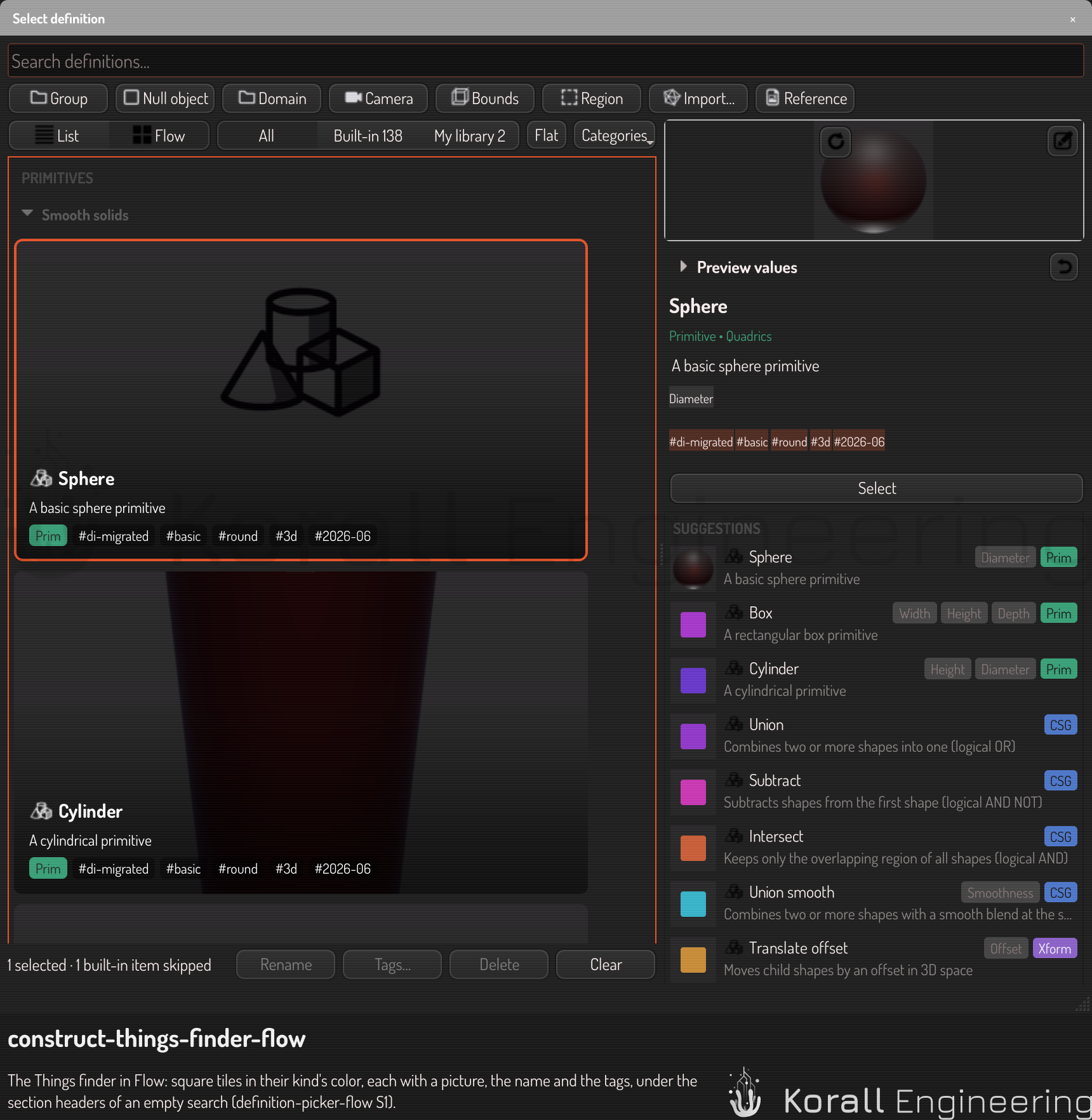
A Flow tile shows:
- the picture of the definition, on the scene's default background,
- the kind mark and the name,
- the summary, when the tile has room for it,
- chips for the kind (Prim, Field, CSG, Xform or Mod, in the color of the kind), for where the definition lives (Scene or Library) and for its tags. Chips that do not fit become one "+N" chip.
When a tile cannot show all of its summary, point at the tile to read the summary in a tooltip.
The finder keeps your choice, and opens in the same view the next time. The current definition, the selection and the preview stay when you change the view.
Keys
The keys work while the search field has the focus.
| Key | In List | In Flow |
|---|---|---|
| Down, Up | The next or the previous row | The tile below or above |
| Right, Left | Go to Recent, or back to the results | The next or the previous tile |
| Ctrl+Right, Ctrl+Left | Go to Recent, or back to the results | Go to Recent, or back to the results |
| Page Down, Page Up | Eight rows down or up | One screen down or up |
| Tab | The next row | The next tile |
| Enter | Add the current definition | Add the current definition |
| Escape | Close the finder | Close the finder |
| F2 | Rename the current item | Rename the current item |
| Ctrl+A | Select every item | Select every item |
| Delete | Move the selected items to the Trash | Move the selected items to the Trash |
| Shift+Delete | Delete the selected items for good | Delete the selected items for good |
Delete acts on the selection when the search field has nothing to delete at its cursor. F2, Delete and Shift+Delete work where the finder manages your items, for example in Add… and in the editor's Open.
A click selects a definition and shows its preview. A double-click adds it and closes the finder. If you moved the finder by its title bar, it is pinned: it stays open after a double-click, and its title bar shows a yellow diamond. The section headers are skipped. Right-click a definition of this scene to publish it to your library.
Manage your own items
Hold Ctrl or Shift when you click to select several items, or press Ctrl+A. A bar under the results says how many are selected, and how many built-ins it skips:
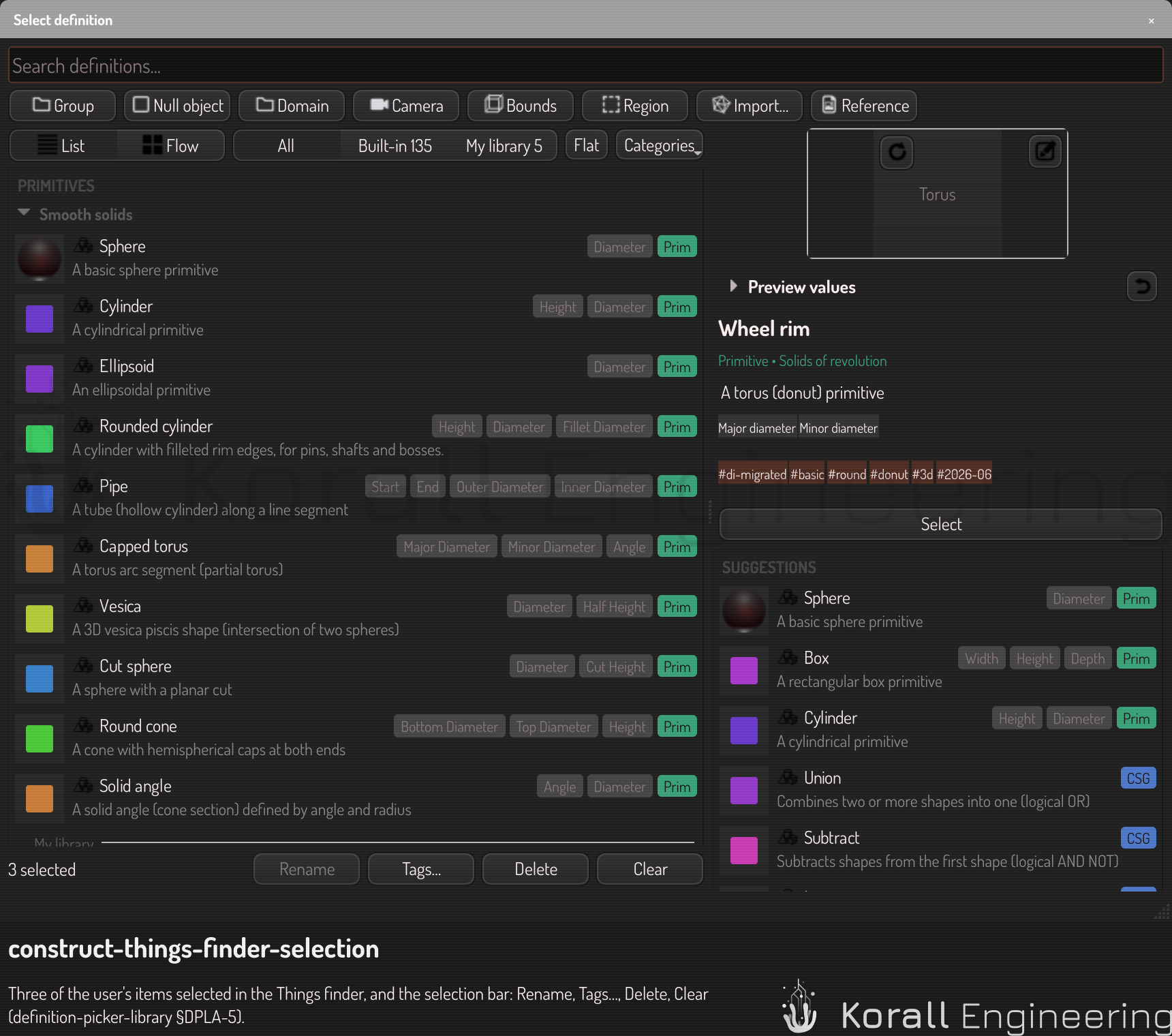
- Rename (or F2) edits the name in place. The item keeps its id, so the scenes that use it keep it. A name that the library refuses keeps the field open, with the reason.
- Tags… adds tags, removes tags and sets the family of every selected item of yours in one step. In this scene, one Ctrl+Z takes it back.
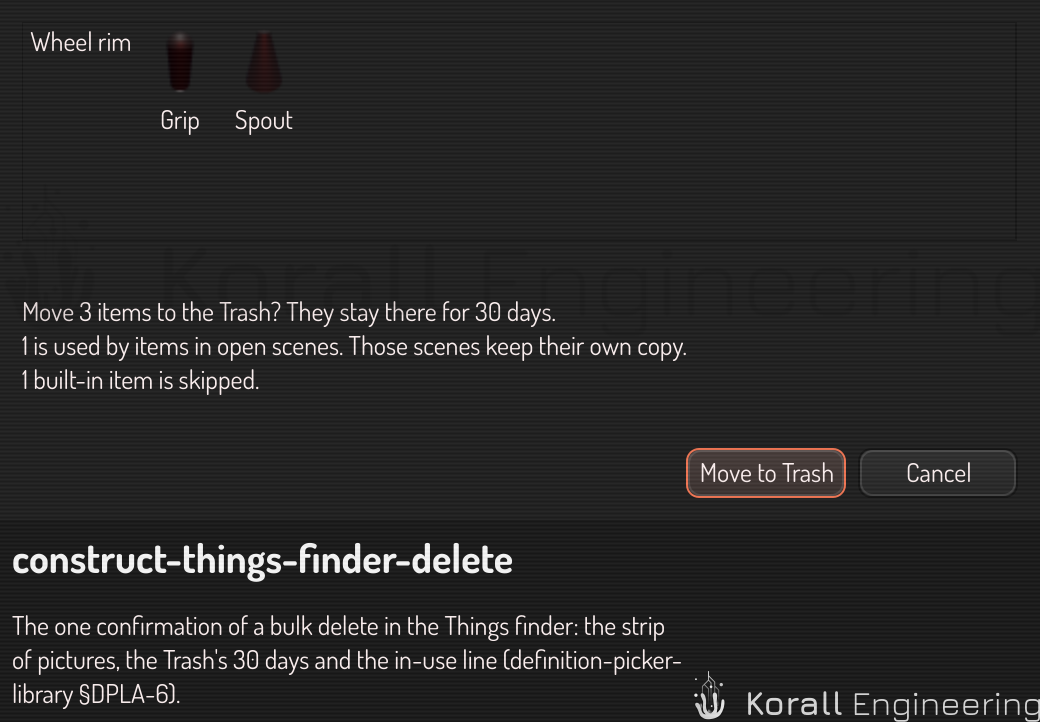
- Delete moves the selected items of your library to the Trash. One window asks first, with their pictures, and says which of them open scenes use. Those scenes keep their own copy. A card with Undo shows for ten seconds. A definition of this scene is removed from the scene, and Ctrl+Z brings it back.
- Shift+Delete deletes for good. It asks first, and you cannot undo it.
The Trash
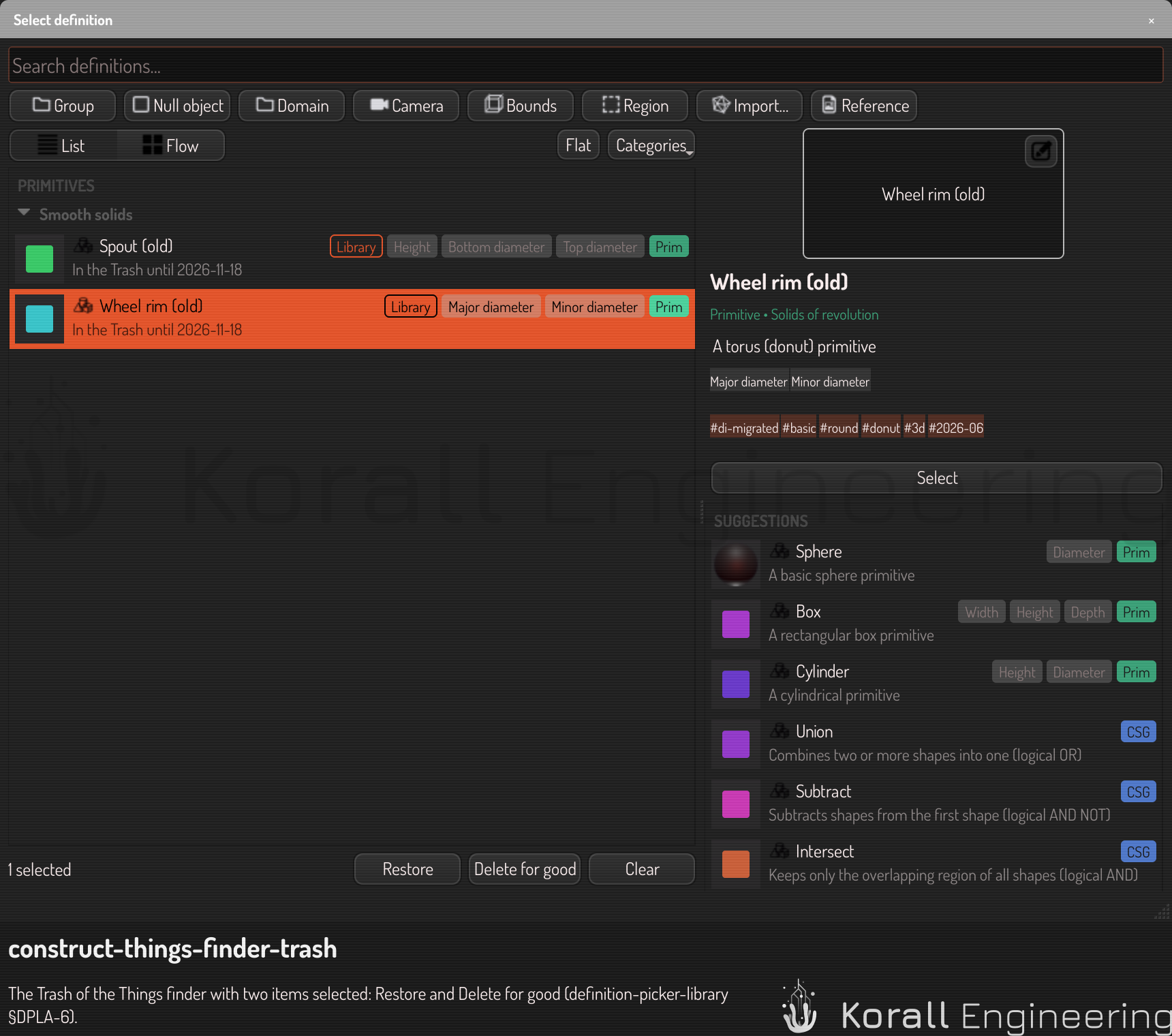
Choose Trash (n) to see what you deleted. Restore puts the selected items back into your library. If your library has an item with the same id again, rename or delete that item first. Delete for good inside the Trash cannot be undone. The Trash deletes an item for good 30 days after you deleted it.
Recent and Frequently used
The list under the preview shows the definitions you added last, newest first, under Recent, and the others you add often under Frequently used. The finder keeps both between sessions. Before you add anything, it shows some Suggestions. This list is always a list, in both views.
The preview
The preview shows the definition live, in 3D, with the name, the kind and the family (for example "Primitive • Platonic"), the description, the parameters and the tags under it. A row and a tile show the short summary of the definition, and the preview shows its full description. It is the preview of the definition editor, in the scene's default look and from the camera of the pictures in the list. The picture of the list stands in until the live view is drawn.
- Drag on the preview to turn the camera, and turn the wheel to move it nearer or farther. A double-click on the preview frames the definition again.
- A component, a camera or a mesh has no shader, so the preview shows its name.
- Open Preview values under the picture to try other values of the parameters on the preview. The reset button in its header puts every value back.
Drag the handle between the two lanes to make the preview larger or smaller. The finder keeps the position of the handle.
- Select adds the definition, as Enter does. The new item gets the Preview values that you changed. After a reset, it gets the defaults.
- The edit mark in the corner of the picture opens the definition in the definition editor.
Script it
The OPAL tasks construct.library.* do what the finder does with your items:
construct.library.listlists items with the finder's filters:source,kinds,families,tags,hasErrorsandquery.construct.library.renameandconstruct.library.tagchange names, tags and families, through the same check as a save.construct.library.trashmoves items to the Trash, andconstruct.library.restorebrings them back.construct.library.trash_listlists the Trash with the date each item goes.construct.library.healthgives the validation results, and withwaitchecks the items first.
No task deletes for good or empties the Trash. Only you can, in the finder.
{"task": "construct.library.tag",
 "args": {"items": ["y_spoke_2"], "add": ["wheel"], "family": "swept"}}