Construct rendering modes
Viewport modes and render engines in the Construct viewport
Status: Complete Last Updated: 2026-10-19
The viewport mode decides how the viewport draws a scene. The render engine decides how a render draws it. A viewport mode changes the viewport only: a render keeps the settings of the scene.
Viewport modes
The dropdown in the toolbar lists the viewport modes. Z goes to the next mode of the list. The scene file keeps the mode of its viewport, so a scene opens in the mode it was saved in. The Viewport mode setting in the Viewport category of the settings page (Ctrl+,) sets the same value. At Write to: New scenes it sets the mode of a new scene.
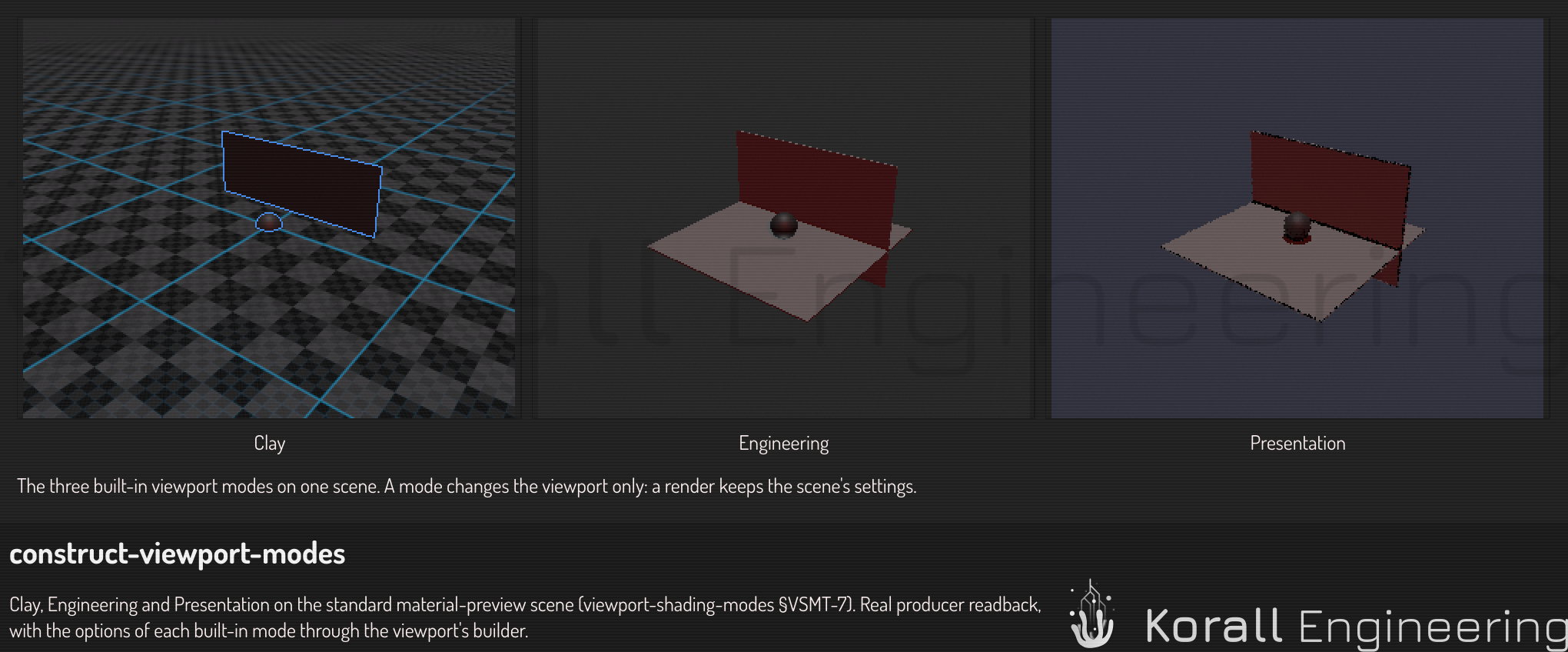
Three modes are built in:
- Clay shows the shapes. Every item takes the Default material, under a fixed stage light, on a plain background.
- Engineering shows the materials under the lights and the environment of the scene, with shadows.
- Presentation shows a preview of the full render: the path tracer refines the picture while the view stays still. A render keeps its own antialiasing and supersampling. The preview does not use them.
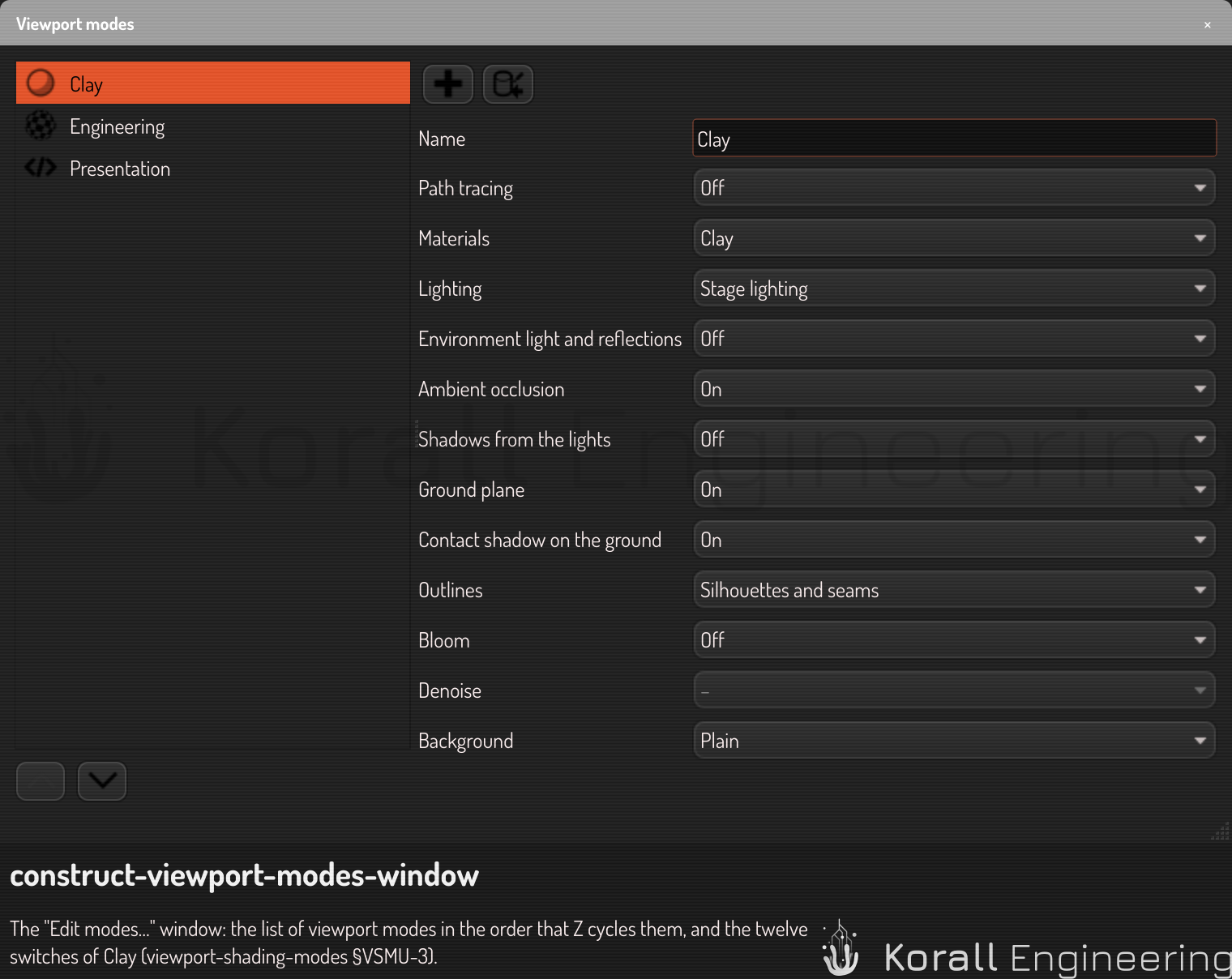
A mode is a set of twelve switches:
| Switch | Clay | Engineering | Presentation |
|---|---|---|---|
| Path tracing | off | off | on |
| Materials | clay | simple | advanced |
| Lighting | stage | the scene's | the scene's |
| Environment light and reflections | off | on | on |
| Ambient occlusion | on | on | traced |
| Shadows from the lights | off | on | traced |
| Ground plane | on | the scene's | the scene's |
| Contact shadow on the ground | on | on | off |
| Outlines | silhouettes and seams | off | off |
| Bloom | off | off | on |
| Denoise | – | – | on |
| Background | plain | the scene's | the scene's |
A switch at "the scene's" value uses the setting of the scene. A mode whose switches all use the scene's settings shows what a render of the scene writes. Tone mapping and exposure are not switches. Stage lighting uses the app's look at first start, and every other mode uses the scene's values.
The modes are kept in shading-modes.json in the app's data folder, beside the material library.
Standalone Construct and the hub's Construct read the same file.
The rows behind the switches
Each switch sets rows of the settings page in the viewport. Five of them are rows of their own:
- Material model (Shading): Clay gives every item the Default material, Simple draws the base of each material, and Advanced (OpenPBR) its coat, fuzz, transmission, subsurface and thin film too. A render job can carry it, so a clay render is possible.
- Shadows (Shading): the key light casts shadows in the raster engines. The path tracer casts shadows from every light.
- Environment light (Path tracing): the environment lights the scene in the path tracer. Off, the background still shows behind the items. In a raster engine the environment light is the engine: Environment-lit PBR has it, PBR does not.
- Ground plane: the checkered ground at height 0. Seen almost edge-on it fades out: a view ray less than about 2 degrees from the ground draws it partly, one under 0.5 degrees not at all, and a camera whose eye is on the ground draws no ground.
- Contact shadow (Shading): the ground is darker straight under each item, the more the nearer the item is. It is a viewport row: a render does not draw it.
- Outlines (Shading): the silhouette of every item and the seams where its parts meet, in the colors of the theme. It is a viewport row: a render does not draw it.
A plain background with the environment light on lights the scene with the plain color, because one environment gives both the background and the light.
Edit the modes
Choose Edit modes… at the end of the mode dropdown. The window lists the modes in the order that Z cycles them.
- Select a mode in the list.
- Change its switches. With path tracing on, ambient occlusion and shadows read Traced, because the path tracer computes them from the light itself.
A change applies at once, and the viewport shows it. There is nothing to save. To change the order, drag a mode in the list, or use Move up and Move down. New makes a mode whose switches all use the scene's settings, and Duplicate makes a copy of the selected mode to try a change on. You can edit a built-in mode too. Reset to built-in gives it back the values it ships with. You can delete a mode of your own, but not a built-in mode.
A row of the settings page that the active mode sets shows a mark beside its value. Its tooltip says that the viewport shows the mode's value, and that a render uses the value of the row.
Render engines
A render engine draws a render, and a viewport mode picks one for the viewport. The engine of a render is the Shading mode setting in the Shading category of the settings page. With Write to: Scene it is saved with the document. A camera can override it, so one shot can be path traced while the rest of the scene stays cheap to render — see where settings live.
| Engine | Shading mode setting | What it shows | Best for |
|---|---|---|---|
| PBR | pbr |
Direct light on the surfaces, with their roughness and metalness. Clear shapes. A viewport mode with path tracing off and the environment light off uses it | Modelling and fast iteration |
| Environment-lit PBR | env-lit-pbr |
The materials, lit by the environment, with its reflections. A raster image, with no accumulation. A viewport mode with path tracing off and the environment light on uses it | Most editing. It reads the same materials as Path Traced |
| Path Traced | path-traced |
A path-traced image that gets cleaner as samples add up: soft shadows, glass, subsurface light and the flakes of car paint. A viewport mode with path tracing on uses it | The final look, lighting checks and images that you keep |
The three engines read the same materials, so a clear CAD image and a photo-real one are one choice apart.
Switching the engine triggers a one-time pipeline compile on first activation; subsequent switches reuse the cached pipeline.
The toolbar
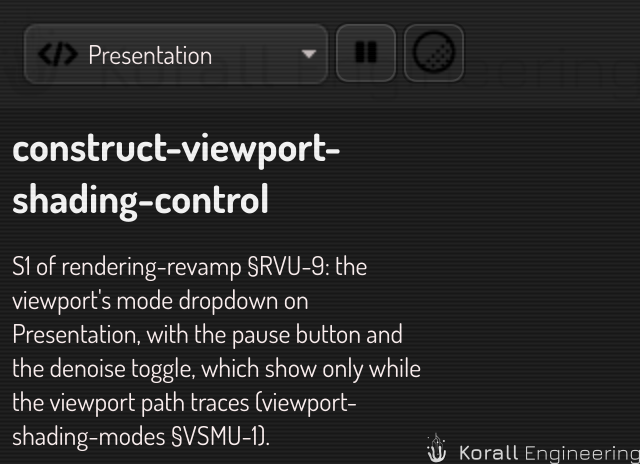
- The mode list on the toolbar of the viewport has the viewport modes, each with its icon, and Edit modes… last. Its tooltip reads "Viewport mode (Z)".
- Z goes to the next mode of the list, and from the last back to the first.
- The Viewport mode setting in the Viewport category of the settings
page (Ctrl+,) is the same value. So are the OPAL task
config.setand the OPAL taskconstruct.render.set_shading, which takes the id of a mode.
The mode list and Z write the setting at the scene level, so the document saves the mode. The engine of a render is the Shading mode setting, which a mode does not change. See where settings live.
The first switch to an engine builds its shaders. Later switches use the cached shaders. A switch returns at once, and the viewport builds in the background.
The buttons of path tracing
Two buttons follow the mode list. They show only while the viewport path traces: in a mode with path tracing on.
| Button | What it does |
|---|---|
| Pause | Stops the refinement. The image and its samples stay, the GPU rests, and the camera still answers. Click it again to resume: the tracer continues the same accumulation. The OPAL tasks construct.render.pause and construct.render.resume do the same |
| Denoise | Turns the viewport denoiser off, and on again with the last choice that was not Off. When the mode sets denoise, the button changes the mode's switch. When the mode leaves denoise to the scene, the button changes the Viewport denoiser setting of the Path tracing category |
Path tracing in the viewport
The path tracer runs on the worker thread of the viewport, never on the thread of the interface. A click, a key or a menu answers while the viewport path traces as fast as when it does not.
While the view moves
When you orbit, pan or zoom, the viewport traces a coarse frame of the new view at once:
- The divider. A moving view starts at eight times the pixel size. The long side of the frame never gets shorter than 128 pixels, so a small viewport starts finer. While the view keeps moving, the divider can get coarser when a frame costs too much, and it never gets finer.
- Blocks. A coarse frame shows its pixels as blocks, not as blur. The badge says, for example, "Moving · 1/4".
- The raster preview. When even the coarsest trace costs more than twice the frame time, the viewport shows the Environment-lit PBR engine while the view moves. The badge then says "Moving · raster preview". While the view moves in the Path tracing category chooses this: Automatic, always Material shading, or always Coarse trace.
When no view change arrives for one frame time (1/60 s by default), the viewport goes back to full resolution and starts to refine.
While the view refines
A still view adds samples, and the viewport shows a new image on a schedule that slows as the image gets cleaner: every 100 ms in the first second, then every 250 ms until 2 s, every 500 ms until 4 s, every second until 8 s, and every 2 s after that. The first sample and the final image always show.
The viewport denoiser filters each image that it shows. With À-trous, then OIDN, the network of Open Image Denoise also runs over the frame, when the view has 64 samples, converges or is paused, and then every 2 s while the samples grow. The tracer waits while the network runs, and the badge says "Denoising". See Path-traced quality.
When the view is done
A pixel stops when its noise falls below the Viewport noise threshold. The view is done when the image converges, or when it reaches Viewport max samples. The GPU then rests, and the image stays until something changes.
The badge
The badge in the lower right corner of the viewport says what the tracer does. The text is the information: no state is shown by color alone.
| Badge | State |
|---|---|
| Moving · 1/4 | The view moves. The frame is at a quarter of the resolution |
| Moving · raster preview | The view moves, and the Environment-lit PBR engine shows in place of the trace |
| Refining · 312 / 1024 · noise 0.04 · 12 s | The view refines: its samples, the sample limit, the last noise level and the time since it started |
| Denoising | The network of À-trous, then OIDN runs over the frame |
| Paused · 312 / 1024 | The refinement is paused |
| Done · converged · 23 s | The image converged before the sample limit |
| Done · 1024 · 41 s | The image reached the sample limit |
While the shaders of the scene build, the badge has the line "Optimizing
shaders" above the state. The OPAL task construct.render.status reports the
same states. See Construct render tasks.
When accumulation restarts
The accumulation restarts, and the sample count falls back, when the light or the geometry changes:
- Camera moves (orbit, pan, dolly, look-at change)
- Scene structure changes (add / remove / rename / re-parent any item)
- Instance parameter changes (diameter, transform, smooth radius, …)
- Material edits
- Environment or lighting changes
- Any change in the Path tracing category of the settings page, or a change of the shading mode
The accumulation does not restart on:
- Mouse hover (selection highlight uses a separate readback path)
- Click / drag selection
- Window resize that doesn't change the rendered viewport size
- UI panel toggles or splitter drags
The Path tracing settings
The Path tracing category of the settings page holds the viewport group (the rows that start with "Viewport", and While the view moves) and the final group that an export uses. See Path-traced quality.
The material editor preview
The preview of the material editor has the default look of the scene: the default background, lights and post-processing, with the Environment-lit PBR engine. It does not follow the rendering options of the open scene. So a material looks the same in every scene, and the same as in the thumbnails.
Rendered, in the toolbar of the material editor, renders the preview with the path tracer, in the preview's own worker. It shows glass, skin and flakes, which the Environment-lit PBR engine can only approximate. It is off by default, and the editor remembers your choice.
Speed considerations
- The viewport keeps working while a render job runs, sharing the GPU. Pause the viewport while a render job runs, in the This machine category of the settings page, gives the job the GPU to itself instead.
- A render job runs at a lower thread priority and submits its GPU work in short pieces, so the desktop stays responsive while it renders.
- Recent renders lists the newest job first. It shows each job's last rendered frame as a thumbnail (black until the first frame lands), and the name of the file the job writes. Click it to view the frame full screen. A click or any key closes the view.
- Quitting while a render runs asks first: finish rendering and then quit (the app stays open until the job ends and closes itself), abort the render, or cancel.
- A running render has a pause/resume button and an abort button beside its progress bar. Pause holds the render between GPU submits and resumes where it stopped. Abort asks first and keeps the frames written so far.
- An exported frame stops when its noise falls below the noise threshold, at the sample ceiling, or after the time budget, whichever comes first. The default budget is ten seconds per frame. See Export a rendered animation.
- Toggling panels open / closed doesn't pause sampling.
Camera projection
The editor camera draws in perspective (the default) or orthographic, chosen with Orthographic in the Editor camera category of the settings page. It is a scene setting, saved with the document. There is no machine-wide default for it, because a projection that depended on whose computer opened the file would make one model look like two.
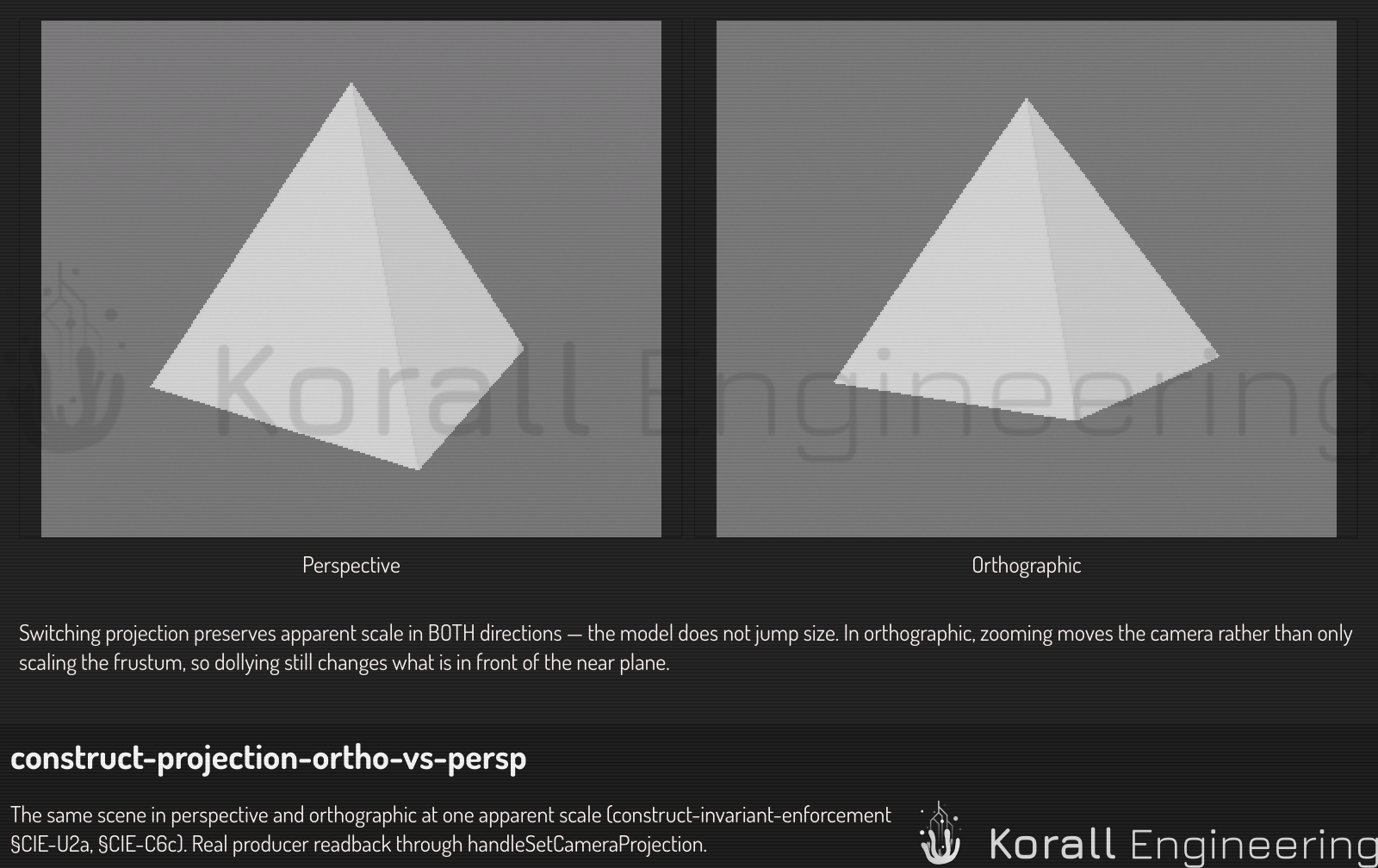
Switching projection preserves apparent scale, in both directions. The model is the same size on screen immediately after the switch as it was immediately before. Going to orthographic, the frustum takes its height from the camera's distance to the target; coming back to perspective, the camera distance takes its height from the frustum. Earlier builds derived this only on the way in, so switching back restored a distance from before you had zoomed, and the model jumped to an unrelated size.
Orthographic zoom moves the camera; it does not only scale the frustum. The wheel dollies the eye and rescales the frustum together, so the scale match with perspective holds continuously rather than only across a switch. It is also what lets you zoom back out of a model you have zoomed into: scaling the frustum alone left the eye where it was, and a camera that ended up inside the geometry had no way out.
An orthographic projection has no perspective divide, so — unlike perspective — its near plane may sit behind the camera, and here it deliberately does. That is what keeps the near half of a model visible once the camera is inside it, instead of clipping it away.
Ray-marching settings
In the Quality category of the settings page. These govern how the renderer walks a ray toward a surface; the practical guide to using them is Ray-marching quality.
| Setting | What it does | Default |
|---|---|---|
| Tracer | Which marching strategy runs. The list is the shipped tracer records, not a fixed menu — a new strategy appears here as data. Auto resolves to the measured best general default and hands the step budget to the scene. | Auto |
| Max ray steps | Ceiling on how many jumps one ray may take before giving up. A ray that runs out stops, and the surface behind it is not drawn. | 128 |
| Max ray distance | How far a ray travels before it is declared a miss. Must exceed the distance from the camera to your geometry, or nothing is drawn regardless of the other settings. | 10000 |
| Surface epsilon | How close counts as "arrived". Smaller places the surface more precisely and costs more steps. | 0.001 |
| Step scale | Fraction of the reported distance each jump takes. Below 1 is a safety margin against shapes that overstate distance. | 0.69 |
Auto and the step budget
Every shape in the library carries a measured figure for how much it can overstate distance. Auto folds those over the shapes a scene actually uses and derives two things from the result:
- a shorter step, so a jump cannot pass through a surface that lied about being further away;
- a higher step ceiling, because a shorter step needs more of them.
A scene of exact shapes folds to 1 and gets the plain defaults — Auto costs nothing there. Selecting a strategy explicitly hands the step scale back to that strategy (it is the strategy's own business how far to jump) while the ceiling still follows the scene, since running out of steps loses geometry no matter what chose the step length.
Per-strategy settings
Selecting a strategy other than Auto reveals its own settings beneath the picker, generated from that record — a Lipschitz floor, a cone threshold, a rewind factor, depending on which one. The defaults shown are the values the benchmark measured, so a strategy starts at its best-known tuning rather than at zero. See Render Lab for where those numbers come from.
Debug views
Visualization → March diagnostics (RGB), in the Shading category of the settings page, replaces the shaded image with what the march did: red for budget spent, green for how often the shape overstated its distance, blue for why the ray stopped. It is the first thing to look at when geometry is missing.
Rendering is not evaluating
Everything above is about rendering — turning the scene into pixels on screen, on the graphics card. Mesh export does something different: it evaluates the scene, asking "how far is this point from the surface?" at millions of points, and it does that on the CPU.
The two are separate machinery with separate settings, and the names look alike enough to mix up:
| Rendering | Evaluating | |
|---|---|---|
| Produces | The picture in the viewport | A triangle mesh file |
| Runs on | The GPU, always | The CPU by default |
| Chosen in | Shading mode on the settings page (described here) | Mesh export evaluator in the This machine category of the settings page |
| Options | PBR, Environment-lit PBR, Path Traced | Native, GPU, Interpreter |
So the export dialog's three choices are not the three engines on this page, and switching one does not affect the other. If you are looking for why an export is slow, or why an export failed, that is the evaluator — see Export a mesh.
For the record: the CPU evaluator is an interpreter over the scene's own expression tree. Older documentation described it as a "SPIR-V interpreter"; that was accurate for a component the app no longer contains, and the name survived the thing.
Related
- Path-traced quality — the viewport and final settings of path tracing, and the denoisers
- Construct render tasks — the OPAL tasks of the viewport mode, the status and the export
- Export a mesh — the evaluator, which is not a rendering mode
- Ray-marching quality — diagnosing missing geometry
- Render Lab — where the defaults were measured
- Material System — material properties consumed by every rendering mode
- Scene Organization — how items contribute to the rendered output