Find a file by its picture
The views, the sizes and the preview lane of the file selector
The file selector shows a picture of each file, and a live preview of the file that you select. This page shows how to switch the view, size the pictures, read the preview lane, and show hidden files.
Switch between the list and the flow
The List and Flow switch in the path bar changes how the files show. The program remembers your choice.
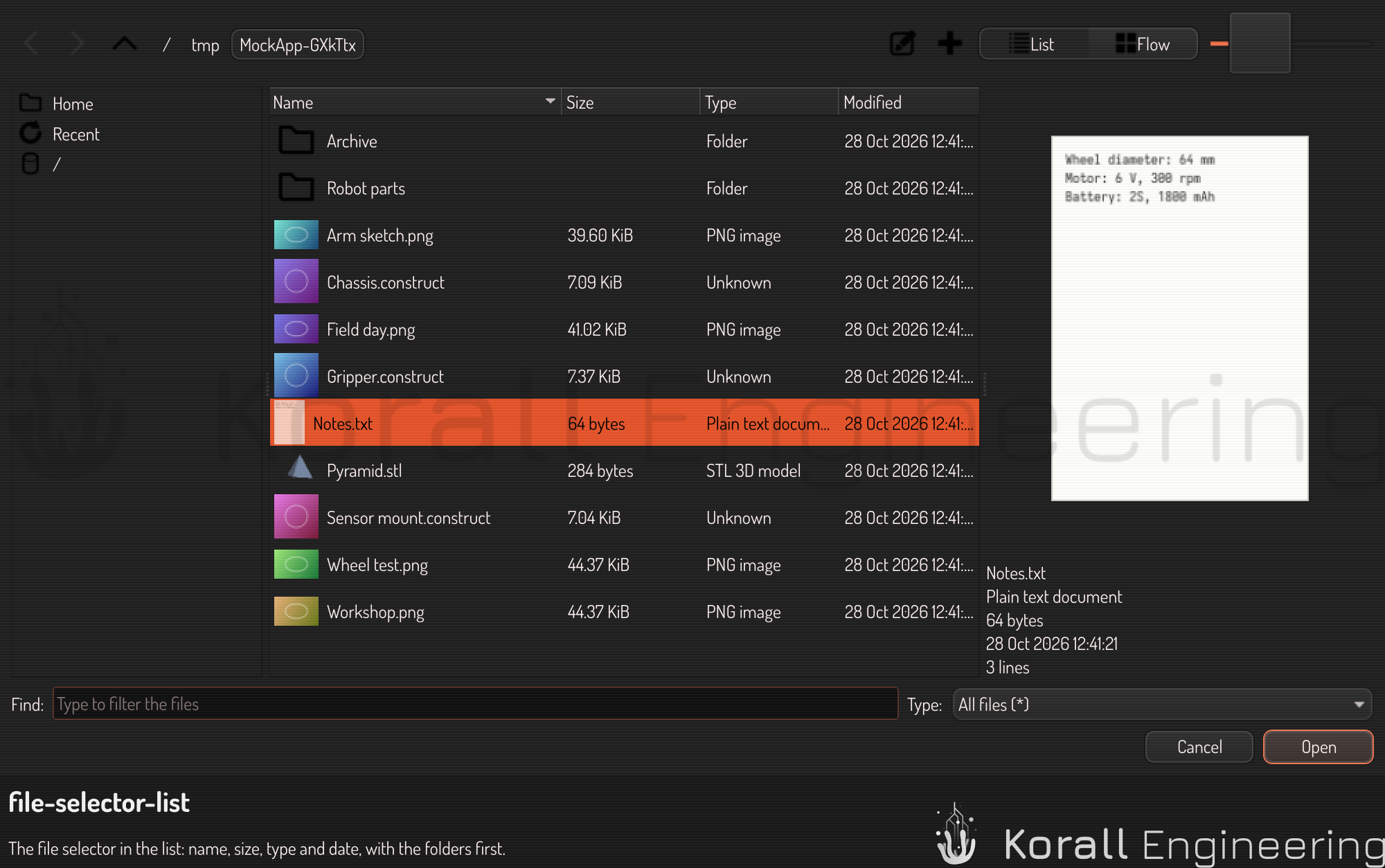
- List shows one row for each file, with the columns Name, Size, Type and Modified. Click the head of a column to sort by it, and click it again to sort the other way. Folders come first. The picture of a row is at most 64 px.
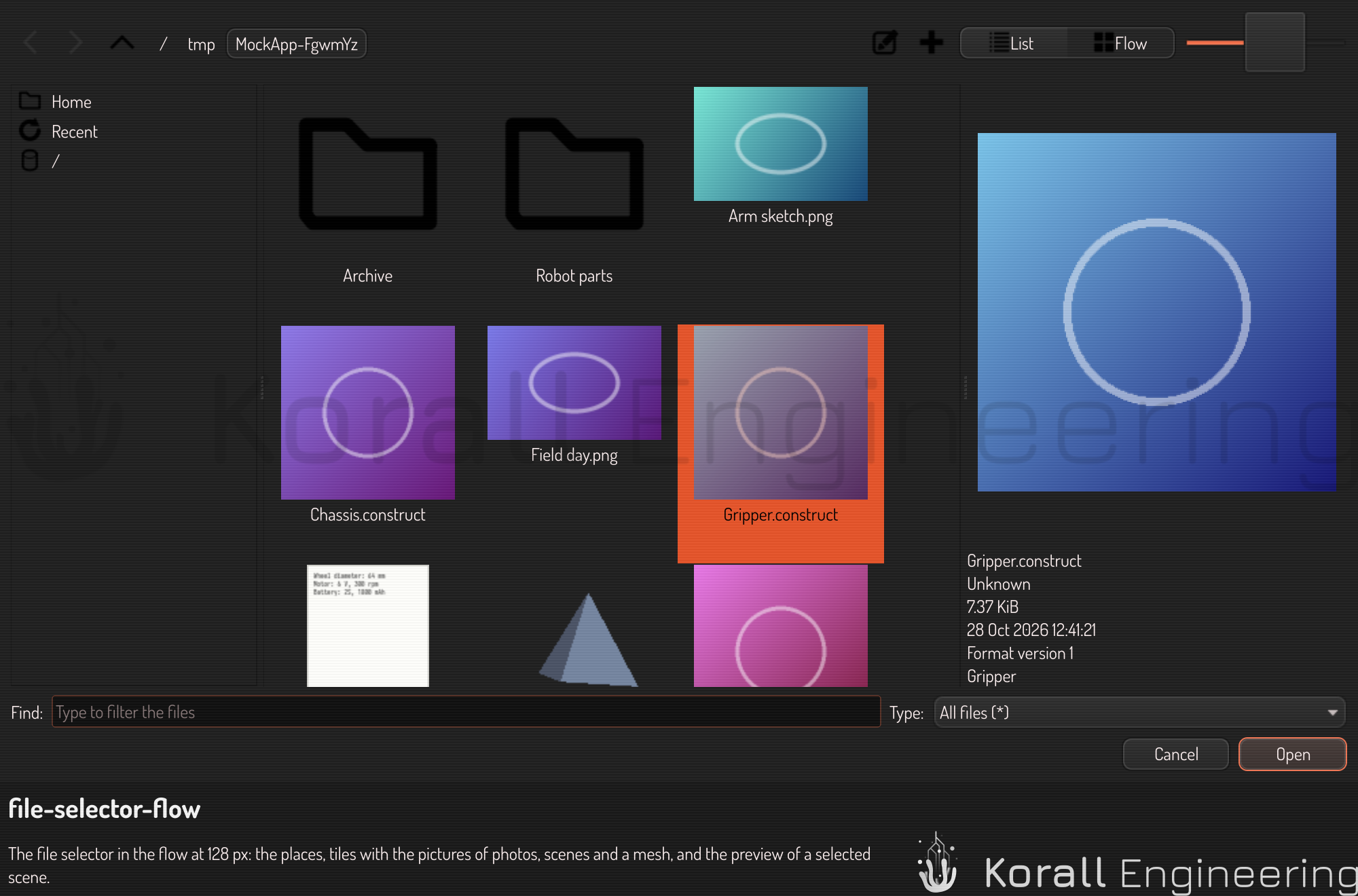
- Flow shows the files as tiles, with the picture over two lines of the name. The tiles wrap to the width of the window.
Make the pictures larger or smaller
- Drag the size slider at the right of the path bar. It has steps from 16 px to 512 px.
- Or hold Ctrl and turn the mouse wheel over the files. It moves the slider one step at a time.
The program remembers the size.
The pictures come in steps. A file first shows the icon of its type. Then the picture that the file holds shows, when it holds one, such as the preview that a scene keeps or the small picture in a photo. A picture made earlier comes next, from the picture cache, and last a picture made from the content of the file. The next time the folder shows, the pictures come from the cache. Only the files on the screen get pictures, so a large folder stays fast. File previews lists which kinds of file get which picture.
Read the preview lane
Click a file. The preview lane at the right shows, from the top:
- The best picture of the file so far.
- The live preview, when the kind of file has one. It replaces the picture when it is ready: an image to zoom, a text to read, the pages of a PDF, the members of an archive, a video to play, or a 3D view of a scene or a mesh.
- The facts: the name, the type, the size and the date, then the facts of the kind of file, for example the size of an image in pixels or the page count of a PDF.
Drag the edge between the files and the lane to make the lane wider or narrower. The program remembers the width. A folder shows its icon and its facts, and no live preview.
Turn a scene or a mesh
In Construct and Construct Viewer, a scene, a pack or a mesh shows in a 3D view in the editor's viewport look.
- Drag with the middle mouse button to turn it.
- Turn the mouse wheel to move closer or further away.
Only the selected file has a live preview, so a folder of large scenes costs one view.
In a narrow window
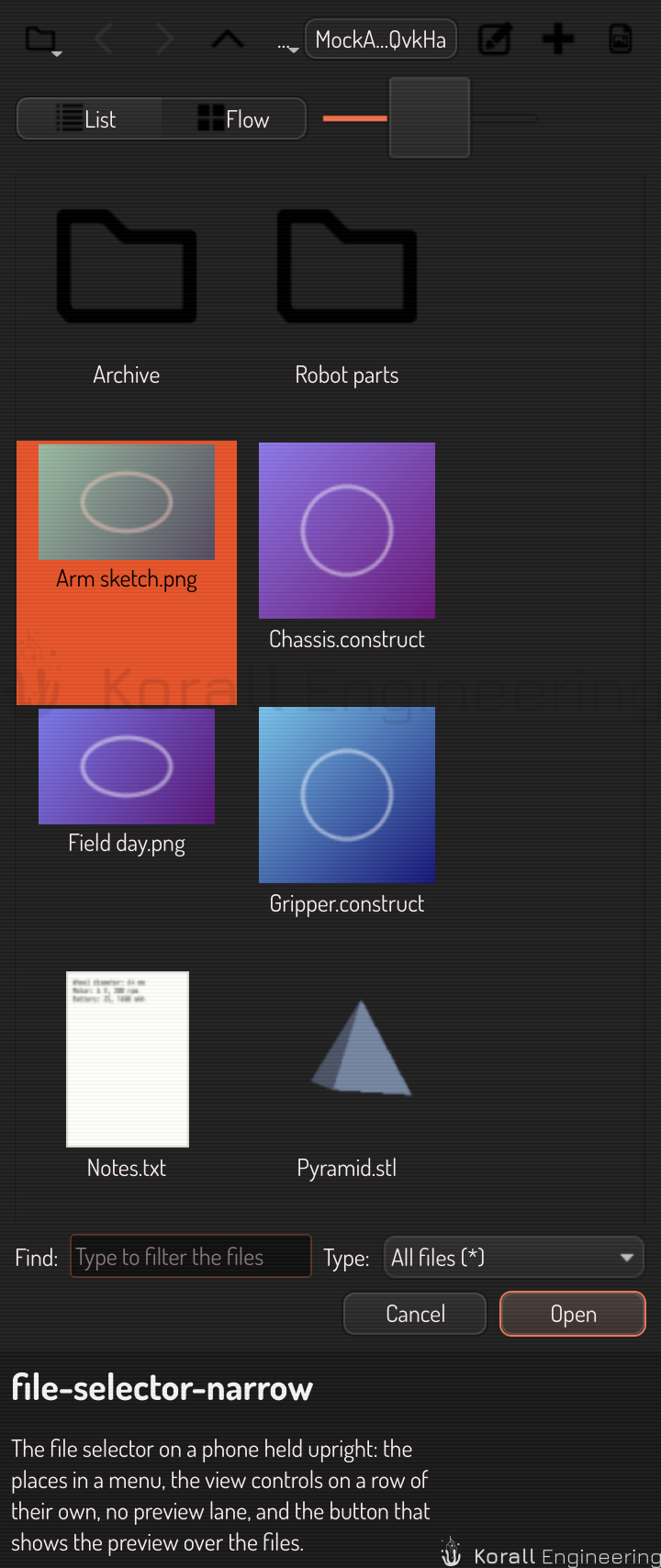
When the window is narrower than 720 px, the preview lane hides so that the files have the room. The places become the menu of the folder button at the left end of the path bar, and List, Flow and the size slider move to a row of their own. Press Show the preview at the right end of the path bar to show the preview over the files. Press it again to see the files. A switch between List and Flow also brings the files back.
Show hidden files
Press Ctrl+H to show the hidden files, the files whose names start with a dot on Linux and macOS. Press it again to hide them. You can also right-click the files and choose Show hidden files. The next question of the program starts with them hidden again.
See also
- Open and save files: the places, the path bar, the name and the type.
- File previews: every kind of file that shows a picture, and the picture cache.
- View a mesh or a scene: the full viewer for a scene or a mesh.