Open and save files
Pick a file, a folder or a name in the file selector
Every program opens files, saves files and chooses folders in the same window, the file selector. This page shows how to get to a folder, pick one file or many, choose a folder, and save under a name.
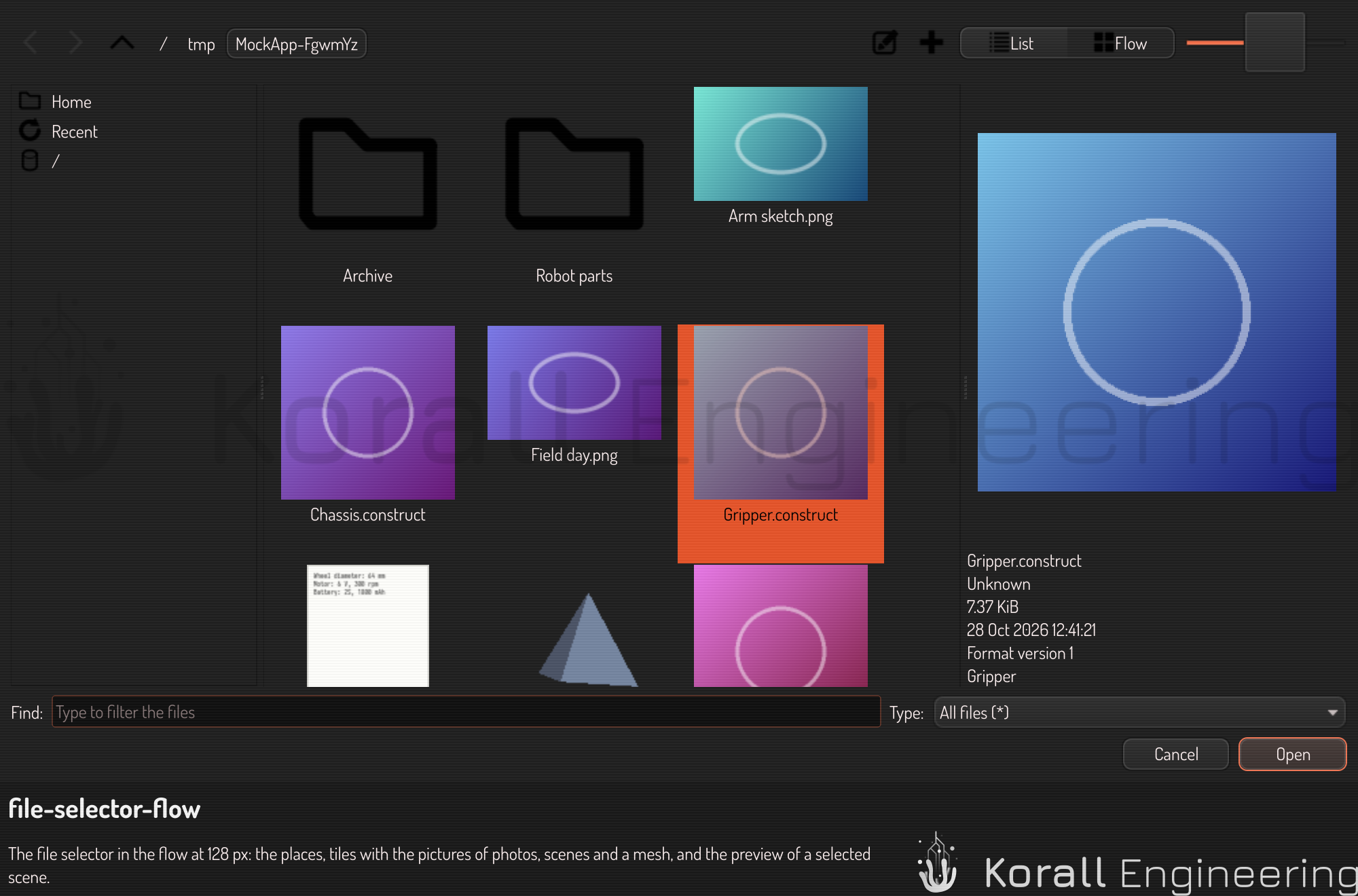
The parts of the window
- The path bar, at the top: Back, Forward and Up one folder, then one button for each folder of the path, then Type a path, New folder, the List and Flow switch, and the size slider.
- The places, on the left: the folders that you go to often.
- The files of the folder, in the middle.
- The preview lane, on the right: a picture of the selected file and its facts. Find a file by its picture tells more.
- The name and the type, at the bottom: the Find or Name field, the Type box, and the Cancel and Open, Save or Choose buttons.
In a window narrower than 720 px, for example on a phone, the places are the menu of the folder button at the start of the path bar, and List, Flow and the size slider are on a row under it. The preview lane hides, and the preview button at the end of the path bar shows the preview over the files.
Go to a folder
- Click a place. The places are Home, Recent, Desktop, Documents, Pictures, Downloads and the drives of the computer. A place shows only when its folder exists. A program can add folders of its own, and Agent, Remote and HUB add the drive of the node's Hive.
- Click Recent to see the last 20 files that a file selector returned, the newest first. Choose one to open its folder with the file selected. A file that is gone drops out of the list.
- Double-click a folder in the files, or select it and press Enter.
- Click a folder of the path bar to go up to it. When the path is too long for the bar, the folders that do not fit go into the menu of the … button at its start.
- Back, Forward and Up one folder move through the folders that you saw, and to the folder above.
- Type a path: click Type a path (the pencil), type the path, and press Enter. The selector goes to the folder when it exists. Press Esc to go back to the folder buttons.
To make a folder, click New folder, type its name in the path bar, and press Enter. Press Esc to make none. New folder does not show where no folder can be made.
The selector opens in the folder that the same question used last time. When the program names a folder, the selector opens there instead.
Open a file
- Go to the folder of the file.
- To see only one kind of file, choose it in Type. All files shows every file.
- To find a file by its name, type part of the name in Find. The files filter as you type.
- Double-click the file. Or select it and press Open or Enter.
Open stays off until a file is selected. You can also type a full path in Find and press Enter: a file opens, and a folder becomes the folder shown.
Open many files
When the program asks for several files, hold Ctrl and click each file, or click the first one and Shift-click the last one. Then press Open.
Choose a folder
When the program asks for a folder, the button reads Choose, the Type box does not show, and the files are usually hidden. Select a folder and press Choose. With no folder selected, Choose takes the folder that the selector shows. Double-click a folder to go into it.
Save a file
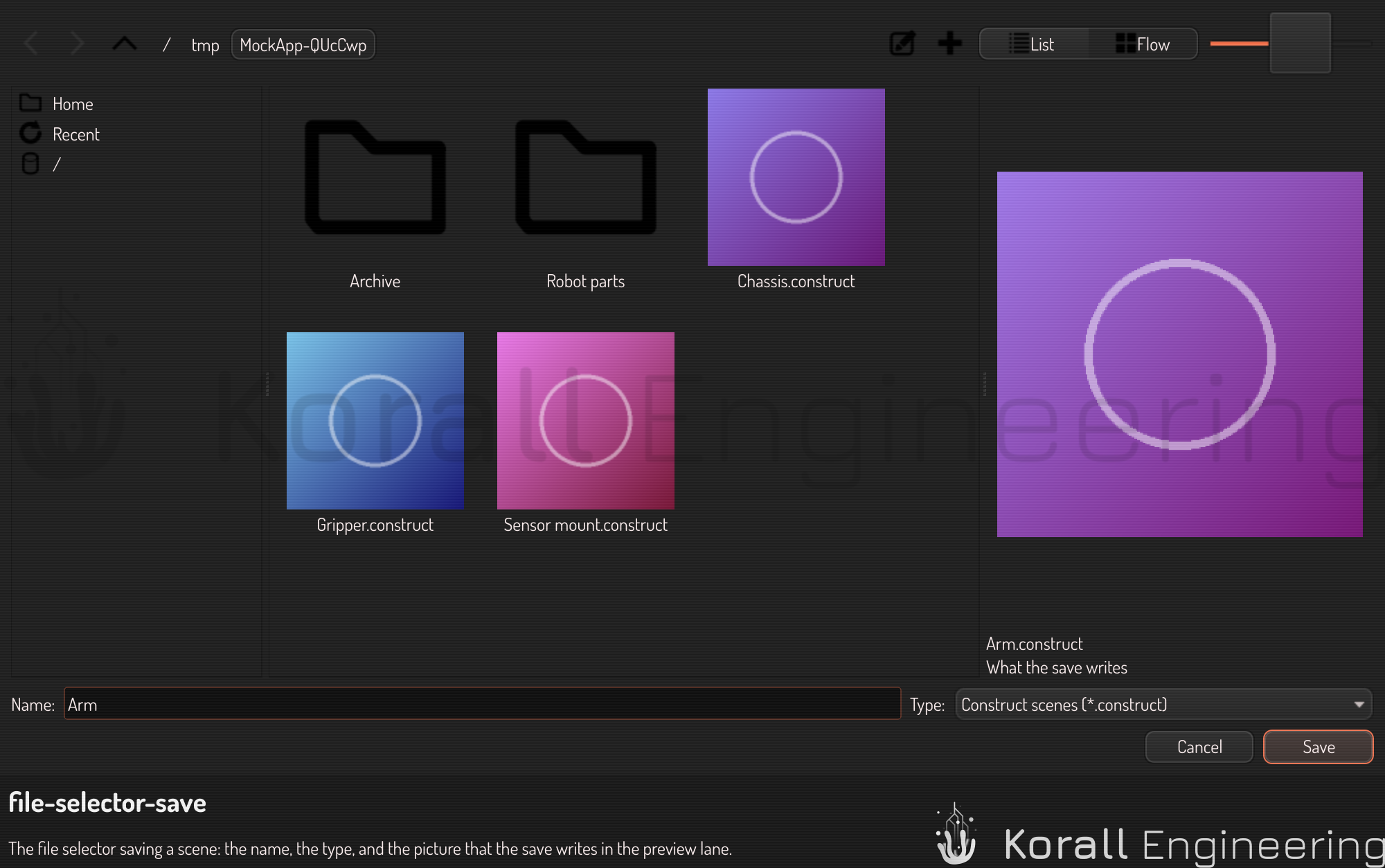
- Go to the folder that the file goes into.
- Type the name in Name. To use the name of a file that is there, click that file.
- Choose the kind of file in Type. When the name has no extension, the selector adds the extension of that type, for example
.png. - Press Save or Enter.
The preview lane shows what the save writes when the program gives a picture of it, for example the view of a scene in Construct or the image of Save image in Construct Viewer. When the name is the name of a file that is there, the lane shows that file and says that the save replaces it.
Save over a file
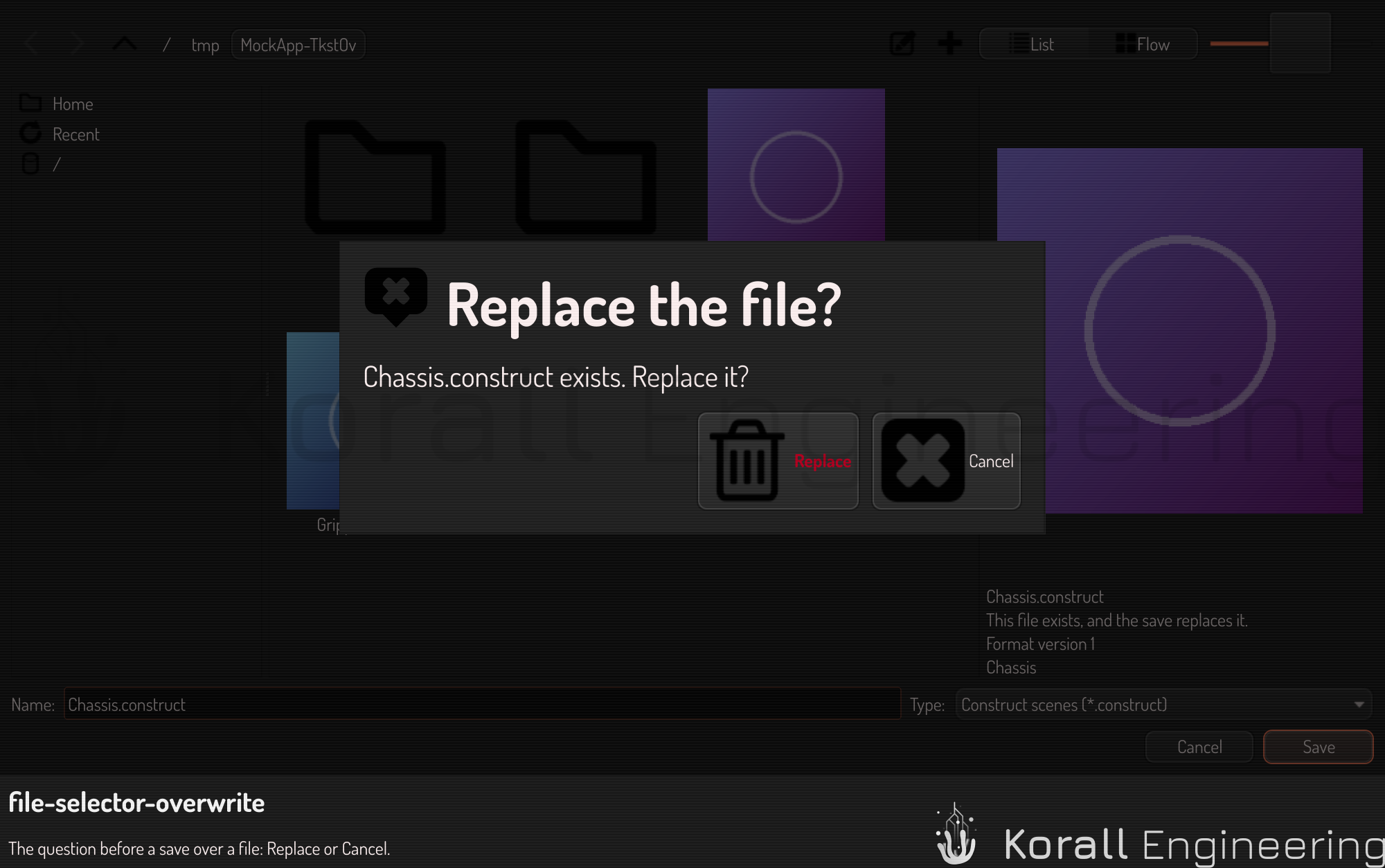
When a file of that name is there, the selector asks Replace the file? first.
- Choose Replace to save over the file.
- Choose Cancel, or press Esc, to go back to the selector. Type another name, or go to another folder.
A program can skip the question where replacing the file is the purpose of the save.
Cancel
Press Cancel or Esc. The program opens or saves nothing.
In Agent, Remote and HUB
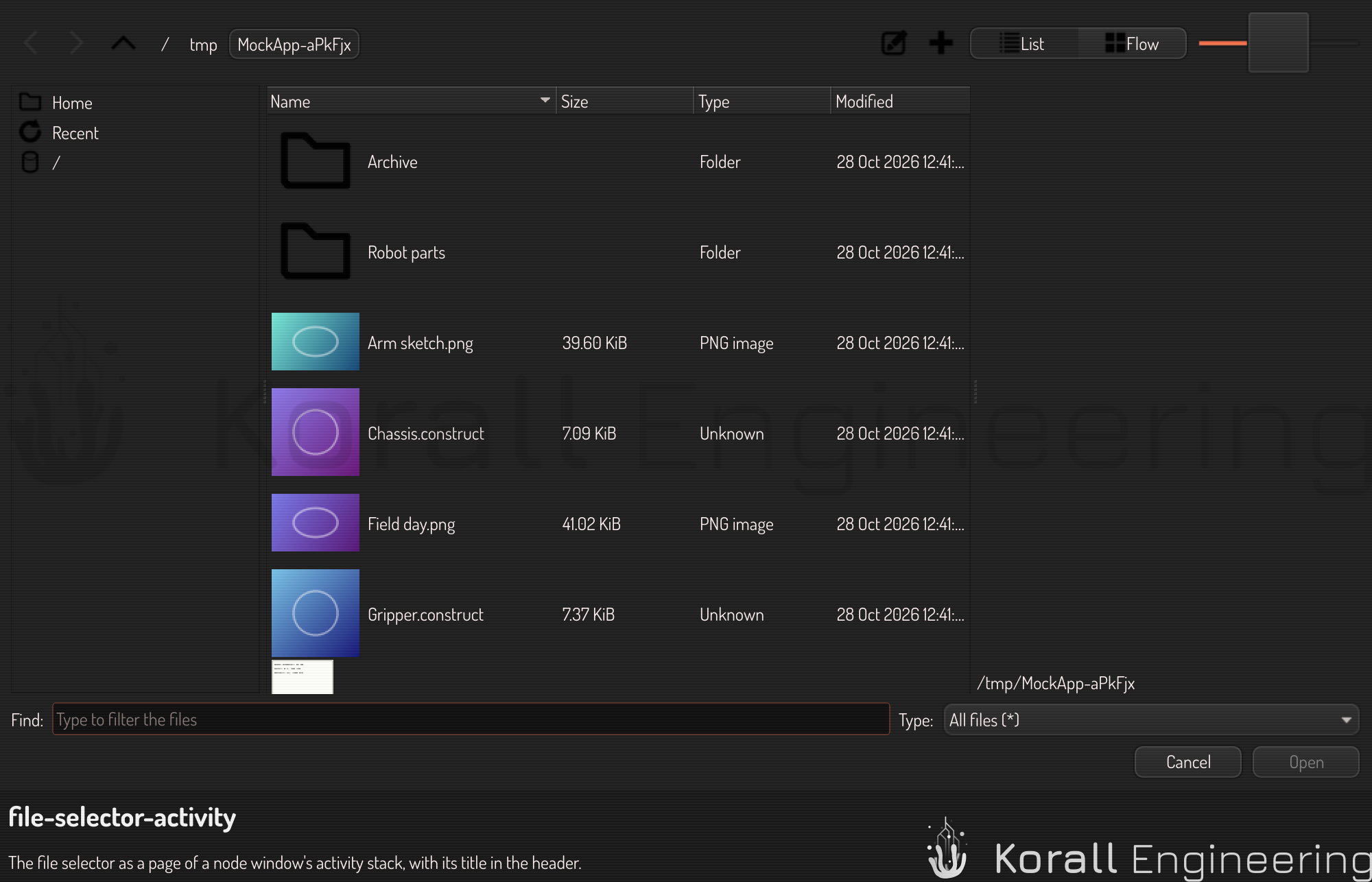
In Agent, Remote and HUB the file selector is a page of the window, not a window of its own. It works as this page tells, with two differences:
- The Back button of the page cancels, as Cancel does.
- When you press Open, Save or Choose, the page closes and you are back on the page that asked.
What the selector remembers
Each program keeps these in its own settings:
- The last folder of each question that it asks.
- The recent files.
- The list or the flow, the size of the pictures, and the width of the preview lane.
See also
- Find a file by its picture: the views, the sizes and the preview lane.
- File previews: every kind of file that shows a picture.