View a mesh or a scene
Look at a mesh or a Construct scene without opening the editor
Construct Viewer shows a file and edits nothing. It draws with the lighting of the editor's viewport. It opens a mesh (.stl, .obj, .ply, .vtk) or a Construct scene (.construct, .cpack) in a window of its own, without the panels, the batch system or the assistant of the editor. It is the program for a quick look.
Open a file
- From a terminal:
construct view part.stl, orconstruct part.stl. Name several files and each opens in a window of its own. - From an open viewer: press Open, or pick a file under the arrow beside it, which holds the last ten files. File types… at the end of that list chooses the programs that open each type of file.
- Drop a file on a viewer window. It opens in a new window.
The window shows at once, before the file is read. The status in the Info sidebar shows how far the load is. Press Esc to stop the load of an OBJ, PLY or VTK file. A scene that was saved by a recent editor shows its saved picture straight away, and the live view replaces it when it is ready.
When a viewer runs, a second construct view hands its files to it, and the running viewer opens a window for each one. A viewer of another version opens its own window instead.
If a file cannot be read, the window says why, in the place of the view. When the editor can tell more, for example about a scene of another format version, the window offers Open in Construct.
Look around
The view takes the mouse as the editor's viewport does: drag to orbit, the wheel to move closer or further away.
| Key | Does |
|---|---|
| F | Frame the whole file |
| Shift+F | Frame the parts selected in the tree |
| 1 to 7 | Look from the front, back, left, right, top, bottom, or from the isometric corner |
| O | Switch between perspective and orthographic projection |
| F1 | Open this page |
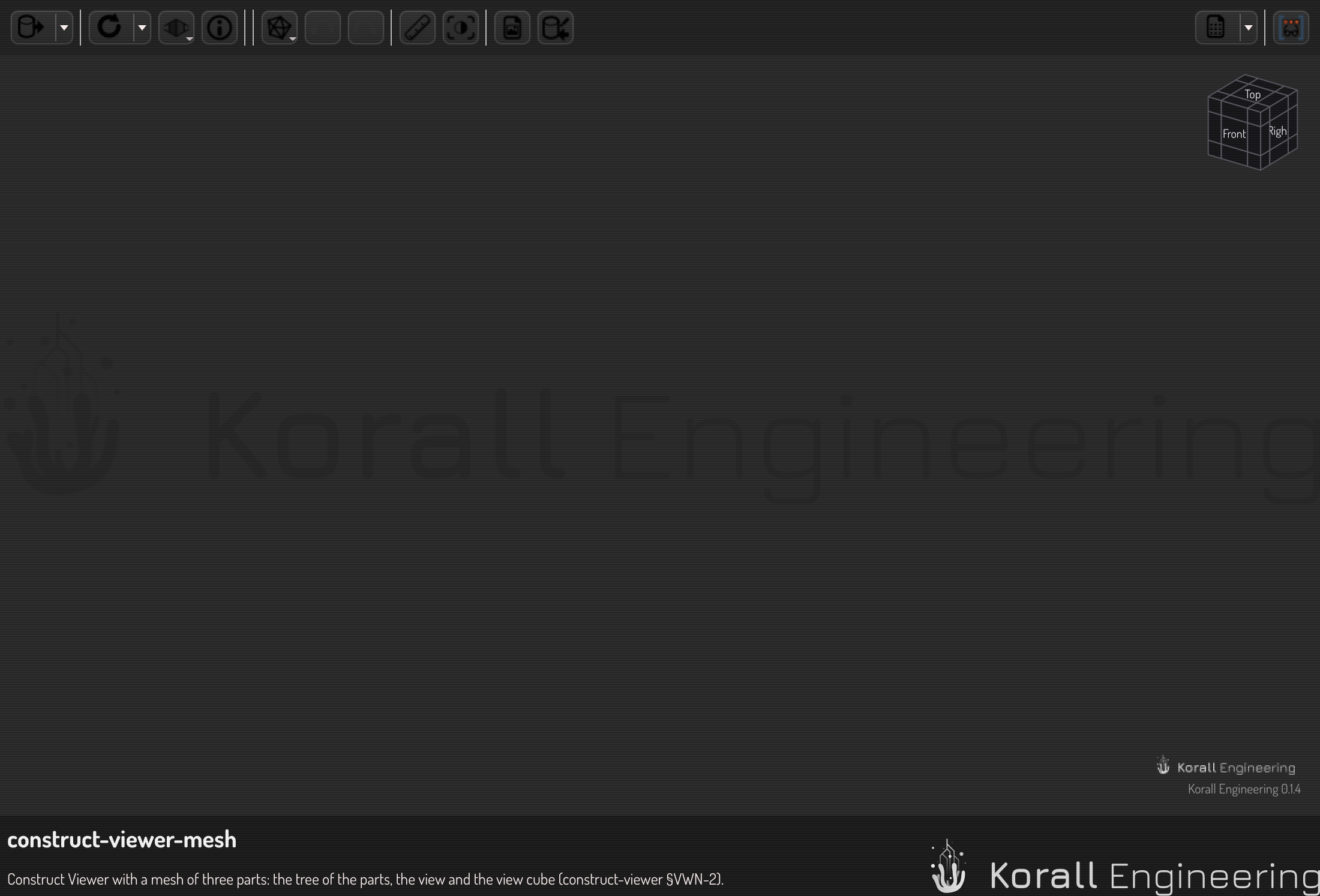
The camera button in the toolbar does what you chose last under its arrow: Reset to default view, Fit to content or Fit to selection, as the camera button of the editor does. The View menu in the toolbar holds the same views as the number keys. The cube in the top right corner of the view turns with the camera. Click a face of the cube to look at that face, or an edge or a corner to look from there. The camera turns in a quarter of a second.
Hide and show parts
Press Info (the i in a circle) in the toolbar to show the sidebar beside the view: the tree, the facts of the selection, and the status of the last load, step or measure. It is hidden until you show it, and the viewer remembers your choice. The window has no status bar. The tree holds one row per part of the file: the items of a scene, the objects and groups of an OBJ, or the one mesh of an STL, PLY or VTK file.
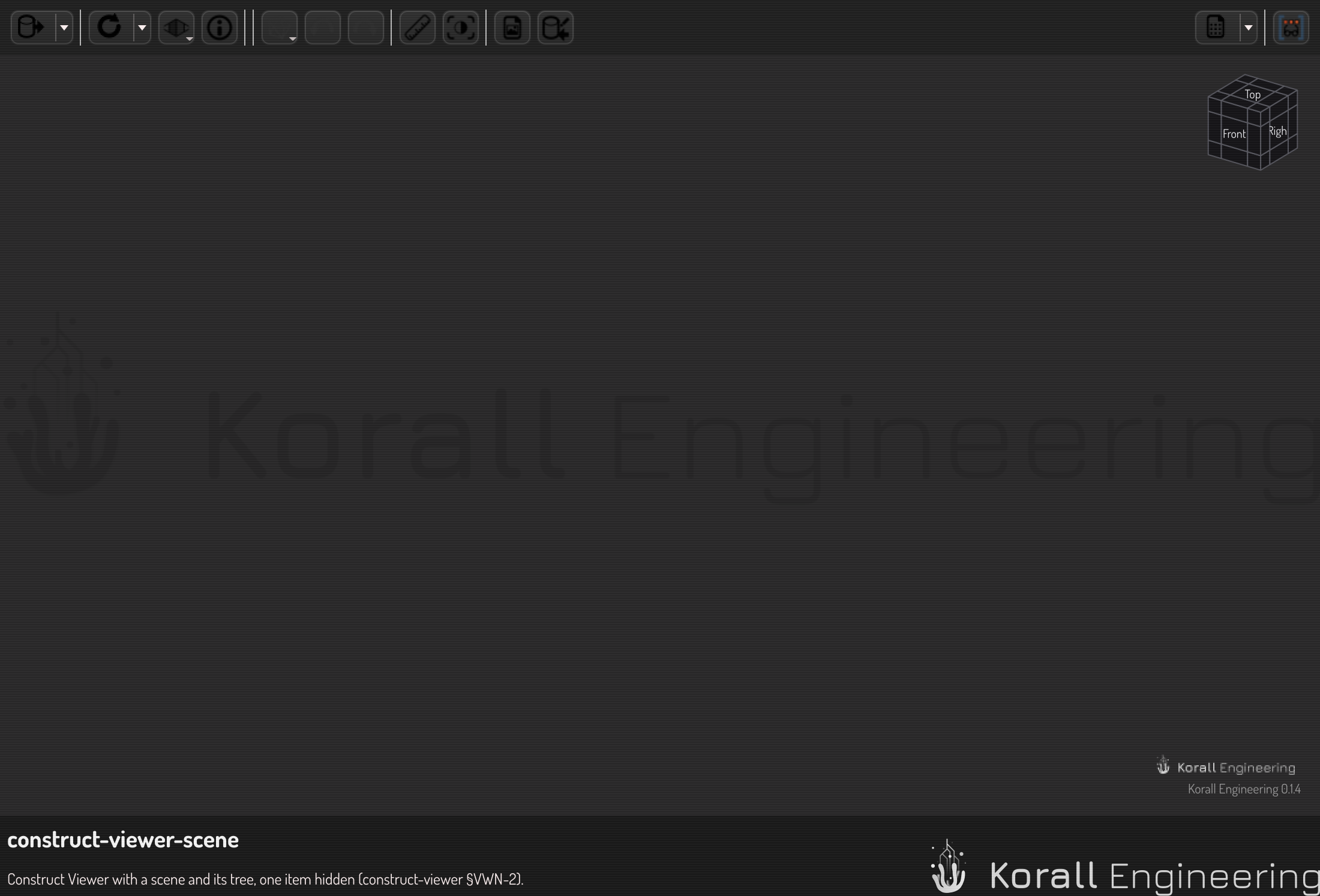
- Click the eye at the end of a row to hide the part, or to show it again.
- Right-click a row and choose Isolate to hide every other part. Show all brings back what was there before.
- Hide others hides the other parts at the same level, and stays.
- Double-click a row, or choose Frame, to fit the camera to that part.
- Click a part in the view to select its row. Click a row to outline its part in the view.
- Right-click the row of a mesh and choose Split into connected parts to make each connected piece a part of its own.
Follow a file that changes
When the file changes on disk, for example when another program saves it, the viewer reads it again and keeps the camera where it is. The status in the Info sidebar says Reloaded. If the file is deleted, the window keeps its last picture and says that the file is gone.
Change how a mesh is drawn
The View menu holds three switches for a plain mesh:
- Wireframe draws the edges of the triangles over the shaded surface.
- X-ray draws the front faces see-through, so that inner parts show.
- Flat normals shades each triangle flat, so that every facet shows. Turn it off to shade with the file's normals, or with smooth normals that the viewer works out.
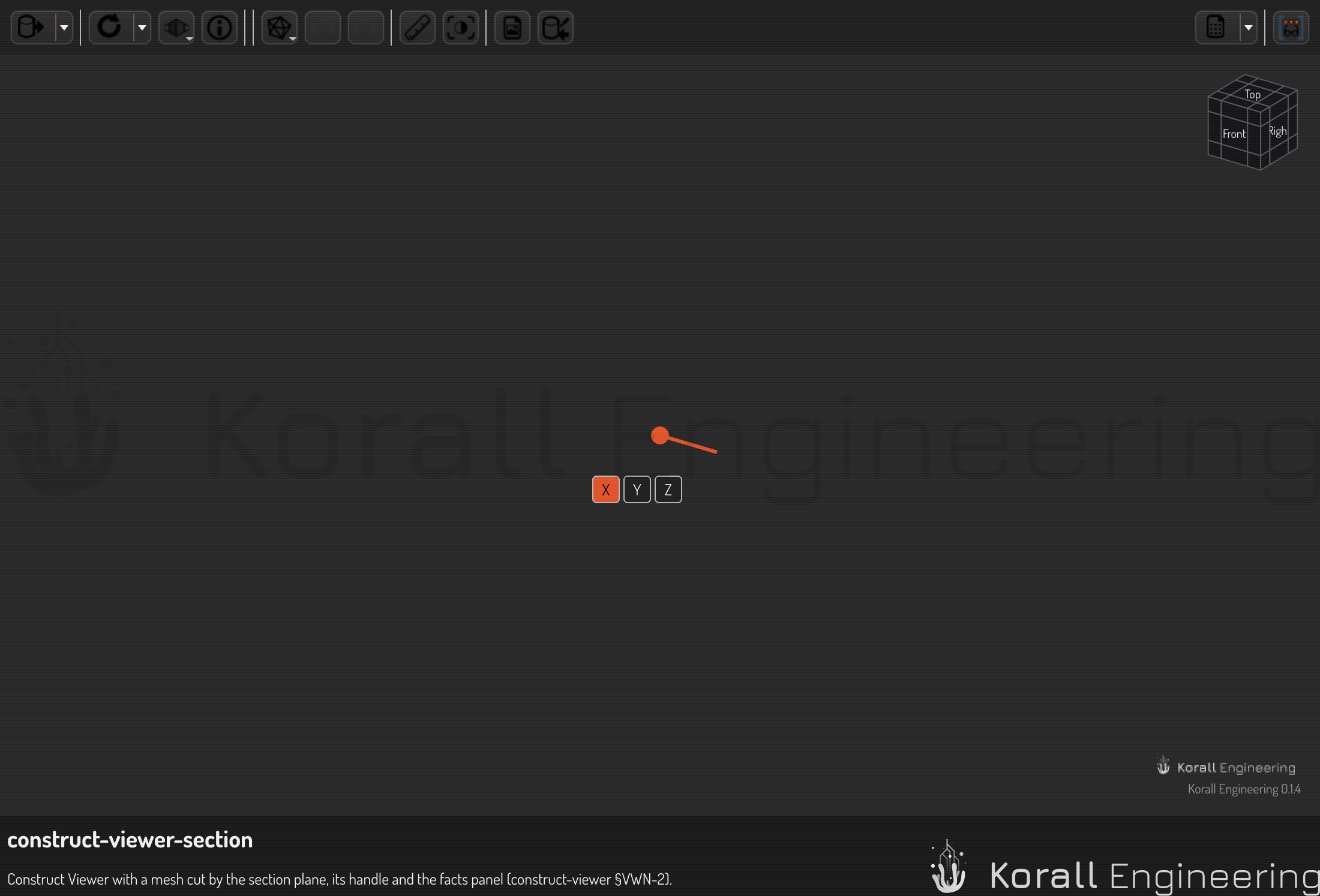
Choose View ▸ Section to cut the mesh with a plane. The cut face shows filled where the mesh is closed. Drag the arrow of the handle to move the plane. The X, Y and Z buttons of the handle turn the plane to that axis, and a second click on the same button turns it around. For a mesh, the facts under the tree give the counts, the size, the area and the volume of the parts that you select in the tree, or of the whole mesh when none is selected.
Measure, save an image, check the quality
-
Measure: click up to three points on the surface. While the tool is on, the cursor is a cross, and a dot follows the surface under it.
- Before the first click, the dot shows its coordinates.
- After the first click (A), a dashed line and its length run from A to the dot.
- After the second click (B), the line AB keeps its length, a dashed line runs from B to the dot, and the angle at B shows.
- The third click (C) keeps both lines, their lengths and the angle ABC. The next click starts again at A.
Lengths are in the document's units. A small arc at B shows the angle, and the texts sit over the lines. Press Esc to end the measure.
-
Save image: choose a size, then a file. The size is the view's at first, and the list holds the common sizes: SVGA, XGA, HD, Full HD, QHD, 4K and 8K. The viewer renders the view again at that size, so a large picture is sharp. The picture carries the organization's logo in its bottom right corner. Clear the check box to leave it out; the viewer turns it on again at its next start.
-
Copy image (Ctrl+C): put the picture that the view shows on the clipboard, with the logo while the check box of the save window is on.
-
Quality: color a mesh by how sharply it folds. The angles are measured in the background, and the window stays usable while the status in the Info sidebar shows the work. At each vertex, the viewer takes every edge that touches it, measures the angle between the normals of the two triangles on that edge, and keeps the largest. Blue is flat (0°), red is a fold of 90° or more. A smooth surface stays blue, and creases, spikes and noise show red. Turn it off to see the mesh plain again.
The button at the right end of the toolbar shows About Construct Viewer, with the full version. The logo of the organization and the version also sit in the bottom right corner of the view.
To change a mesh, see Process a mesh in the viewer.
Open the file in the editor or another program
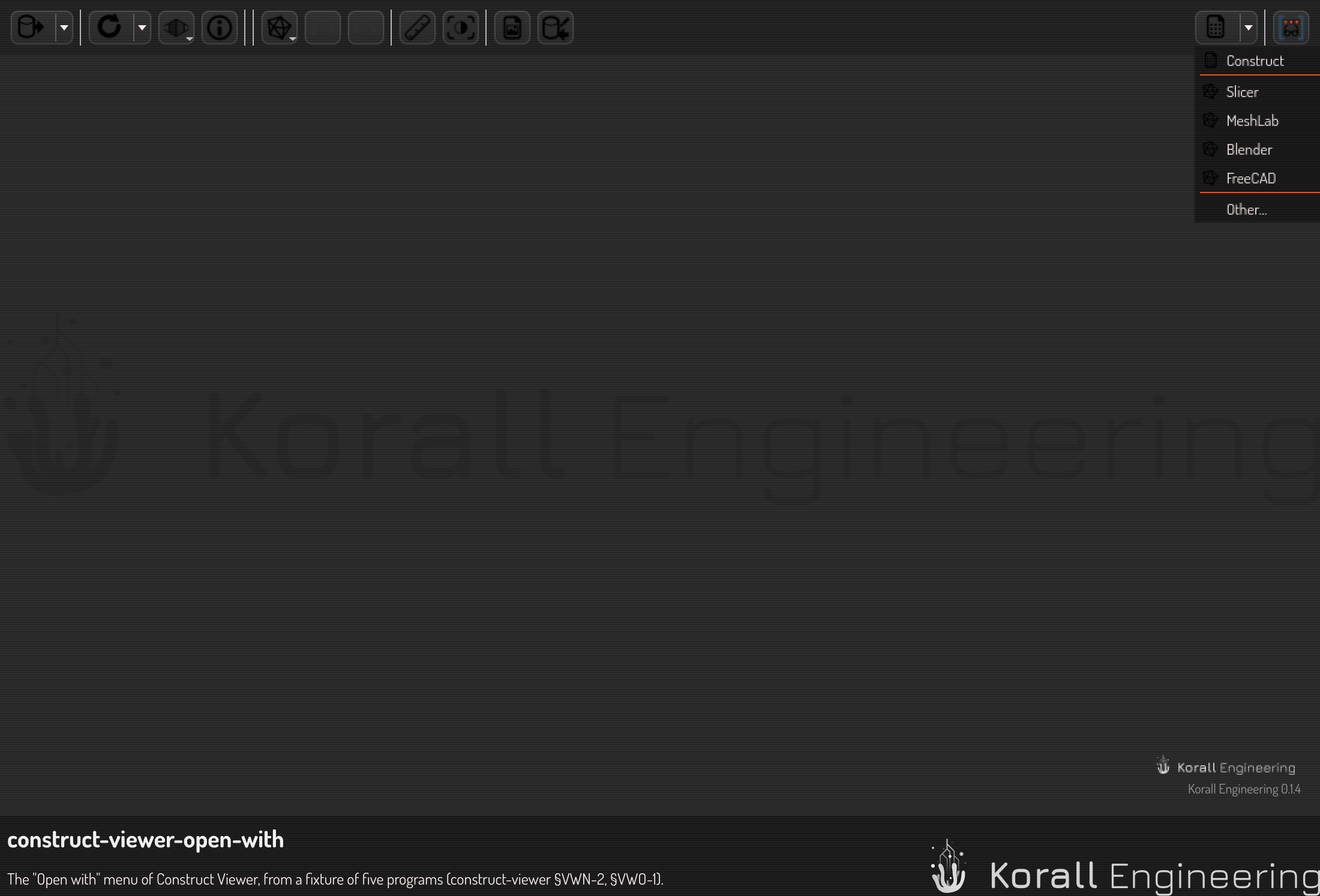
Press Open in Construct to open the file in Construct, the editor. The editor starts as a program of its own, and the viewer stays open. The arrow beside the button lists the other programs of the system that open the file, and Other… asks the system to choose.