Process a mesh in the viewer
Weld, decimate, repair and convert a mesh in Construct Viewer
When Construct Viewer shows a plain mesh (.stl, .obj, .ply, .vtk), the Mesh button in its toolbar holds the same steps as the editor's Mesh menu. A scene has no mesh tools: open it in Construct to change it.
Run a step
Pick a step from Mesh:
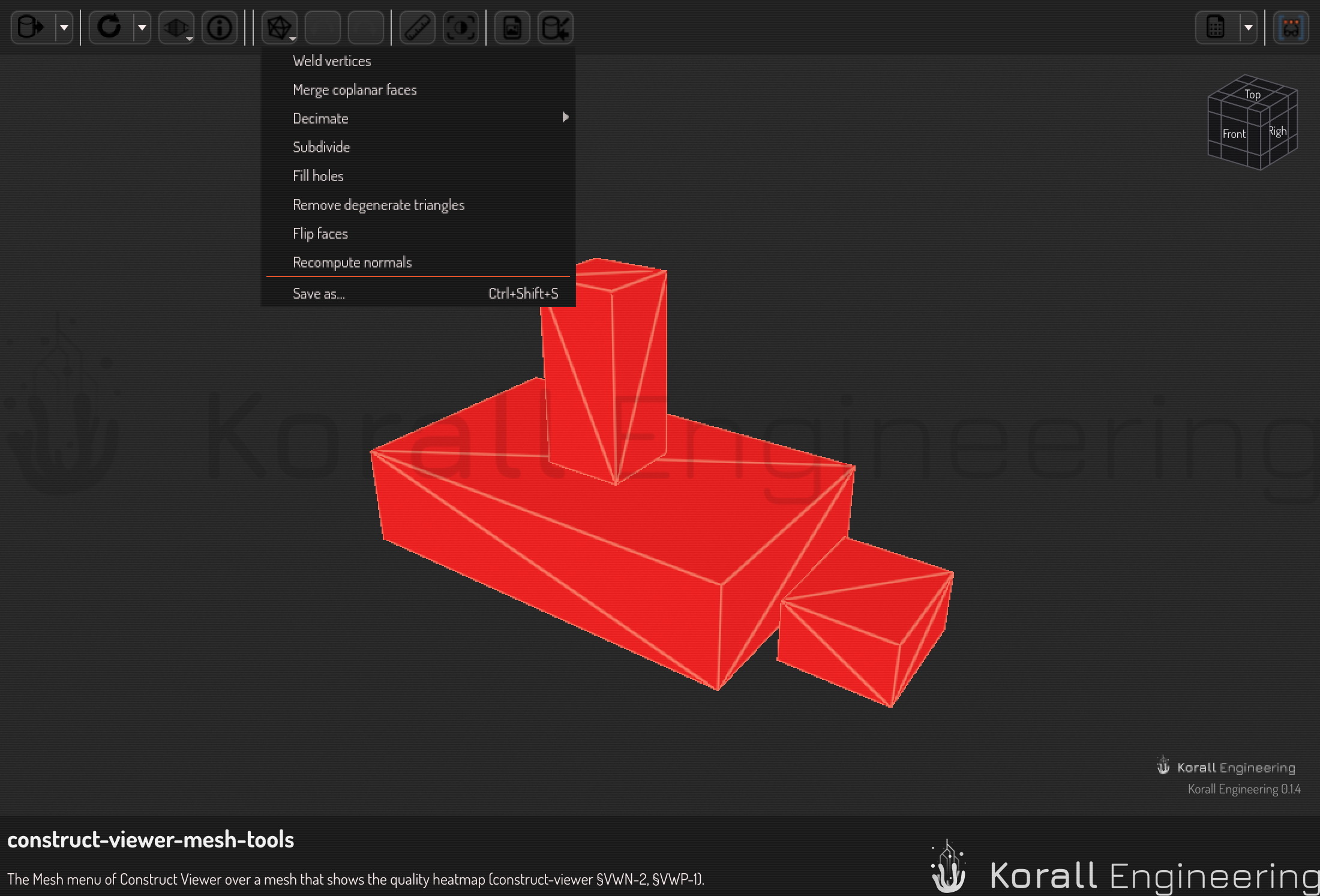
| Step | Does |
|---|---|
| Weld | Joins vertices that sit in the same place |
| Coplanar merge | Merges neighboring triangles that lie in one plane |
| Decimate 50 %, 25 %, 10 % | Keeps that share of the triangles, where the shape changes least |
| Subdivide | Splits each triangle into four, and smooths the surface |
| Fill holes | Closes the open boundaries of the surface |
| Remove degenerate triangles | Drops triangles with no area |
| Flip faces | Turns every triangle around |
| Recompute normals | Works out the surface normals again from the triangles |
The step runs in the background, and the status in the Info sidebar shows how far it is. Press Esc to stop it. The facts under the tree show the counts, the bounds, the area and the volume of the result.
To make each connected piece of a mesh a part of its own, right-click its row in the tree and choose Split into connected parts.
Undo a step
Press Undo (Ctrl+Z) and Redo (Ctrl+Shift+Z) to move through the steps. The viewer keeps the last 20 steps. The window title shows • while the mesh differs from the file.
Save the result
Choose Mesh ▸ Save as… and pick a name and a format: STL, OBJ, PLY or VTK. A save in another format converts the mesh. The suggested name is the file's name with -edited added.
The viewer never writes over the file it shows. When you close a window with steps that you did not save, it asks whether to save them as a new file, to discard them, or to keep the window open.