Troubleshoot rendering problems
The Construct renderer protects itself against GPU overload: it caps oversized allocations, recovers from driver resets, and tells you what it did through toast notifications. This guide explains each of those messages, why they appear, and what to do about them. It also covers the three problems of path tracing in the viewport: a viewport that stutters, an image that never finishes, and fireflies.
All the settings mentioned below are on the settings page (Ctrl+,). Each section names the category that holds them.
My viewport went black or anti-aliasing turned itself off
If the GPU driver resets while Construct is rendering (a "device loss" — typically caused by another application crashing the driver, a driver update mid-session, or an allocation the GPU could not honour), the viewport recovers automatically. When that happens you will see a toast notification:
GPU recovered — QRhi reported device loss and was recovered. Anti-aliasing dropped from <strategy> to Off — re-select in Render Options when the driver is stable again.
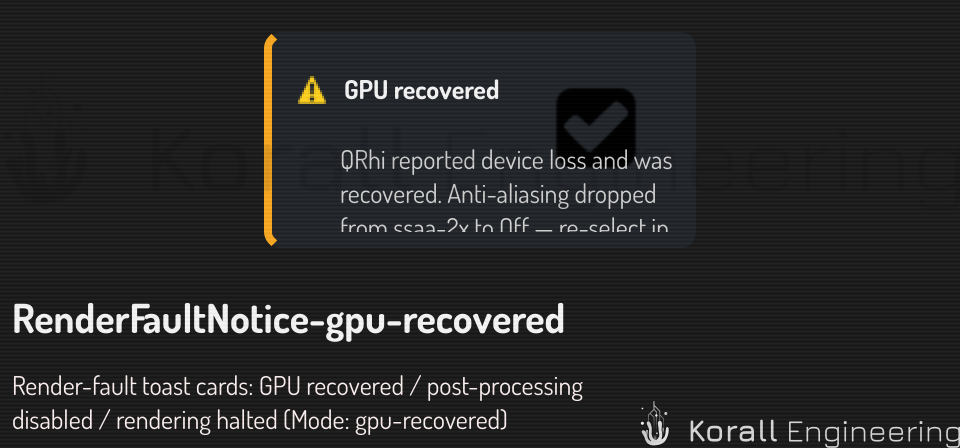
"Off" means the renderer switched to its no-anti-aliasing mode: the scene renders normally, but silhouette edges look harder/more stair-stepped than before. This is deliberate — anti-aliasing is the most allocation-hungry part of the pipeline, so it is the first thing dropped when the driver is unstable.
To get your anti-aliasing back: open the settings page (Ctrl+,), open the Shading category, and choose the strategy the toast named in the Antialiasing row again. If the driver is healthy again it will stick.
Two related toasts escalate when the driver keeps failing:
-
Post-processing disabled — the renderer refused an offscreen allocation (or lost the device three times within a minute) and now renders in a simpler single-pass mode. Bloom, tone mapping and dither are off; the scene stays interactive.
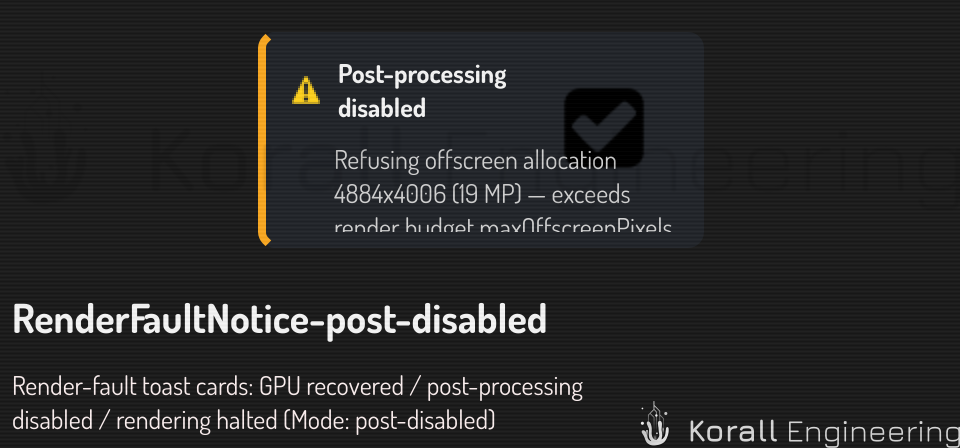
Post-processing disabled toast -
Rendering halted — five device losses within a minute. The renderer stops submitting work entirely to avoid wedging the machine. Save your work and restart the application; if this recurs, update the GPU driver and see Diagnostic mode below.
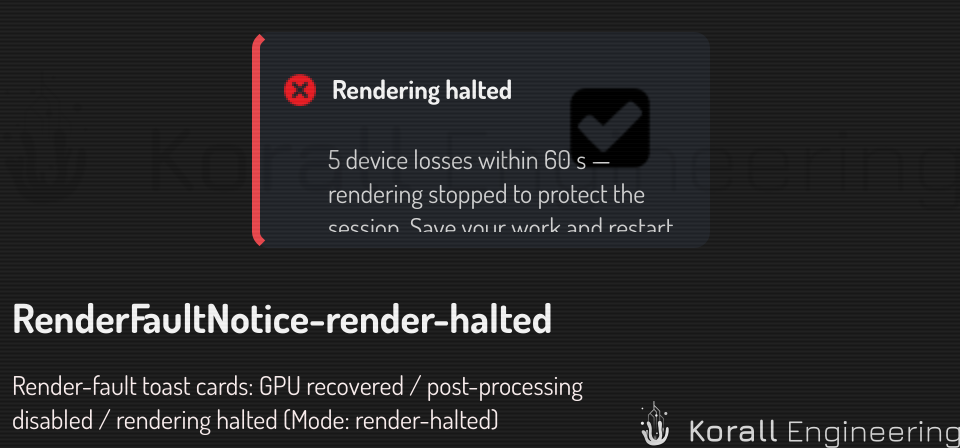
Rendering halted toast
Construct says the graphics driver reset the GPU
Windows resets the GPU when one piece of GPU work runs longer than its limit, which is two seconds by default, or when the driver fails. Every program that was using the GPU then loses its graphics device, and Construct along with it. Construct rebuilds its views by itself and keeps your documents open. You do not need to restart it. The error list of the document shows one warning for each reset:
The graphics driver reset the GPU. Construct rebuilt its views.
The warning can say more:
- "Construct now uses Vulkan." The GPU was reset three times within a minute, so new views and renders use the next graphics backend. Restart Construct to go back to the first one once the driver is stable.
- "Did not let go in time: …" names a part of Construct that was busy when the reset came. Construct waited two seconds for it and then went on. That part restarts when it is free.
After five resets within a minute, Construct stops rendering, so that it does not reset the GPU again and again. The viewport turns dark and shows Construct stopped rendering with a Try again button. Save your work, close other programs that use the GPU heavily, and then click Try again. If the resets go on, update the GPU driver and see Diagnostic mode below.
Path-traced rendering splits its work into small pieces, each well under
the two-second limit, so a heavy scene alone should not cause a reset. If
one does, the application log shows the tile plan of each trace (a line
with path-trace plan:); include it when you report the problem.
A program or a prompt that captures the view with view.snapshot gets two
fields that say what happened: backend names the graphics backend that
made the image (for example d3d12 or vulkan), and deviceLoss is
true when the capture lost its device and made the image on a new one.
My queued export failed with a device-lost error
A queued render export runs the same fault detection. If the GPU is lost mid-job, the export worker releases everything, re-initializes the renderer, and retries the frame once. Only if the second attempt also fails does the job fall back to placeholder frames and record the error.
Where to look:
-
Jobs panel — the failed job's row carries the error text, e.g.
QRhi reported device-lost mid-batch — export frame skipped.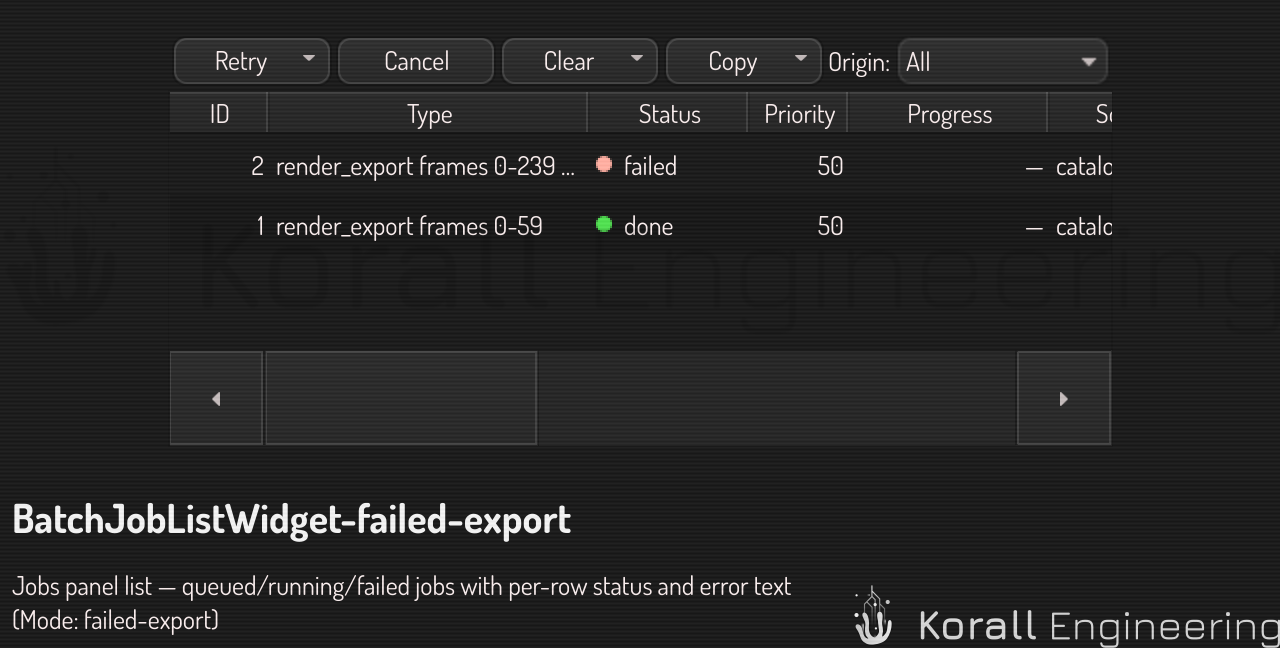
Jobs panel with a failed export -
Application log — the worker logs the retry decision (
QRhi device-lost at frame N — releasing + retrying once) and, when the retry fails, the reason the re-initialization did not succeed.
If a specific export reproducibly triggers the loss, the job is most likely too demanding for the GPU. Adjust the render preset before re-queueing:
- Lower the Resolution on the Export tab (device losses are strongly correlated with very large render targets).
- Switch Antialiasing from SSAA to FXAA or Off — SSAA renders at up to 2× the resolution in each direction, quadrupling memory demand.
- Reduce the frame range to bisect whether one specific frame (e.g. a heavy procedural scene state) is responsible.
The AA dropdown marks some options with a warning sign
The choices of the Antialiasing row are checked against your machine's render budget — the allocation ceiling probed from the GPU at startup. A choice marked with a warning sign (⚠) and "(capped on this GPU)" has a resolution or sample-count demand that would exceed that budget on a Full-HD viewport.
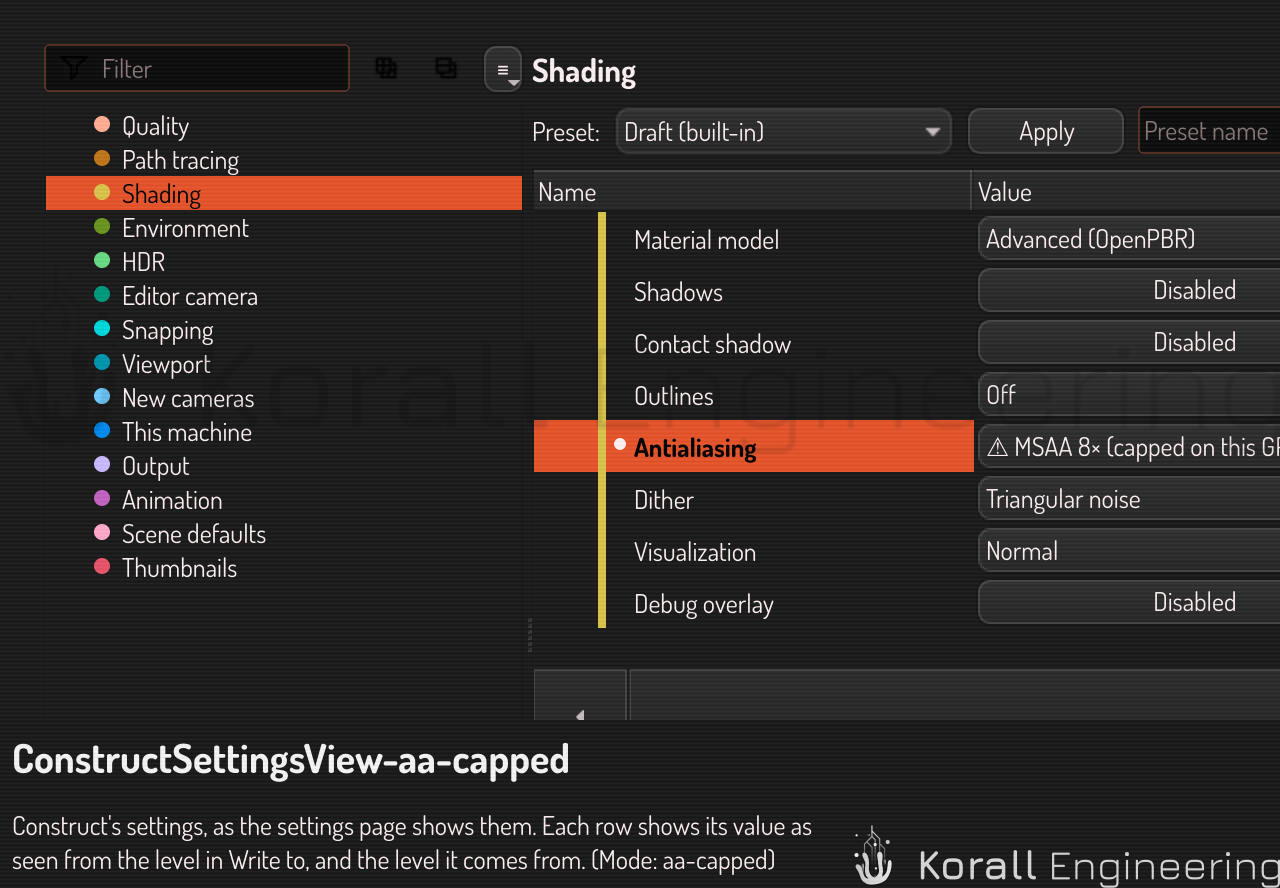
Antialiasing is on the settings page (the settings button of the toolbar, or Ctrl+,), category Shading. It can be set for the scene, and overridden per camera on the camera inspector — see where settings live.
You can still select a marked option — this is informed consent, not a hard block. When the renderer hits the cap it scales the request down to fit instead of failing:
- An SSAA resolution demand above the budget renders at the largest scale that fits (you keep some supersampling).
- A sample count above the budget clamps to the budget maximum (typically 4×).
If the capped request cannot fit even at 1× scale, post-processing is disabled for that session and the Post-processing disabled toast tells you why.
On machines with more GPU memory the budget is probed higher at startup, so the same option may be unmarked on one machine and marked on another — the warnings describe this machine, not the scene.
The viewport stutters while it path traces
While the viewport path traces, the camera follows a drag late or in jumps, a click or a key answers slowly, or other programs and the desktop stutter while the image refines. The other modes do not show it.
Why it happens. The path tracer shares the GPU with the window and the desktop. The GPU runs its work in the order it gets it, so a long piece of tracer work makes the next frame of the window wait behind it. Construct cuts the tracer's work into slices, and one pacer per process decides how long each slice can be and how much of the GPU the slices can take together. Two settings in the This machine category control it:
| Setting | Default | What it does |
|---|---|---|
| Background GPU slice (ms) | 8 ms | The longest that one slice of background work holds the GPU while you work, from 1 ms to 50 ms. After 500 ms with no mouse, key, wheel, touch or tablet input, a slice is four times as long: 32 ms at the default |
| GPU share for background rendering | 0.8 | The share of each second that background work can keep the GPU busy, from 0.1 to 1.0. The rest is free for the window and the desktop compositor |
Background work is the refinement of the path-traced viewport, its navigation frames included, the thumbnails, the material previews and render jobs. The frames of the window itself never wait for the pacer. A render job has no cap while you are idle, or when Pause the viewport while a render job runs gives it the GPU.
A second cause is a scene that is too slow to trace at the size of the viewport. While the view moves, the viewport traces at a fraction of the resolution. If even the coarsest trace costs more than twice the frame time, it shows the Environment-lit PBR engine instead, unless While the view moves says otherwise.
What to do:
- Open the settings page (Ctrl+,) and select the This machine category.
- Lower Background GPU slice (ms), for example to 4. Input gets smoother, and the image refines a little more slowly, because each slice has a fixed cost.
- If the desktop or other programs stutter, lower GPU share for background rendering, for example to 0.5.
- Select the Path tracing category. If the camera still lags, set Viewport pixel size to 2× or 4×. A still frame then traces a quarter or a sixteenth of the pixels, and a moving frame starts coarser.
- If the camera lags only while it moves, set While the view moves to Automatic or Material shading. Coarse trace never falls back to the Environment-lit PBR engine, however slow the trace is.
The two settings of This machine take effect at once. They are stored on this machine only and not in the scene, because the right values depend on the GPU and its driver. The two settings of Path tracing can be set for the app or for one scene, or for one camera, but not for a render job.
If the viewport stutters with these settings at their lowest, measure it
with construct-bench pathtrace-viewport and attach the output to a report.
See Numbers for a slow path-traced render.
The image never finishes
While the viewport path traces, the badge in the lower right corner of the viewport stays at "Refining" and never says "Done", and the GPU stays busy. Or the sample count in the badge keeps falling back to a low number.
Why it happens. A still view stops refining when one of two limits is reached:
- The noise threshold. The tracer measures the noise of each pixel, and every 32 samples it checks the whole image. The view is done when 99.9 % of its pixels are under Viewport noise threshold (default 0.1), after at least 4 samples.
- The sample ceiling. The view is done when it reaches Viewport max samples (default 1024).
With Viewport noise threshold at 0 and Viewport max samples at 0, neither limit exists, and the view refines for as long as it stays still. A few pixels that stay noisy, such as fireflies, keep a view under the threshold refining until the ceiling. And any change of the view, the scene, the light or a path-tracing setting starts the accumulation again.
The badge says which case you are in:
| Badge | What it means |
|---|---|
| Refining · 312 / 1024 · noise 0.04 · 12 s | The view refines toward a ceiling of 1024 samples. The noise is the level that 95 % of the pixels are under |
| Refining · 312 · noise 0.04 · 12 s | The same with no ceiling: Viewport max samples is 0 |
| Done · converged · 23 s | The view stopped at the noise threshold |
| Done · 1024 · 41 s | The view stopped at the ceiling |
| Paused · 312 / 1024 | You paused the refinement |
| Denoising | The OIDN network runs over the frame. The tracer waits, then goes on |
| Moving · 1/4 or Moving · raster preview | The view moves. A moving view never finishes |
The badge shows the noise of 95 % of the pixels, and the stop waits for 99.9 % of them. So the badge can show a noise under the threshold while a few pixels still refine. The badge above is the one of the worker viewport, the default. The inline viewport shows a shorter line, such as "312 / 1024 samples · noise 0.04".
What to do:
- Select the Path tracing category of the settings page.
- If the badge shows no ceiling, set Viewport max samples to a number, such as 1024.
- If the noise falls slowly, raise Viewport noise threshold, for example to 0.2. 0 refines up to the ceiling.
- If the noise stops falling, look for bright specks. See Fireflies.
- If the sample count keeps falling back, find what restarts the accumulation. A playing animation, an expression that reads the time, or a slider that someone drags all do. See When accumulation restarts.
- To stop the GPU at once, click Pause in the viewport's toolbar.
An export has its own limits, which the viewport does not read: Noise threshold (0 = fixed count) (default 0.01), Min samples (16), Max samples (1024) and Time budget (ms) (10000). A frame stops at the first limit it reaches. With the noise threshold at 0, every frame takes Max samples samples. With the time budget at 0 too, a frame can take a long time. See Path-traced quality.
Fireflies
Single bright pixels, white or colored, are scattered over a path-traced image, and more samples do not remove them. They show most near glass, polished metal and small glowing objects. A denoiser can smear them into bright blotches.
Why it happens. A rare path bounces off a surface and finds a small, very bright light by chance: a small glowing object, the sun in a mirror, or light that glass focuses. That one sample adds so much light to its pixel that thousands of samples are needed to average it out. Firefly clamp limits the indirect light that one sample can add, as a luminance. Its default is 100, and 0 turns it off. Light that comes straight from a lamp, the sun or a glowing object is never clamped, so highlights keep their strength.
Fireflies remain when the clamp is off or high, and when a scene has many small glowing objects. The tracer aims its shadow rays at the 64 brightest glowing objects. The others light the scene only when a bounce finds them, which is how fireflies start.
What to do:
- Select the Path tracing category of the settings page.
- Set Viewport denoiser to Off, so that you see the raw samples.
- Lower Firefly clamp, for example to 20. Lower values remove more specks, and they also darken caustics and bright reflections of reflections.
- If Firefly clamp is 0, set it to 100 again.
- Set Viewport denoiser back to its choice.
The clamp applies to the viewport and to an export, so a render shows the same light as the viewport. A render job can override it, as it can every setting of the Path tracing category that the two groups share. The Path-traced quality guide explains the clamp with the other quality settings.
Diagnostic mode
If you are helping reproduce a rendering bug (or filing one), run the application with the Vulkan validation layer enabled:
./hub --rhi-validate
This loads VK_LAYER_KHRONOS_validation, which prints detailed
Validation layer: messages to the log whenever the renderer does
something the Vulkan specification disallows — usually the precise
cause behind a device loss. Debug builds enable it by default;
--no-rhi-validate turns it off when it is too noisy.
Attach the validation output from the first occurrence of the problem to your bug report, together with the GPU model and driver version from the log's startup banner.
The layer must be installed for the switch to do anything, and the log says whether it was. Where to get it on each platform, the second switch for offscreen work, and how a build can ship the layer are in Run with the Vulkan validation layer.