Make a procedural material
Drive a material with patterns, gradients, remaps and parameters, then give it a value per item
This guide builds two materials in the material editor. First it makes an oak with wood rings from nothing. Then it makes your own rusty steel from the built-in one. Last, it gives one material four different values on four items.
A procedural material uses no image. Its colors and its roughness come from patterns: noise, looks such as wood or marble, and structures such as bricks. The terms are in Construct material system.
Before you start
- Open the material editor: click the material editor button on the toolbar, or double-click the sphere on the material row of an item. See Material editor.
- The record editor of the material editor has four sections: Header, Parameters, Patterns and Channels. Each change in them shows at once in the preview, and goes into the material a moment later. There is nothing to save. Undo takes a change back.
- A built-in material is locked. New material and Duplicate make a material that you can edit.
Make oak from nothing
Make a new material
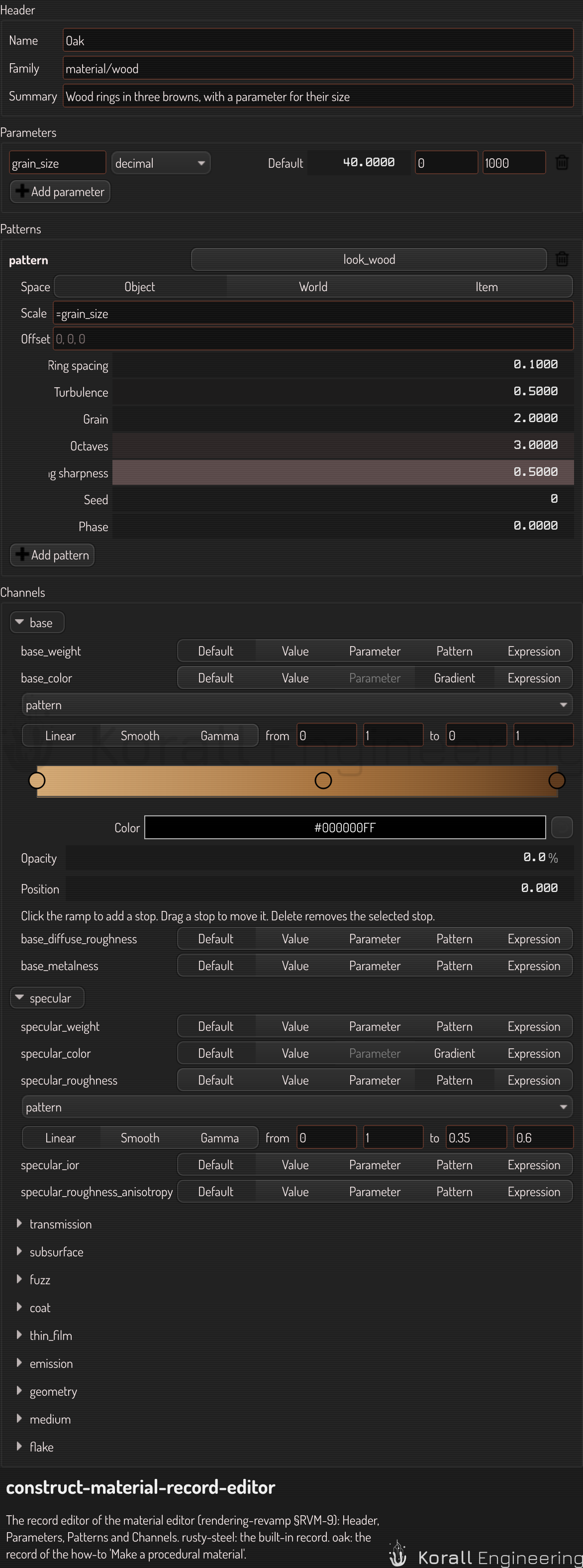
- Click New material, the add button above the list. The editor adds a material called "New material" to your library, and selects it. It starts as a copy of the default material.
- In Header, type
Oakin Name andmaterial/woodin Family. - Type one line about the material in Summary.
A field takes your text when you press Enter or when you leave it.
Add a parameter
A parameter is a value that the material reads. Each item that uses the material can give it its own value.
- In Parameters, click Add parameter. A row called
knobappears. Its type isdecimal, its default 0.5, and its range 0 to 1. - Type
grain_sizein place ofknob. Channels and expressions read the parameter by this name, as=grain_size. - In the second number field after the default, type
1000. This field is the largest value, and the field before it is the smallest. - Set the default to
40.
Add a pattern
- In Patterns, click Add pattern. The definition picker opens. It shows only the field records.
- Choose Wood. A pattern row called
patternappears. The editor calls the patternspattern,pattern_2and so on, and channels read them by these names. - Leave Space at Object. The rings then move with the item.
- In Scale, type
=grain_size. The field takes a number or an expression.
The rows under the pattern are the parameters of Wood, such as Ring spacing, Turbulence and Ring sharpness. The rings go around the up axis of the item. They are one ring spacing apart in the space of the pattern, and the scale enlarges that space. With the ring spacing of 0.1 and a scale of 40, the rings are about 4 mm apart.
For every pattern record, see Noise and patterns.
Color the rings with a gradient
- In Channels, find the
base_colorrow of the base layer. A layer that the material uses is open, and the other layers are folded. - Click Gradient on the row. The row shows the pattern, a remap and a ramp. The ramp has two stops: the old base color on the left, and white on the right.
- Click the left stop. Click Color, and choose a light brown, such as
#d2a874. - Click the right stop, and choose a dark brown, such as
#5e3a1d. - Click the ramp near its middle. A new stop appears there.
- Set the Position of the new stop to
0.55, and its color to#a8743f.
The pattern value 0 takes the color at the left end of the ramp, and 1 the color at the right end. To remove a stop, select it and press Delete.
Turn off the metal
The new material has the metalness of the default material, 0.1. Wood is not a metal.
- Click Default on the
base_metalnessrow. The channel then takes the OpenPBR default, 0.
Vary the roughness with a remap
A remap maps the pattern's value from 0 to 1 onto the range of a channel.
- Click Pattern on the
specular_roughnessrow of the specular layer. The row shows the pattern and a remap: Linear, from 0 and 1, to 0 and 1. - In the two fields after to, type
0.35and0.6.
The light wood is now glossier than the dark rings. Smooth eases the change at both ends. Gamma bends it by an exponent, in a field of its own. A remap bound takes a number or an expression.
Look
- Oak is now in your library, in every document. The preview renders it with the path tracer.
- To see the material in the scene, give it to an item (see Give one material four values). Then choose Engineering or Presentation in the mode list on the toolbar of the viewport. Z goes to the next mode of the list.
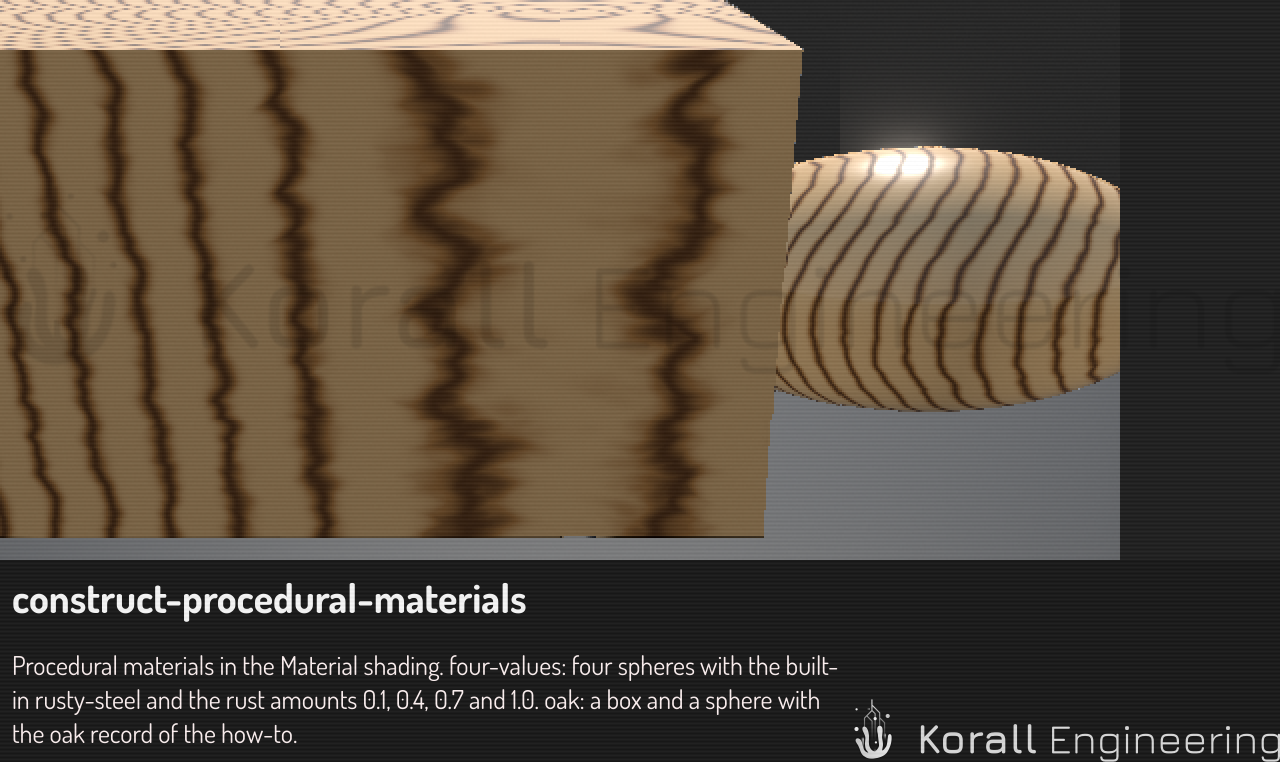
The patterns and the channels of the record now read:
patterns:
  pattern:
    field: look_wood
    space: object
    scale: =grain_size
channels:
  base_color:
    gradient:
      pattern: pattern
      stops:
        - {t: 0.0, color: "#d2a874"}
        - {t: 0.55, color: "#a8743f"}
        - {t: 1.0, color: "#5e3a1d"}
  specular_roughness:
    pattern: pattern
    remap: {kind: linear, from: [0, 1], to: [0.35, 0.6]}
Make your own rusty steel
Copy the built-in
- Select Rusty steel in the list of the material editor. A banner says that it is a built-in material, and the controls are locked.
- Click Duplicate. Your library gets Rusty steel (copy), and the editor opens it.
Read the record
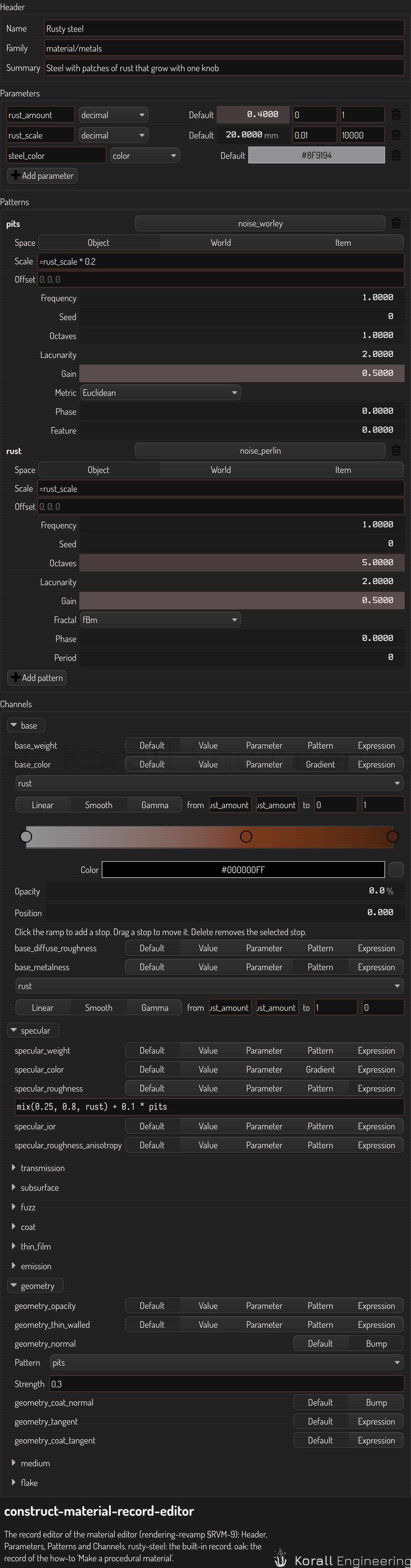
| Part | What it holds |
|---|---|
| Parameters | rust_amount, from 0 to 1, default 0.4. rust_scale, in mm, default 20. steel_color, the color of the bare steel |
| Patterns | rust: Perlin noise with 5 octaves, at the scale =rust_scale. pits: Worley noise, at the scale =rust_scale * 0.2 |
base_color |
A gradient over rust, from =steel_color to two rust browns |
base_metalness |
The rust pattern, through the same remap, to 1 and 0. The steel is a metal, the rust is not |
specular_roughness |
The expression mix(0.25, 0.8, rust) + 0.1 * pits. The rust is rougher than the steel, and the pits add more |
geometry_normal |
A bump from pits, with a strength of 0.3 |
The remap of base_color and base_metalness is Smooth, from
=1 - rust_amount to =1.1 - rust_amount. Where the rust noise is above
1 − rust_amount, the surface is rust. So a higher rust amount lowers that
line, and more of the surface rusts. One parameter drives two channels.
Change it
- In the geometry layer, find the
geometry_normalrow. In Strength, type=0.75 * rust_amount. The pits are now deeper where an item has more rust. At the default amount of 0.4, the strength is 0.3, as before. - In the ramp of
base_color, click the middle stop. Choose a redder brown. The change goes into the material at once.
Give one material four values
A material is shared. Each item that uses it holds its own values of the material's parameters.
- Put four items in the scene, such as four spheres. See Add items.
- Find the first item in the scene tree overlay. A new item has no material of its own, so its row has the material button, left of its type. See Read a row.
- Click the material button. In the popup, click Rusty steel, or your copy.
- Open the item. See
Open an item. Its box now has a
material row, and the parameters of the material show under it:
Rust amount, Rust scale and Steel color. Set Rust amount to
0.1. - Do steps 2 to 4 for the other three items, with the rust amounts
0.4,0.7and1.0.
Each change is one undo step. A drag on a value is one step too.
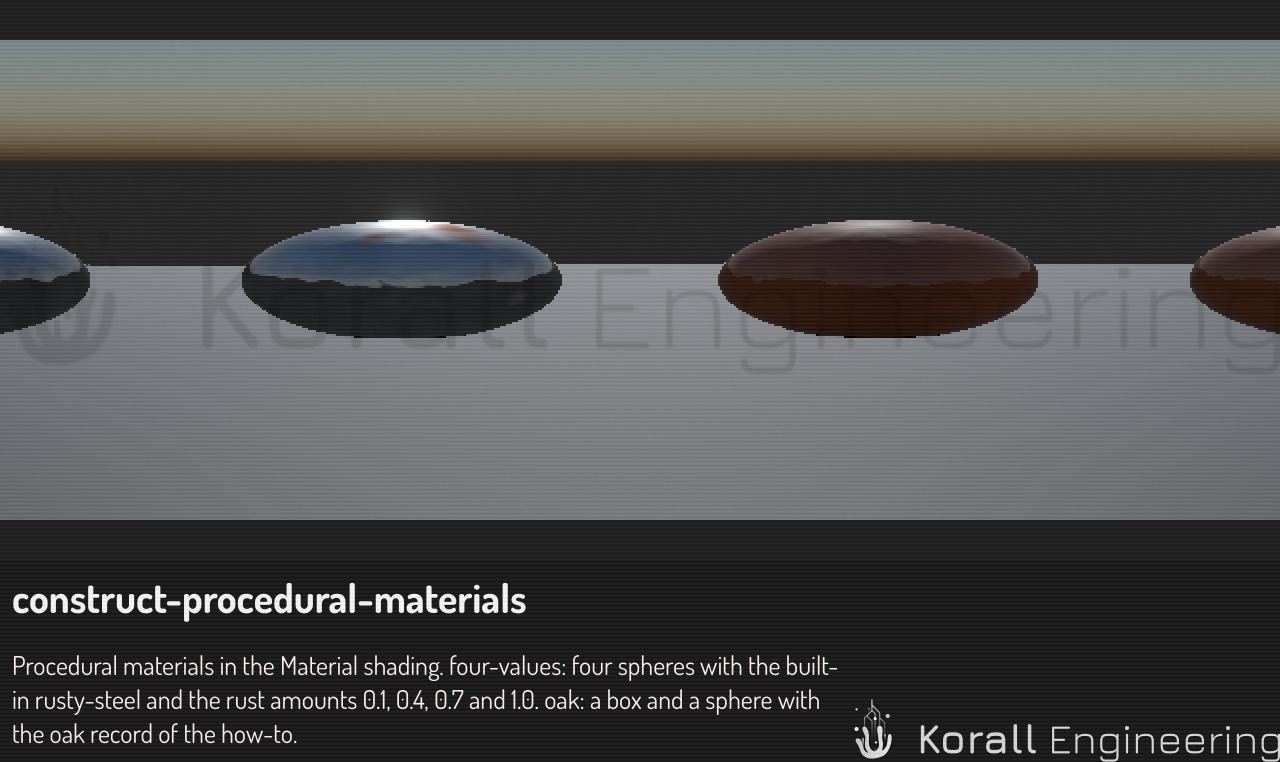
The document holds one copy of the material record. Each item holds only the values that differ from the defaults:
  instances:
    tank1:
      # ... the type, the parameters and the transform of the item ...
      material: {use: rusty-steel, values: {rust_amount: 0.1}}
    tank2:
      material: {use: rusty-steel, values: {rust_amount: 0.4}}
An item that has no material of its own uses the material of its parent. To give many children one material and their own values, set the material on the parent. Then click the material button of each child, choose the same material, and change its value. The child then holds a copy of the parent's material, values included. Until you do this, the child has no material row, and the tooltip of its material button names the parent: "Rusty steel from Tank".
See it rendered
The Rendered mode of the viewport path traces the scene. It shows what the raster modes can only approximate: glass, subsurface light in skin, and the flakes of car paint.
To set how clean that image gets and how fast, see Path-traced quality.
See also
- Construct material system: definitions, bindings, inheritance, the channels and the file format.
- Noise and patterns: every noise, look and pattern record.
- Use the scene tree overlay: the material row of an item.