Freeze and thaw
A reversible performance stand-in
Freeze replaces a branch with an automatically managed mesh proxy so the viewport stays fast on heavy geometry; Thaw restores the live SDF. A frozen branch shows an ice-cube badge in the scene tree. Freezing is fully reversible and changes nothing about the design — it is a performance choice, not an edit.
How to freeze and thaw
- Right-click a branch in the scene tree.
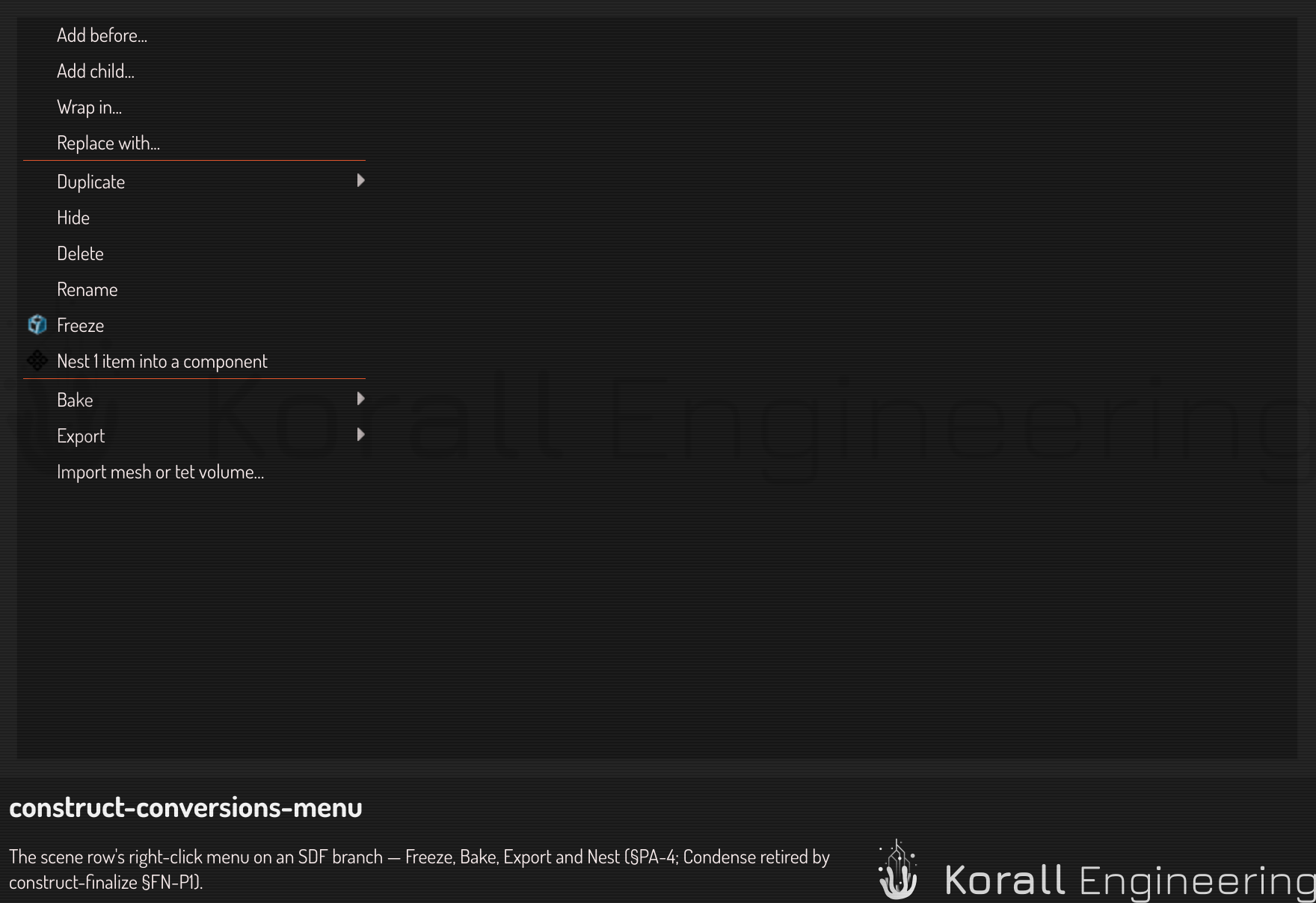
- Choose Freeze. The branch renders through its mesh proxy and gains the ice-cube badge.
- To go back to the live, editable SDF, right-click and choose Thaw.
Freeze versus Bake
Both produce a triangle mesh, but they exist for opposite reasons:
- Freeze hides the source and is reversible (Thaw brings it back). Its intent is performance — a temporary stand-in while you work.
- Bake keeps the source and adds a permanent mesh passenger to the scene. Its intent is output — a durable artifact.
If you find yourself wanting to keep the mesh, you want Bake, not Freeze.
Passengers
A frozen proxy, a baked mesh, and an imported mesh are all passengers — non-editable objects that ride along in the scene. You can show, select, transform, and export a passenger, and a tet volume passenger can be simulated, but a passenger is never edited as geometry. Everything you edit as geometry stays in the implicit SDF domain; passengers are what you get when you leave it. That boundary is why Finalize can be exact where freeze and bake are a mesh approximation: finalizing a component stays in the SDF domain, it only rewrites how the field is expressed.