Settings
The settings page, and where settings are stored
Reference for the settings page of an Korall Engineering™ app: its columns, marks, levels, buttons and keys. The second half covers where settings are stored and the few node keys that you edit in a file.
For step-by-step guides, see Settings how-to guides.
The settings page
| Fact | Value |
|---|---|
| Opens with | Ctrl+, in every app. Also the platform's Preferences key where it differs: Ctrl+Shift+, on KDE, Cmd+, on macOS. Also the settings button of the app, for example the gear button in Construct's toolbar |
| Title | Settings — ‹app› |
| Pages per app | One. Opening it again shows the page that is open |
| Where | A page of the app's own window. It fills the window. The back arrow in the page header returns to where you were |
| Apply | Each change applies at once. There is no Apply and no Cancel |
| Remembers | The split between the two sides, and the columns, for each app |
The page has a left side and a right side:
| Part | Holds |
|---|---|
| Filter field | The filter text, a clear button, and the ≡ menu with Changed only and Show advanced |
| Expand all, Collapse all | Beside the filter field. Open or fold every category and section. A nested section is indented one step further |
| Category column | The categories of the app. With filter text, only categories with a match, each with its number of matches |
| Title row | The name of the category shown, and Write to in an app with more than one level |
| Table | One row per setting, in folding sections |
| Detail strip | The label, the full description, the range, the unit and the id of the selected setting, and why it does not apply when it does not. A Help link when the setting names a help page and the app can show it. The link opens that page in the help browser |
| Restart banner | Restart ‹app› to apply: and the names of the settings that wait for a restart. Hidden when none waits |
| Footer | The buttons of Footer buttons |
Filter
| Rule | Value |
|---|---|
| Match | Every word of the filter text occurs in the label, the description, the id, the category names or the keywords of a setting |
| Case | Ignored |
| Pattern | A plain substring. Not a regular expression |
| When | As you type. There is no Enter |
| Matches | Highlighted in the label |
| Advanced settings | Found only while Show advanced is checked |
| Changed only | Keeps only settings whose value differs from the default |
Columns
Right-click a header to show or hide a column. Reset columns in that menu returns to the default set. Drag a header edge to resize a column.
| Column | Shown by default | Shows |
|---|---|---|
| Name | Always | The label of the setting, with its category stripe |
| Value | Yes | The value as seen from the level chosen in Write to, in the input of its kind |
| Default | Yes | The declared default |
| Reset and revert buttons | Yes | ↺ when the value differs from the default. The revert button when the chosen level sets the value |
| Source | When the app has more than one writable level | The level the value comes from, or Default |
| Effective | No | The value the app uses now, through every level |
| Range | No | The lowest and highest value, or the number of choices |
| Unit | No | The unit of a number |
| Description | No | The first sentence of the description |
| Id | No | The id of the setting, as OPAL tasks and settings files name it |
Inputs
| Kind | Input |
|---|---|
| Number | A drag field. Drag to change, click to type |
| Yes or no | A toggle that reads Enabled or Disabled |
| List | A drop-down list |
| Color | A swatch that opens the color picker. The settings file keeps the color as text: #rrggbb, or #aarrggbb for a color that is not opaque |
| Text, file, folder | A text field, with a browse button for a file or a folder |
| Text with suggestions | A text field with a drop-down list of known values. You can also type a value that is not in the list |
| Key sequence | A key recorder |
| Action | A button that does something at once, for example Regenerate all thumbnails |
| Status | Read-only text |
The mouse wheel scrolls the table. It changes a value only in the cell that is being edited.
Marks
| State | Mark | Second sign |
|---|---|---|
| Changed from default | Bold name, and a dot before it | The Default column. The ↺ button |
| Set at a lower level | The value dimmed | The Source column names the level |
| Set at the chosen level | The value at full strength, and the revert button | The Source column names the chosen level |
| Does not apply now | The whole row dimmed. It stays editable | The reason in the detail strip |
| Invalid stored value | A border in the danger color, and a warning icon | The reason in the detail strip |
| Needs a restart | The name in the warning color | The restart banner names it |
| Category | A colored stripe at the left of the name | The category name in the left column and in the section heading |
Levels
An app can keep a setting at more than one level, in priority order. A value at a higher level overrides the value at a lower level. An app with one level shows no Write to and no Source column.
| Element | Behavior |
|---|---|
| Write to | One segment per level you can write. A change, a reset, an import and an undo act at the chosen level |
| A value set at the chosen level | Full strength, with the revert button |
| A value not set at the chosen level | Dimmed. It comes from a lower level, which Source names |
| A setting the chosen level cannot hold | Shown read-only. Choose a level that holds it |
| Reset | Writes the declared default at the chosen level |
| Revert | Removes the value at the chosen level, so the lower level shows through |
The levels of Construct are New scenes, Scene and Camera: ‹name›. See Where Construct settings live.
Footer buttons
| Button | Does |
|---|---|
| Reset section | Resets every setting in the section of the selected row, or in the category shown. Asks first, with the number of settings |
| Reset all | Resets every setting of the app at the chosen level. Asks first, with the number of settings |
| Undo | Takes back the last step in the history of the chosen level |
| Redo | Takes back the last undo |
| Import… | Reads a settings file and writes its values at the chosen level, as one step |
| Export… | Writes the values set at the chosen level to a settings file |
A step is one edit, one drag, one reset, one Reset all or one import. A change made by an OPAL task of the config family is a step too. The file format is in Move settings between machines.
Keyboard
| Key | Where | Does |
|---|---|---|
| Ctrl+, | In the app | Opens the settings page. Shortcut id global.settings |
| Platform Preferences key | In the app | The same, where it differs from Ctrl+,. Shortcut id global.settings-platform |
| Any letter | On the page, outside an editor | Moves the focus to the filter field and types the letter |
| Ctrl+F | On the page | Moves the focus to the filter field |
| Down | In the filter field | Moves the focus to the first match |
| Esc | In the filter field | Clears the filter. With an empty filter, goes back to where you were |
| Up, Down | In the table | Moves between rows |
| Enter | On a row | Opens the editor of the value |
| Space | On a toggle or an action | Switches the toggle, or calls the action |
| Undo, Redo keys | On the page | Undo and redo. Ctrl+Z, then Ctrl+Shift+Z on Linux and Ctrl+Y on Windows |
Where settings are stored
Korall Engineering™ keeps settings through a Settings class
over Qt's QSettings, in one of two modes:
| Mode | When | Storage |
|---|---|---|
| Platform default | A normal launch | The platform's native store: an INI file on Linux, the registry on Windows, a property list on macOS |
| File | A launch with --base-dir, for example a node that a constellation starts |
settings.ini in the personality directory |
The file mode keeps each personality apart: its settings live inside its own directory and go with it when the personality is nuked. For the folders that an app uses on each platform, see Where your data lives.
A personality directory holds these files:
| File | Holds |
|---|---|
settings.ini |
Settings |
keystore.json |
The key store |
addressbook.json |
The address book |
agent_config.json |
The configuration of an Agent |
logs/ |
Logs |
Node::nuke() removes every file in the directory except
personality_manifest.json.
In an INI file, a key group/name sits under [group] as name. A deeper key
keeps its rest with backslashes, so batch/remote/forwarded-types is stored as:
[batch]
remote\forwarded-types=construct/thumbnail_update
There is no other channel. Korall Engineering™ reads no environment variable for a setting: a value comes from the settings page, a settings file, the node configuration or a command-line option.
Node keys you edit in a file
Most settings are on the settings page, which shows the description of each one. The keys below are the exception: you set them in the settings file before the node starts, or another surface writes them.
| Key | Type | Default | Description |
|---|---|---|---|
batch/remote/forwarded-types |
string | "" | Job types this node sends to the executors of other nodes, and takes from them, as a comma list. Empty sends nothing away. Read at start |
fleet/config |
JSON | — | The provider, region, OS image, coordinator, executor image and SSH keys of the fleet. Written by Setup → Fleet settings on a HUB |
fleet/provider-token |
string | — | The API token of the provider, sealed to this node. Never readable as plain text |
fleet/record |
JSON | — | Every machine the fleet bought, its spend ledger and its spend limits |
See Fleet for the configuration the fleet keys hold.
Settings API
Code reads and writes settings through Settings (app/Settings.hpp).
#include "app/Settings.hpp"

// From a Node or an Activity
Settings *settings = node()->settings().data();

QString name = settings->getCustomSetting("network/name", "default");
settings->setCustomSetting("network/name", "MyRobot");

bool enabled = settings->getCustomSettingBool("discovery/enabled", true);
int port = settings->getCustomSettingInt("network/localPort", 8124);
double rate = settings->getCustomSettingDouble("sensor/updateRate", 50.0);
qint64 seen = settings->getCustomSettingLong("session/lastSeen", 0);
QByteArray state = settings->getCustomSettingByteArray("splitter/state");
QRect geometry = settings->getCustomSettingRect("window/geometry", QRect(100, 100, 800, 600));

if (settings->hasCustomSetting("pairing/skipped")) { /* ... */ }

settings->sync();                // Write now. Writes are normally batched
settings->resetConfiguration();  // Clear every setting
Most setters have a …Durable form that writes to disk at once, past the
batching. A file-based Settings takes the path of its INI file:
Settings platformDefault("group", "agent", "1.0");
Settings fileBased("group", "agent", "1.0", "/path/to/personality/settings.ini");
AppContext makes the file-based form when the app starts with --base-dir.
Diagnostics settings
The Diagnostics category holds the settings of diagnostic reports: what
happens after a crash, how detailed the log is, and the account that sends
reports. Each row is kept in the app::Settings of the app, under the key in
the table.
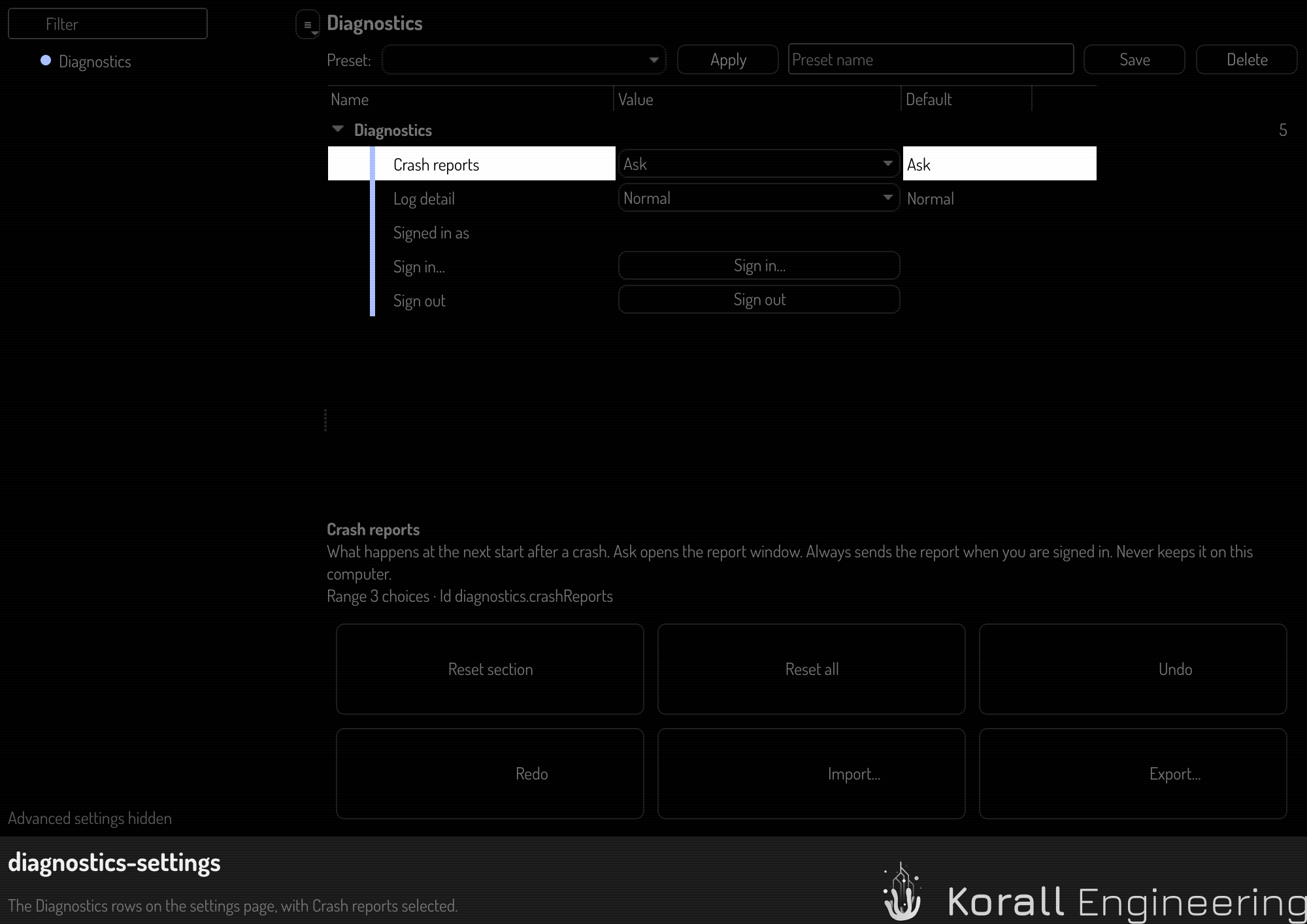
| Row | Type | Default | Description |
|---|---|---|---|
diagnostics.crashReports |
choice: Ask, Always send, Never send | Ask in a release build, Always send in a debug build | What happens at the next start after a crash. Only you change it: see Rows that only you change |
diagnostics.startupLogs |
bool | true | Send the log of the first minute of each start. The row exists only in a debug build |
diagnostics.logDetail |
choice: Normal, Verbose | Normal | Verbose writes every category to the log, Qt's own too. The flag --log-detail chooses it for one run |
diagnostics.reportServer |
text, advanced | the server of the edition | The HTTPS address of the server that receives reports. Empty: reports can be saved to a file only |
diagnostics.signedInAs |
text, read-only | empty | The account your access token belongs to, as the server named it |
diagnostics.signIn |
action | — | Sign in… opens the sign-in dialog |
diagnostics.signOut |
action | — | Sign out deletes the stored access token. Queued reports wait until you sign in again |
The key of a row is its ID with / in place of ., such as diagnostics/crashReports. The two actions have no key.
The access token is not a row, so the settings page never shows it. See Sign in for reports and Diagnostic reports.
Rows that only you change
Crash reports is a user-only row. The settings page and the report window
change it. An OPAL task can read it, but no task changes it: config.set
refuses with the reason "only the user changes this setting, a task does not
(user-only)", and config.reset, config.revert, config.undo and
config.redo refuse a step that would change it. config.describe lists the
flag as user-only. Consent to send a crash report is yours to give.
Node settings on the settings page
Hub, Agent and Remote show the settings of the node on one settings page. Open it in one of these ways:
- Push Settings in the setup menu of the node.
- Push Ctrl+,. Where the platform has its own Preferences key, that key also opens the page, for example Ctrl+Shift+, on KDE.
The page title is "Settings — Hub", "Settings — Agent" or "Settings — Remote". The page fills the window of the node, and the back arrow returns to where you were.
Each row is kept in the app::Settings of the node, under the key in the
tables below. The keys did not change when the settings page replaced the
old Preferences page, so a node keeps its values. Each value is kept for each node:
two nodes on one machine keep their own values.
The OPAL tasks config.get, config.set and config.list reach the same
rows. Use the schema id in the first column of each table.
Node schema (node)
| Row | Type | Default | Description |
|---|---|---|---|
appearance.bodyFontSize |
int, 6 to 36 pt | 10 | The point size of all body text. A change applies immediately |
appearance.flashChanges |
bool | true | A change that a session, a terminal or another node makes through OPAL lights up where it lands, in the OPAL color, for two seconds, then fades. A tab keeps a dot until you open it |
prompts.openManager |
action | — | Opens the LLM prompt manager. Remote has no prompt manager, so the row is dim there |
banter.microphone |
choice | system default | The microphone for acoustic discovery and comms. The choices are the audio inputs of the machine |
banter.microphoneName |
text, read-only | empty | The name of the microphone. It changes with the microphone |
banter.speaker |
choice | system default | The speaker for acoustic discovery and comms |
banter.speakerName |
text, read-only | empty | The name of the speaker. It changes with the speaker |
banter.outputLevel |
number, 0 to 1 | 1 | The loudness of the acoustic transmission of this node. A change applies to the running comms immediately |
banter.discoveryCodec |
choice | OFDM |
The acoustic codec for discovery: OFDM, MCFSK, FSK, CSS or DPSK |
clockwork.enabled |
bool | true | "Run stored schedules". The node starts the batch jobs of its stored schedules at their times, and catches up the runs it missed while it was off. Off: no schedule fires, and the time it is off counts no missed run. A change applies immediately |
log.handshake |
choice | Off | Log verbosity: Off, Summary or Full |
log.scheduling |
choice | Off | Log verbosity |
log.session |
choice | Off | Log verbosity |
log.discovery |
choice | Off | Log verbosity |
log.pairing |
choice | Off | Log verbosity |
log.data |
choice | Off | Log verbosity |
log.blob |
choice | Off | Log verbosity |
The keys of the rows in the settings of the node:
appearance.bodyFontSize:defaultBodyFontSizeappearance.flashChanges:appearance/flashChangesprompts.openManager: no key, it is an actionbanter.microphone:banter/inputDeviceIdbanter.microphoneName:banter/inputDevicebanter.speaker:banter/outputDeviceIdbanter.speakerName:banter/outputDevicebanter.outputLevel:banter/outputVolumebanter.discoveryCodec:banter/discoveryCodecclockwork.enabled:clockwork/enabledlog.handshake:logging/handshakelog.scheduling:logging/schedulinglog.session:logging/sessionlog.discovery:logging/discoverylog.pairing:logging/pairinglog.data:logging/datalog.blob:logging/blob
The microphone, the speaker and the output level are also on the Banter screen of the comms channels. That screen writes the same rows, so a change on one shows on the other.
A log row applies immediately. When the node opens its main window, it applies the stored
levels. A category that the --log option raised for this run keeps the level
of the option.
Swarm schema (swarm, Hub only)
| Row | Type | Default | Description |
|---|---|---|---|
swarm.enabled |
bool | true | Take part in the swarm. A change attaches or detaches the swarm service at once |
swarm.hostShards |
bool | true | Keep pieces of the data of other nodes on this node |
swarm.limit.contributionBudget |
int, 0 to 4096 GiB | 0 | The most disk space for other nodes. 0 is no limit |
swarm.limit.replicationFactor |
int, 1 to 16 | 3 | How many copies of new data the swarm keeps |
swarm.limit.bandwidthIn |
int, 0 to 1024 MiB/s | 0 | The most swarm traffic in. 0 is no limit |
swarm.limit.bandwidthOut |
int, 0 to 1024 MiB/s | 0 | The most swarm traffic out. 0 is no limit |
swarm.limit.maxStreamsPerPeer |
int, 0 to 128 | 0 | The most streams that one peer can open at the same time. 0 is no limit |
The keys of the rows in the settings of the node:
swarm.enabled:swarm/enabledswarm.hostShards:swarm/host-shardsswarm.limit.contributionBudget:swarm/limit/contribution-budget-gbswarm.limit.replicationFactor:swarm/limit/replication-factorswarm.limit.bandwidthIn:swarm/limit/bandwidth-in-mbpsswarm.limit.bandwidthOut:swarm/limit/bandwidth-out-mbpsswarm.limit.maxStreamsPerPeer:swarm/limit/max-streams-per-peer
Trove schema (trove, Hub only)
The trove settings have their own page, "Settings — Trove". The Settings button of the projects wall and of a project board opens it. The trove schema has two levels:
- All projects (
app): the key below, in the settings of the node. - Project (
project): an override for one project, kept introve/projects.json. A row that a project does not set uses the value of all projects. The board of a project opens the page with "Write to" set to that project.
| Row | Type | Default | Levels |
|---|---|---|---|
unattendedEnabled |
bool | false | all projects, project |
idleTtlHours |
int, hours | 168 | all projects, project |
reaperCadenceMinutes |
int, minutes | 60 | all projects, project |
spawnStaggerSeconds |
int, 0 to 120 s | 5 | all projects only |
specPath |
text | see below | all projects, project |
planPath |
text | see below | all projects, project |
checkoutRoot |
folder | empty | all projects only. Needs a restart |
specAuditModel |
text with suggestions | see below | all projects, project |
specAuditTransport |
choice | see below | all projects, project |
implModel |
text with suggestions | see below | all projects, project |
implTransport |
choice | see below | all projects, project |
apiSpend |
bool | false | all projects, project. On: at a subscription limit, a session job resumes at once on the REST API, which bills API tokens |
fleetSpend |
bool | false | all projects, project. On: the placement of a session job can buy a machine of the fleet, within the policy and the spend rail |
chatRunsGrantedPlans |
bool | true | all projects, project. On: the Trove chat runs a plan when it arrives if each task is granted, or asks at each call with a card of its own. Off: every plan waits for Execute, and that click approves each step |
doorStandalone |
bool | false | all projects only. On: a tool can start the Trove door without the HUB window |
doorPassphraseFile |
file | empty | all projects only. The file that unlocks the hive of that door host |
doorPermissions |
action | — | Opens the Door permissions page: the grants of what the trove tool and the sessions may do through the door |
The key of a row is trove/ and the row name, such as trove/specPath.
doorPermissions is an action and has no key.
The defaults that the table does not show:
specPath:content/doc/internal/specs/planPath:content/doc/internal/plans/specAuditModel:claude-haiku-4-5specAuditTransport:ClaudeSpawnimplModel:claude-opus-4-8implTransport:ClaudeSpawn
RTS schema (rts, Hub only)
| Row | Type | Default | Description |
|---|---|---|---|
rts.colors.fill |
color | the body color of the node's identicon | The fill of your units |
rts.colors.outline |
color | the limb color of the node's identicon | The outline of your units |
The key of a row is its ID with / in place of ., such as rts/colors/fill.
The RTS settings have their own page, "Settings — RTS". To open it, push Settings in the RTS menu, in the match lobby, or in the match panel of the game. Ctrl+, opens it too while the RTS menu, the match browser, the lobby or the game has the keyboard. Everywhere else in the Hub, Ctrl+, opens the settings of the Hub.
The two swatches of the match lobby write these rows. Factory reset in the lobby removes both keys, so the colors follow the identity of the node again.
OPAL schema (opal, Hub, Agent, Remote and Construct)
The OPAL section of the settings page. OPAL settings in the menu of the chat opens the page at this section. Construct shows the same rows on its own settings page.
| Row | Type | Default | Description |
|---|---|---|---|
opal.chat.permissionMode |
choice | ask |
What OPAL runs without asking: ask, safe or all. The mode selector of the chat shows the same value |
opal.web.timeout |
int, 1 000 to 600 000 ms | 20 000 | How long one fetch of a page can take in all, its redirects included |
opal.web.largeTimeout |
int, 1 000 to 3 600 000 ms | 300 000 | How long a fetch that you approved as large can take |
opal.web.maxSize |
int, 1 to 102 400 KiB | 2 048 | The largest page or file that OPAL fetches without asking. Nothing goes over 100 MiB |
opal.web.maskUserAgent |
bool | true | Send the user agent of an ordinary browser. It hides nothing: the site still sees the address of this machine |
The keys of the rows in the settings of the node:
opal.chat.permissionMode:opal-chat-permission-modeopal.web.timeout:opal-web-timeout-msopal.web.largeTimeout:opal-web-large-timeout-msopal.web.maxSize:opal-web-max-kibopal.web.maskUserAgent:opal-web-mask-user-agent
A write to this schema through config.set or another config.* task needs
the owner tier, so it runs only while the device owner is logged in.