Use a self-hosted LLM server
Chat with a model on a machine of your own
Run a language model on a machine of your own, and let OPAL chat with it. This works with every server that speaks the OpenAI-compatible protocol: llama.cpp, Ollama, LM Studio and vLLM.
Prerequisites
- A running Hub
- A machine that can run the model, on a network that you trust
- One of the servers below, installed on that machine
Steps
1. Start the server
Start the server so that it listens on the network, not only on its own machine. Give it a key when other people share the network.
| Server | Start it with | Base URL |
|---|---|---|
| llama.cpp | llama-server -m <model.gguf> --host 0.0.0.0 --port 8080 --api-key-file <file> --reasoning off |
http://<host>:8080/v1 |
| Ollama | OLLAMA_HOST=0.0.0.0 ollama serve, then ollama pull <model> |
http://<host>:11434/v1 |
| LM Studio | Load a model, start the server in the Developer tab, and allow connections from the local network | http://<host>:1234/v1 |
| vLLM | vllm serve <model> --host 0.0.0.0 --api-key <key> |
http://<host>:8000/v1 |
Replace <host> with the server's address on your network, for example
192.168.1.20.
2. Add the provider
- Open the OPAL chat overlay, open the menu (☰), and select LLM settings.
- Click Add provider.
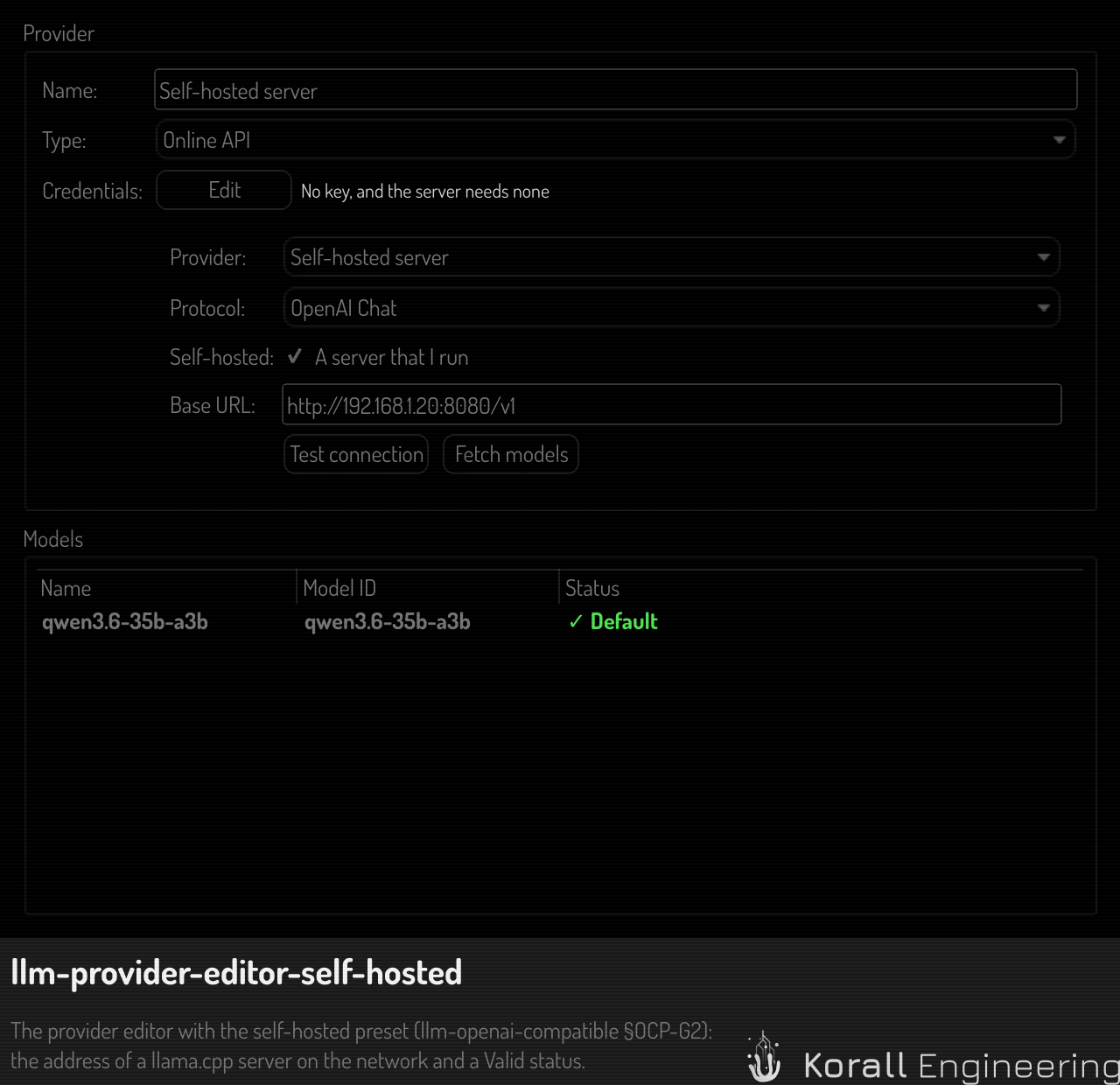
- Set Type to "Online API", and Provider to "Self-hosted server".
- Enter the Base URL from the table above.
The editor checks the address as you leave the field. It refuses an address
with a query or a fragment, and one that does not start with http:// or
https://.
3. Enter the key, if the server has one
Click Edit next to the credentials status, paste the server's key, and click Test connection. A server with no key needs no key here: click Test connection with the field empty.
4. Test the connection
Click Test connection in the provider editor. The app first asks the server whether it is ready, then reads its model list and its settings.
| What you see | What it means |
|---|---|
| "Connection successful. Found 1 models." | The server answered, and the provider is ready |
| "The server loads its model. Test again in a minute." | The server runs, but its model is not loaded yet |
| "Nothing answers at http://…" | No server listens at that address. Start it, or check the address |
| "The server needs a key. Enter the server's key." | The server has a key, and the provider has none |
5. Fetch the models and select one
Click Fetch models. The server's models appear in the list below the form. For a llama.cpp server, the app also reads the context size and whether the model can see images. Return to LLM settings and set one of the models as the default model.
Server settings that matter
- Thinking. A model that thinks before it answers sends its thoughts first,
and OPAL waits for them. For a fast chat, start the server with thinking off:
--reasoning offfor llama.cpp. - The context size. The context is the most text that the model reads at
once: your conversation, its files and the answer. A prompt that does not fit
is refused, and the message names both sizes. For llama.cpp,
-csets the context, and the app reads the context of one request from the server when it tests it. - Slots. A server with one slot answers one request at a time. OPAL sends
it one request at a time, and the others wait in the app. While a request
waits, the chat says "Waiting for [provider]: [n] ahead." A llama.cpp server
sets its slots with
-np, and the app reads that number when it tests the server. - Long prompts. A large prompt can take minutes on a small machine before the first word arrives. OPAL waits up to 15 minutes for a self-hosted server to start its answer, and up to two minutes between two parts of an answer.
Security
A key sent over http crosses the network in clear text, and so does each
prompt and each answer. Use http only on a network that you trust, such as
your home network. Elsewhere, put the server behind https, for example with a
reverse proxy. The app has no setting for a self-signed certificate.
On Android, clear http to a server on your network is not tested yet. If the
test fails there with a network error while it passes on the desktop, put the
server behind https.
See also
- Configure a provider, for the other provider types
- Troubleshoot errors, for every message of the test and the chat