Configure an LLM provider
Set up API keys and model access
Set up an LLM provider so the app can use AI features like the OPAL chat overlay.
Prerequisites
- A running Hub
- An API key from your chosen provider (Anthropic, OpenAI, Google, or a custom endpoint). You can skip this if you use a provider that needs no key, such as Claude Code (local), or a server of your own that has no key.
Steps
1. Open LLM settings
Open the OPAL chat overlay and click the hamburger menu (☰) in the top
right, then select LLM settings. This opens the provider and model
browser. It works the same way in every app, standalone construct
included — you do not need the hub.
2. Add a provider
Click Add provider. The provider editor opens.
Fill in:
| Field | Description |
|---|---|
| Name | A display name (e.g. "My Anthropic") |
| Type | Select "Online API" for cloud providers |
| Provider | Select your provider (Anthropic, OpenAI, Google, Custom, or Self-hosted server) |
| Protocol | The request format. Fixed for Anthropic, OpenAI and Google; you choose it for Custom. See Protocol |
| Self-hosted | Check it for a server that you run. Only for Custom |
| Base URL | Leave blank for Anthropic's default, or enter the base URL from the table below |
The editor saves each field when you leave it. It refuses a base URL with a
query (?), a fragment (#), or a user name and password, and one that does
not start with http:// or https://, and it shows why under the field.
For a server that you run yourself, such as llama.cpp or Ollama, select Self-hosted server and follow Use a self-hosted server.
3. Set credentials
Click Edit next to the credentials status. This opens the credential editor where you can:
- Paste your API key
- Toggle visibility with the Show/Hide button
- Click Test connection to verify the key works
- Click Save to store it
The credential status shows:
- "No credentials set" — no API key entered yet
- "Credentials set" — key saved but not tested
- "Credentials valid" — key tested successfully
Note: The app seals each key before it saves it. If the editor says that a key was sealed by another installation, or that it cannot be read, enter the key again.
4. Test the connection
Click Test connection in the provider editor. If successful, you'll see how many models are available and the provider status changes to "Valid" (green) in the registry. A test passes only when the provider answers with a success status and lists at least one model. A change of the base URL, the protocol or the key makes the provider untested again.
5. Fetch models
Click Fetch models to import the provider's available models into your registry. Models appear in the list below the provider form. Where the provider says so, a model gets its context size, its maximum answer length and whether it can see images.
6. Set a default model
Return to LLM settings. Double-click a model, or select it and click Set default. The default model is used by the OPAL chat overlay.
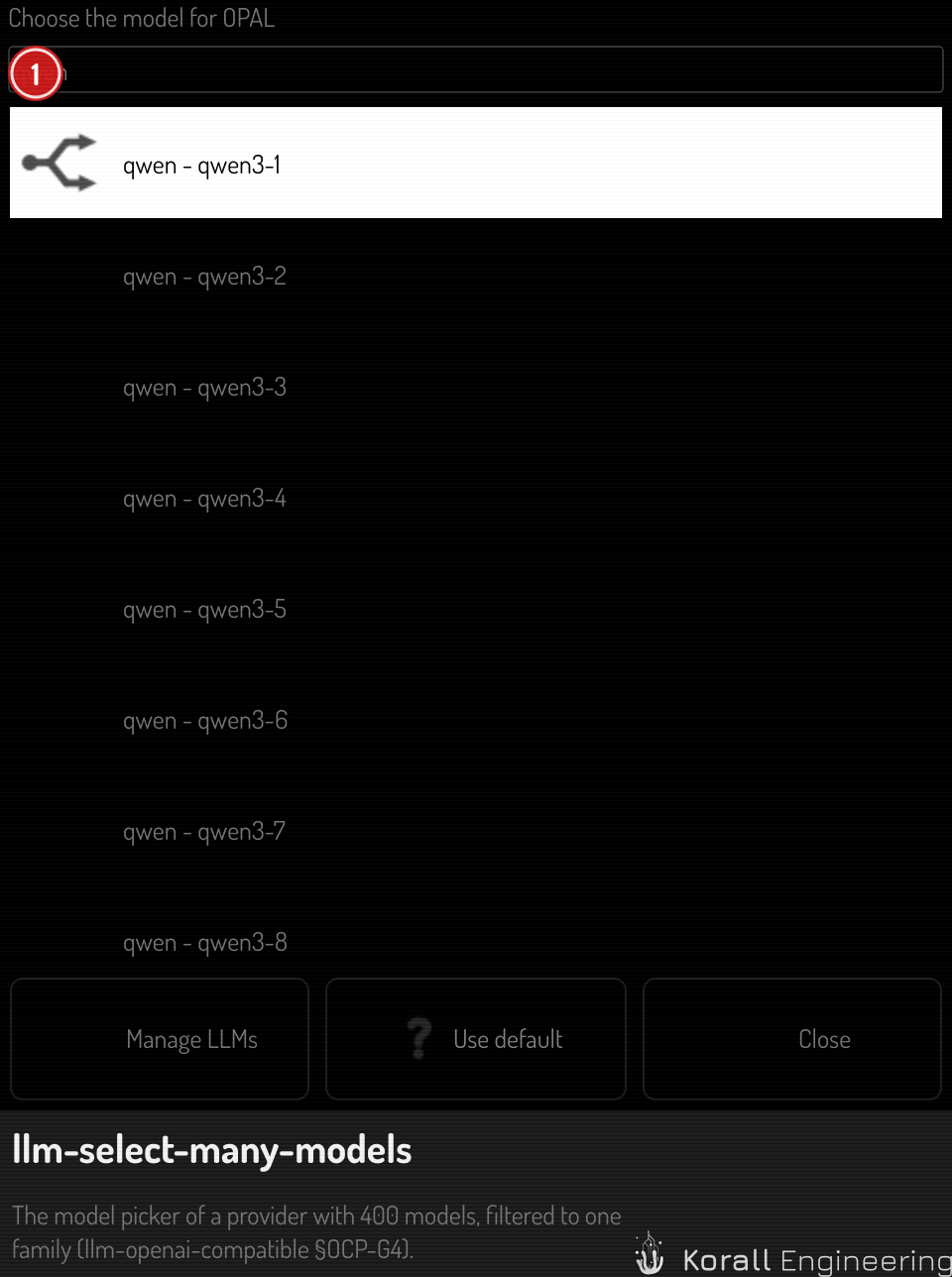
You can also pick the model from the chat overlay: click the model's name in its title bar. A provider such as OpenRouter lists hundreds of models, so type a part of the name, the model id or the provider into the filter field above the list.
7. Verify readiness
Open the chat overlay (click the OPAL button in the header bar). If everything is configured correctly, the readiness banner will be hidden and the input field will be enabled.
Provider types
Online API
For cloud-hosted models (Anthropic Claude, OpenAI GPT, Google Gemini, OpenRouter, Groq), and for a server of your own. A cloud provider requires an API key and an internet connection.
Protocol
An online provider speaks one of two protocols:
| Protocol | Who speaks it |
|---|---|
| Anthropic Messages | Anthropic, and a proxy or a server that copies Anthropic's API |
| OpenAI Chat | OpenAI, Google (through its OpenAI compatibility), OpenRouter, Groq, llama.cpp, Ollama, LM Studio and vLLM |
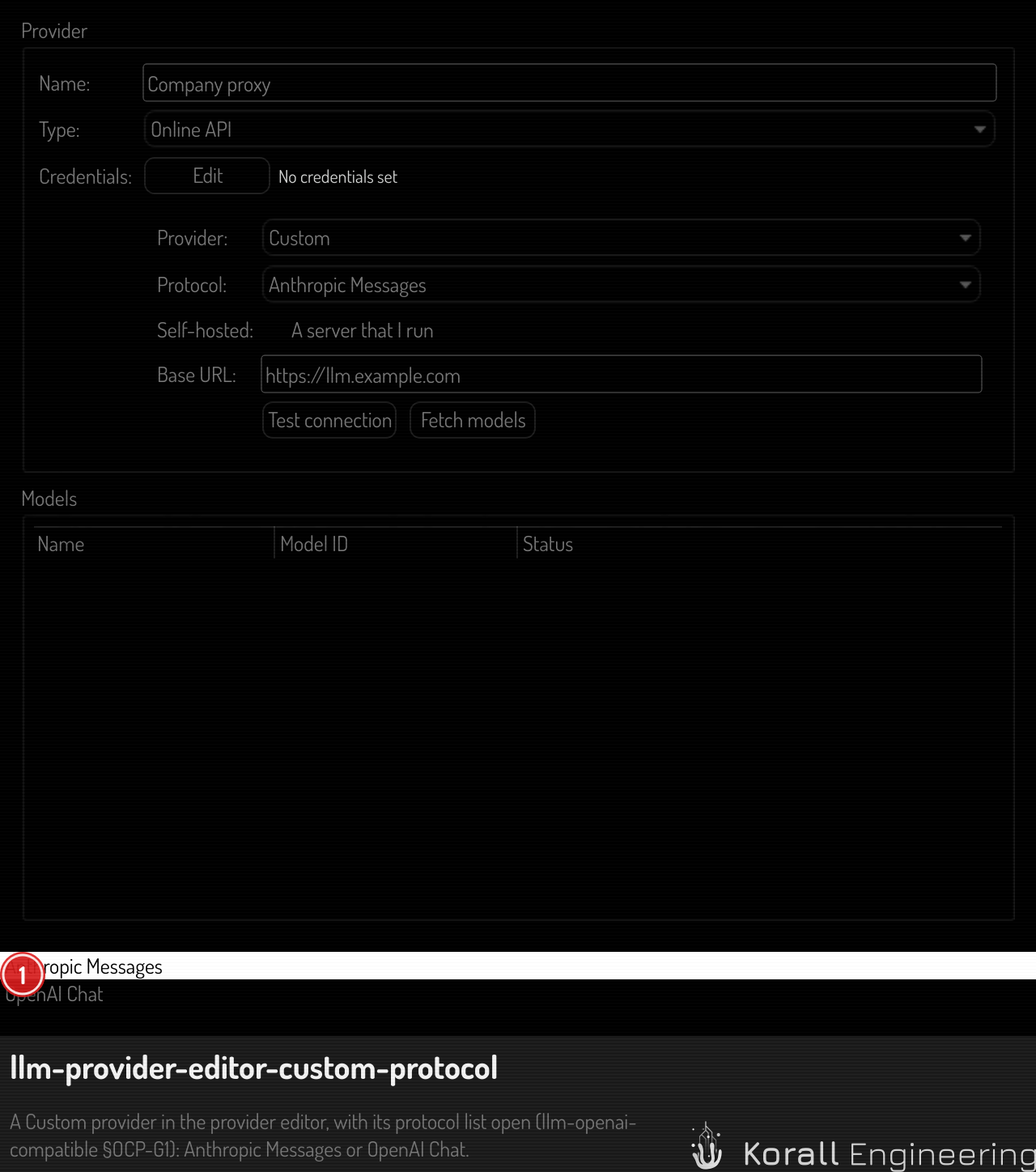
Anthropic, OpenAI and Google have a fixed protocol. For a Custom provider,
select the protocol of the server. A Custom provider made by an earlier version
of the app keeps Anthropic Messages, because that version spoke it to every
provider. If your Custom provider is an OpenAI-compatible service, change its
protocol to OpenAI Chat, and add its version segment to the base URL, for
example /v1.
PDF files need the Anthropic protocol: the OpenAI protocol has no way to send one.
Base URLs
The base URL is the address that the provider's own documentation calls the
base URL. For the OpenAI protocol it ends in its version segment, so the app
adds only the endpoint, for example /chat/completions.
| Provider | Base URL |
|---|---|
| Anthropic | https://api.anthropic.com |
| OpenAI | https://api.openai.com/v1 |
https://generativelanguage.googleapis.com/v1beta/openai |
|
| OpenRouter | https://openrouter.ai/api/v1 |
| Groq | https://api.groq.com/openai/v1 |
| llama.cpp server | http://<host>:8080/v1 |
| Ollama | http://<host>:11434/v1 |
| LM Studio | http://<host>:1234/v1 |
| vLLM | http://<host>:8000/v1 |
Local llama
For local inference using llama.cpp. Requires a GGUF model file on disk. No internet needed after setup.
Remote node
For using another node's LLM capabilities. The remote node must be paired and running.
Claude Code (local)
If you already have Claude Code installed on
this machine, it appears in the provider list on its own, named Claude Code
(local). There is nothing to add and no API key to paste — the app looks for
the claude command and enables the row when it finds it.
To use it, select it in the provider list, set its one model as your default model, and start chatting.
Three things are worth knowing:
- It spends your Claude Code subscription. A chat turn here draws on the
same usage allowance as running
claudein a terminal. When that allowance runs out, OPAL says so and tells you when it resets. Waiting is the only fix — adding funds does not lift a subscription limit. - It cannot edit your files. OPAL runs Claude Code in a read-only mode, in an empty working directory, so a chat turn never touches your project.
- Replies arrive whole. Other providers stream a reply word by word. This one delivers the finished answer in one piece, so expect a pause and then the whole reply at once.
If you installed Claude Code while the app was running, restart it. The check runs at startup.
Tips
- Keep your API key secure. The app seals each key at rest with a seal key of its own, in the
keysfolder beside its LLM settings. A copy of the LLM settings file alone, for example in a backup or a bug report, does not reveal your keys. The seal key and the settings file together do, so keep your profile folder private. - Test connection before chatting. The validation status (green/orange/grey) in the registry shows whether your provider is verified.
- Fetch models regularly. Providers add new models over time. Use Fetch models to stay current.