Edit an SDF definition
Change a definition's shader, fields and parameters, and save it where it lives
The definition editor edits one definition record: its shader, its blend, its preview, its parameters and every other key of its YAML text. This page shows how to open it, change a definition, read the validation and save the result to where the definition lives.
Open the editor
Open the editor from the Edit mark of a definition in the Things finder, or click Open… in the editor's toolbar and pick a definition.
The editor follows the active document. A definition of the scene opens from the scene, a definition of your library from the library, and a built-in definition from the built-in catalog.
The parts of the window
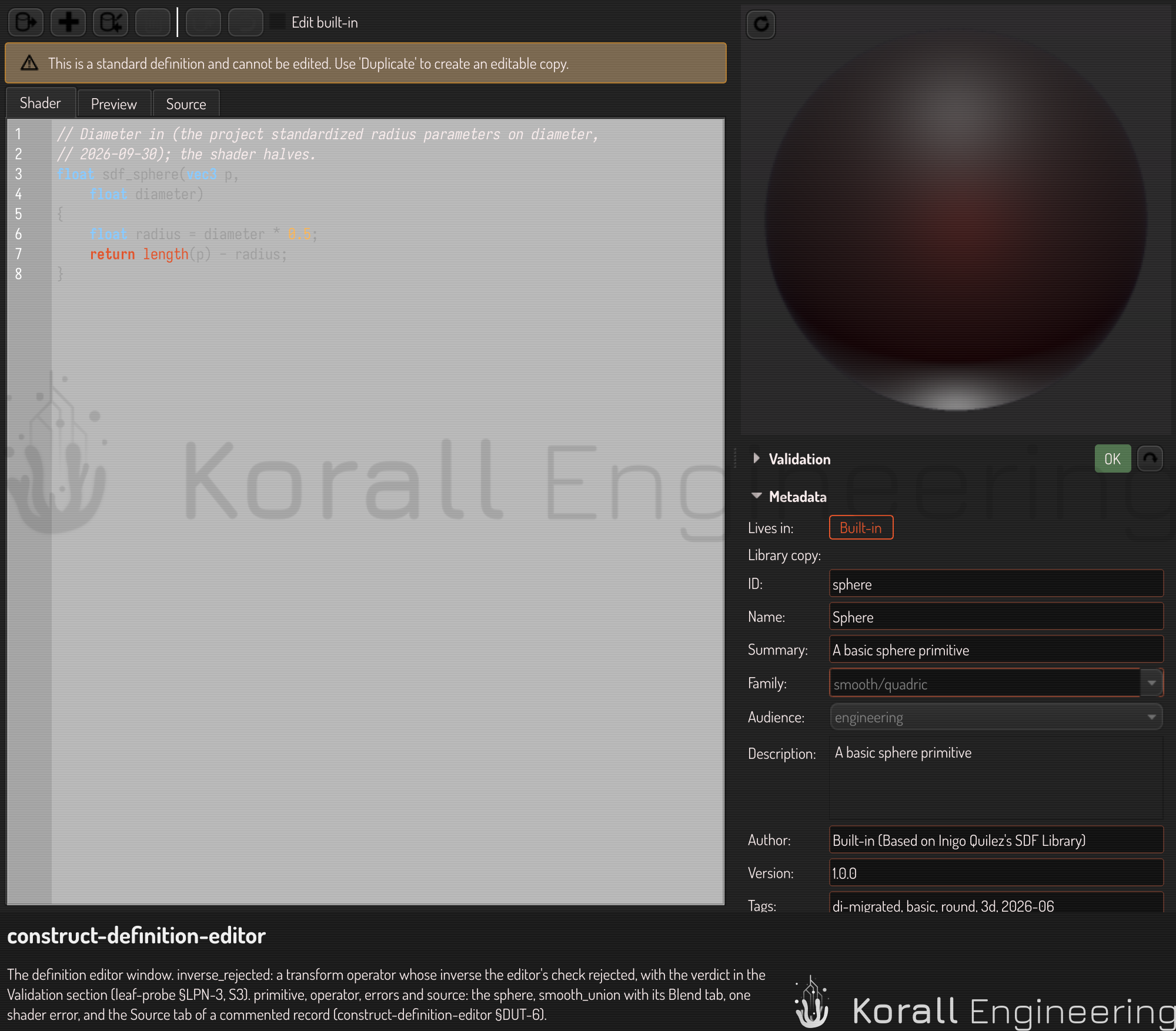
- The toolbar: Open…, New, Duplicate and Delete, then Save, Revert and Edit built-in. The buttons show icons; point at one to read its name. A dot at the right end marks unsaved changes.
- The tabs: Shader, Blend, Preview and Source. Each one edits a part of the same text. Point at a tab to read what it holds.
- The preview: the definition, live, in a square. It has the scene's default look, as the definition's picture in the Things finder has, and the first camera of that picture.
- The sections: Validation, Metadata, Field, Parameters, Preview values and Field probe.
Change the shape
Write the shape in the Shader tab. The preview draws each version of the code that validates, and keeps the last valid picture while the code has an error.
The camera of the preview is the camera of the scene viewport (see Viewport interaction). Double-click the preview to frame the definition again, from the camera of its picture. What the preview shows while it starts is in the interface reference.
Drag a value in Preview values to see the shape with that value. A preview value changes the picture only. It is not part of the definition.
Operators and blends
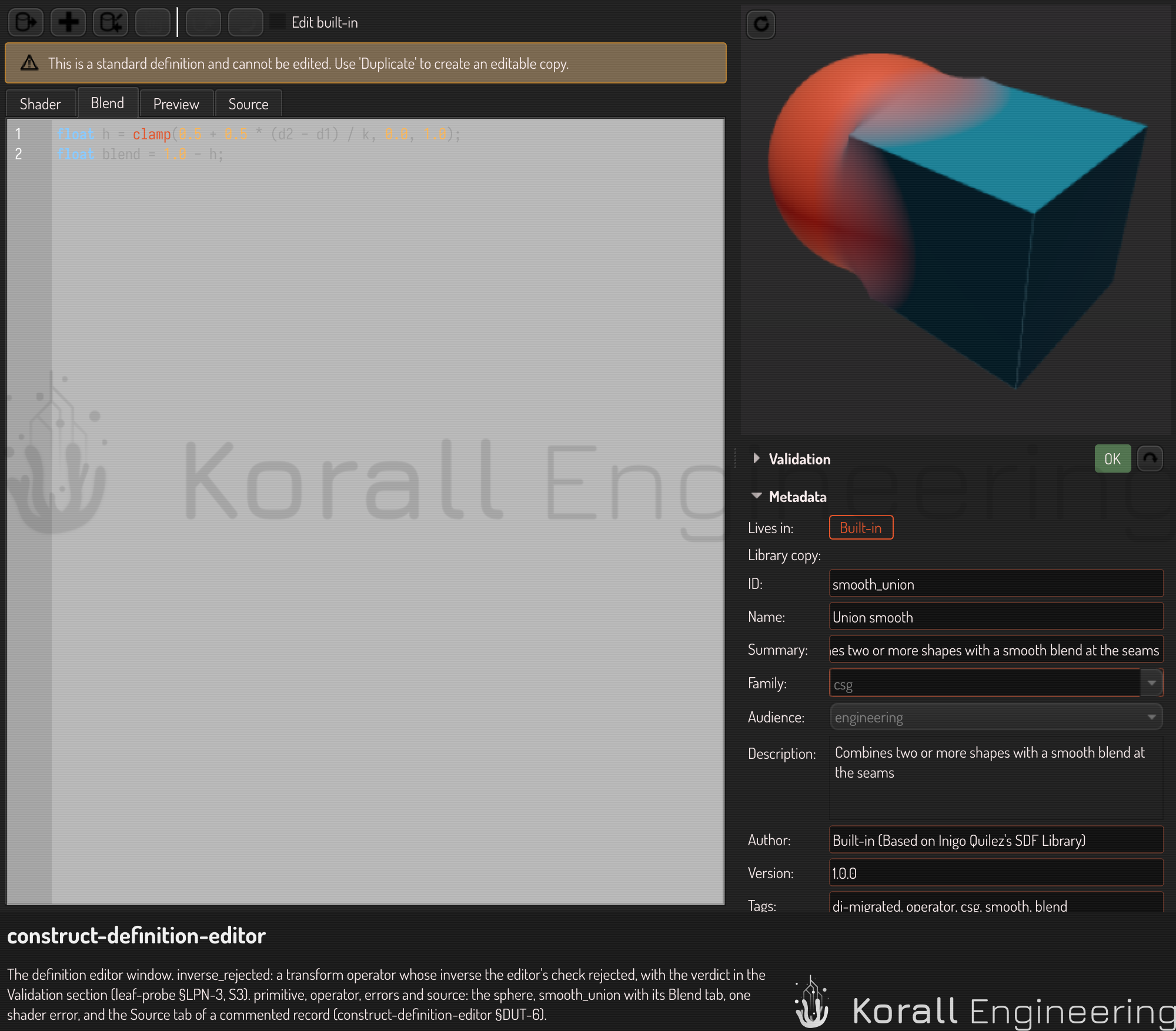
An operator that combines its children can have a Blend tab. The blend is the GLSL body that mixes the two distances. The editor compiles it the way the renderer does.
Describe the definition
- Metadata holds the name, the summary, the family, the audience, the
description, the author, the version, the tags, the wrappers, the sort
order and whether the catalog offers the definition.
- The summary is one sentence of at most 80 characters. The finder's rows and tiles show it. The description is the long text, and only the editor and the finder's preview show it.
- The family places the definition in the family tree, for example
polyhedra/boxorlattice/tpms. The list offers every family of the tree, and typing filters it:spokefinds every family whose path holds the word. Usecustomfor a shape of your own that fits no family. - The audience says who the definition is for:
engineering,mathematicalororganic. A mathematical collection starts folded in the finder. - Validation reports a missing or too long summary, and a family that is not in the tree, as errors. The family error lists the closest families first, then every family, so you never need the tree's file. Its first two rows say where the definition lives and how it stands to its library copy.
- Field holds the Lipschitz bound, a number or a formula over the parameters, and the facts that the shader gives: the node type and the functions.
- Parameters holds one row per parameter: its name, label, type, hint, default, range, step, unit, section and description. Add, remove and move rows with the buttons under the table. A greyed row is a parameter that only the shader declares. Its first edit writes it into the definition.
Offer a choice
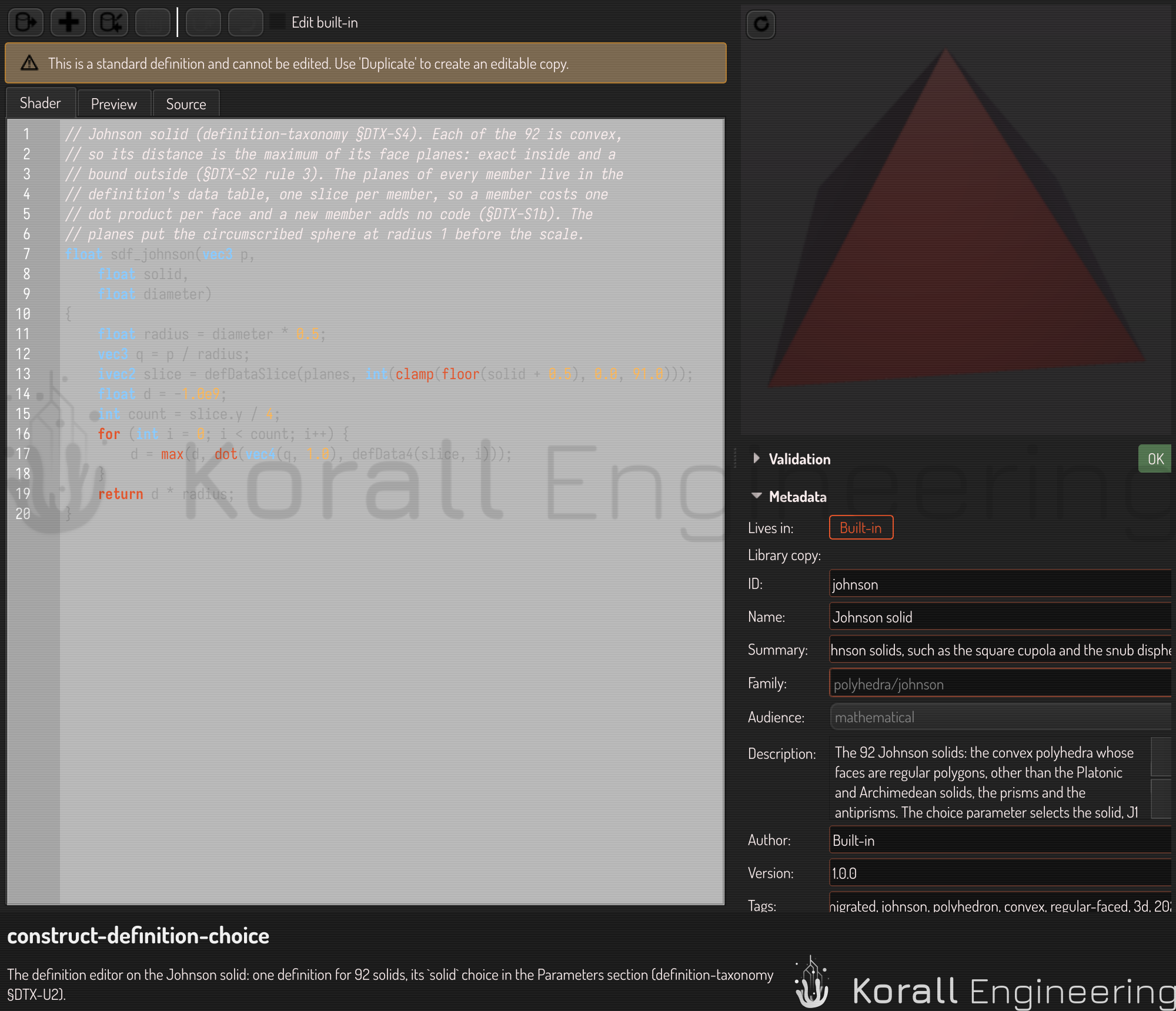
When a definition draws one of a fixed set of shapes, give it a choice: an
Int parameter with an options: list of labels. Write it in the
Source tab.
  - name: solid
    displayName: Solid
    type: Int
    defaultValue: 0
    options: [Cube, Octahedron, Tetrahedron]
The value is the position of a label, counted from 0. The parameter shows as a drop-down list in the editor's preview values and in the scene tree, so you pick a label instead of typing a number. A choice needs no range: it runs from the first label to the last. A value past the last label shows, and draws, as the last label.
The shader receives the position as a number. Declare the parameter float
in the function signature and convert it with int(solid). Use the number to
pick numbers, such as a row of a table, and not to pick code: a long
if chain over the labels makes every scene compile all of them.
The validation reports options: on a parameter that is not an Int, and a
label that is empty.
Carry a table of numbers
A definition can carry read-only tables of numbers in a data: block. A
table is either one flat list, or one list per label of a choice:
data:
  weights: [1.0, 0.5]
  planes:
    by: solid
    values:
      - [1, 0, 0, -0.29, -1, 0, 0, -0.29]
      - [0.58, 0.58, 0.58, -0.17, 0.58, -0.58, -0.58, -0.17]
      - [0, 1, 0, -0.5, 0, -1, 0, -0.5]
With by:, write one list for each label of that choice, in the same order,
each list on one line. The lists can have different lengths.
In the shader, the table's name stands for the table.
defDataSlice(planes, int(solid)) gives the list of the chosen label, and
defData4(slice, i) reads four numbers of it at a time, for example one face
plane:
ivec2 faces = defDataSlice(planes, int(solid));
float d = -1.0e20;
for (int i = 0; i < faces.y / 4; ++i) {
	d = max(d, dot(vec4(p, 1.0), defData4(faces, i)));
}
The numbers travel to the graphics card as data, not as code. Changing a
number, or adding a label and its list, redraws the scene without a new
shader compile. The validation reports a by: table whose list count is not
the label count, and an entry that is not a number. The full rules are in
the definition record reference.
A collection
A collection, such as the Johnson solid, is one definition for many shapes. Its Solid parameter is a list of the members' names, and its face planes are a table of the definition (see Definition records).
Read the validation
The header of the Validation section says the result: OK in green, a count of warnings in yellow, or a count of errors in red. The button beside it validates again. The section stays closed until a problem appears, and closes when the problem is fixed. A section that you open stays open.
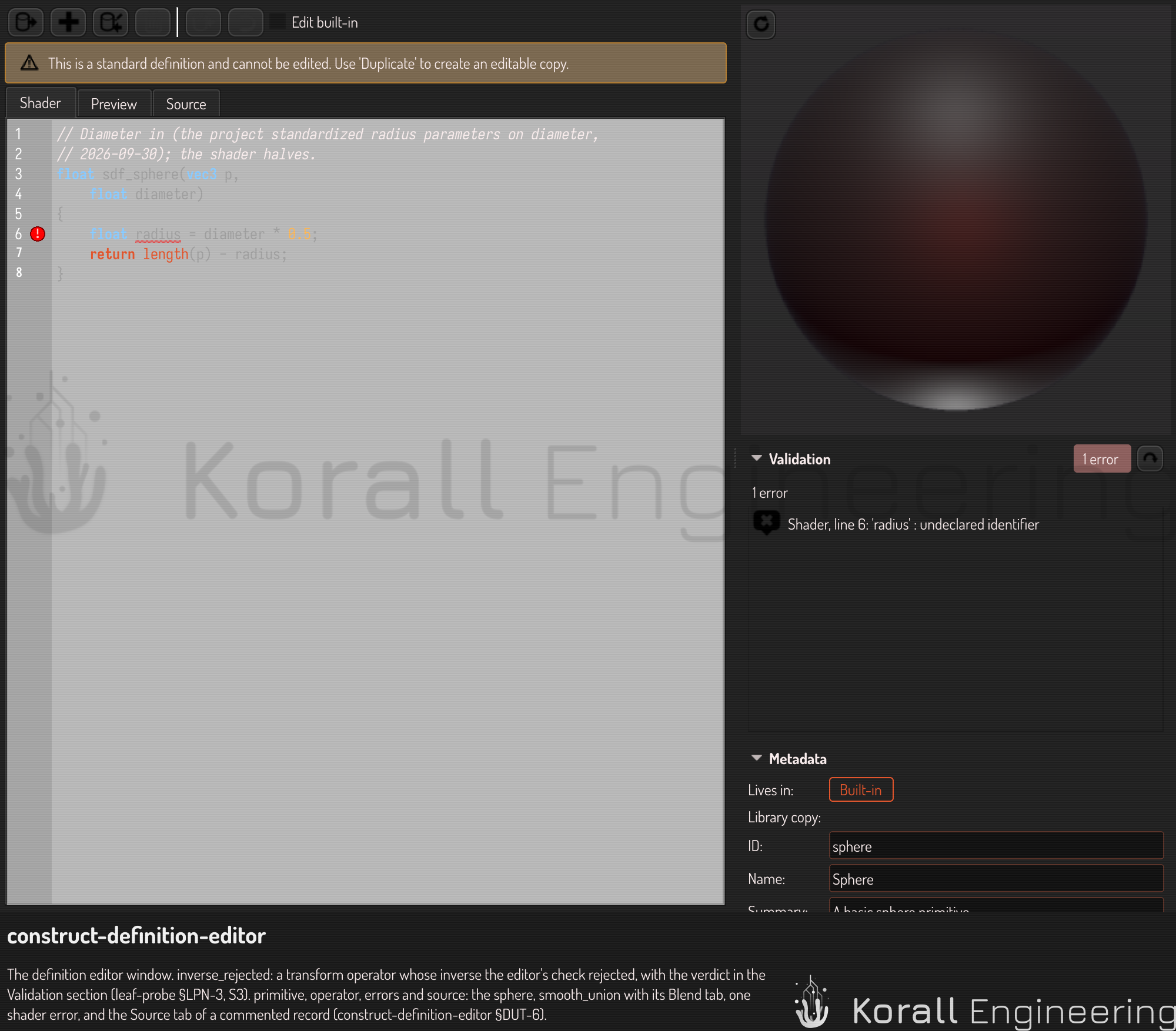
Each row names its tab and its line. Click a row to go to that line.
Each row also says how to fix it: the value it read, and the values that are allowed or an example. A missing display name is a warning, because lists show the parameter's name instead. Every other finding is an error.
Everything else is in Source
The Preview tab holds the preview: block: how the preview and the
thumbnail show the definition. It can set other parameter values, a bound
for a field with no end, and the stand-in shapes under an operator. It is
empty when the definition needs none. The Source tab holds the whole text
of the definition, with its comments.
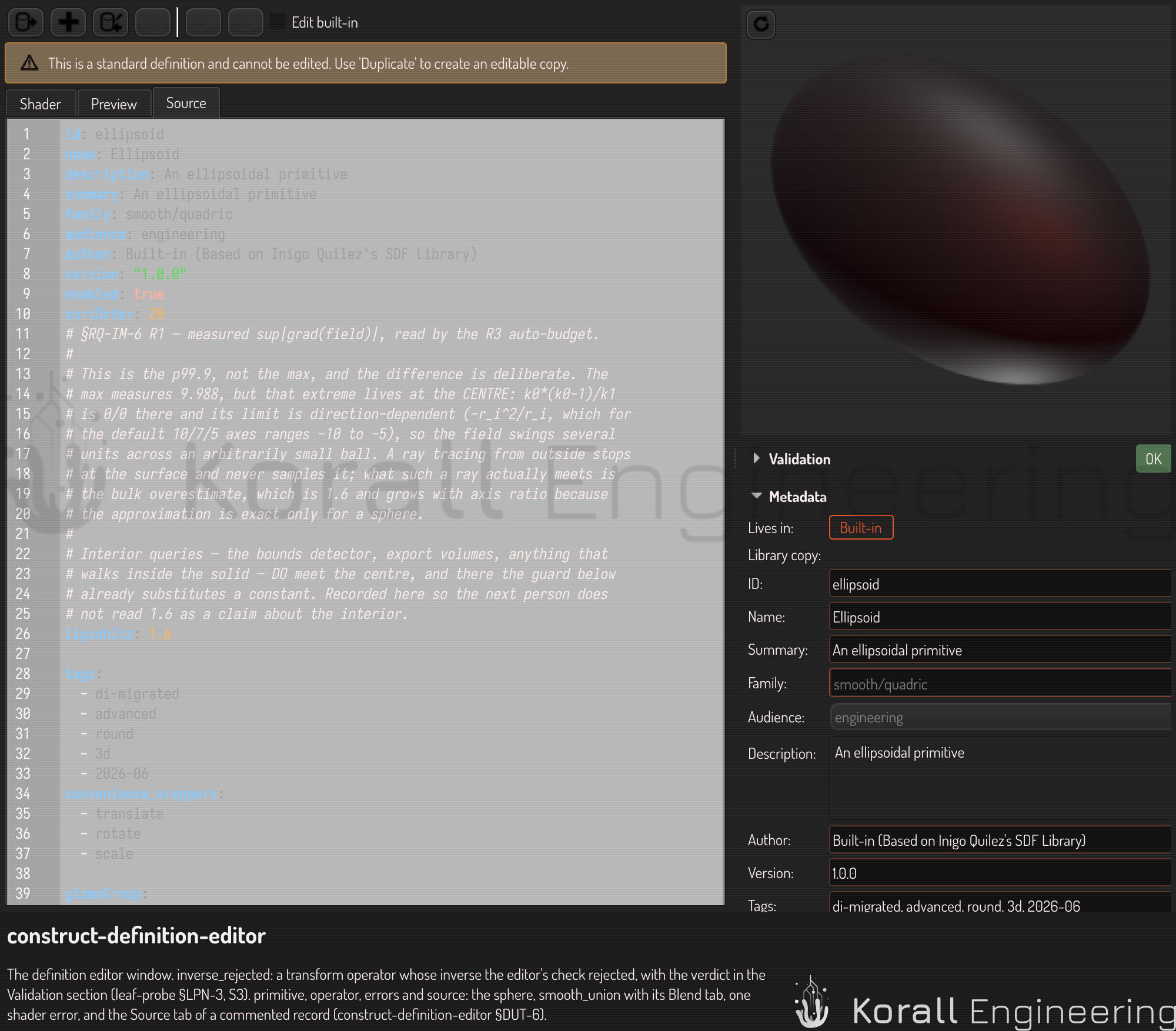
An edit in any tab, control or table writes the text, and keeps every other line of it, comments included. The gizmo and drag settings of a parameter live in the Source tab.
The Source tab completes what you type. After family:, audience:,
type:, uiHint: or unit: it offers the values that key takes; on a new
line it offers the keys. Press Ctrl+Space to see every choice at once.
Save, revert, duplicate, delete
- Save writes the text to where the definition lives: to the scene,
where Undo takes it back, or to your library. A built-in definition saves
to its source file, and only under Edit built-in.
- A definition of the scene saves even when Validation shows errors: it is your draft, and the toast says how many errors it has.
- Your library and a built-in's source file take a definition only when Validation shows no error. The same holds for Publish, and for every change that an assistant makes: an assistant gets the same findings you see, and fixes them before anything is saved.
- Revert goes back to the saved text.
- Duplicate copies the whole text into a new definition of the scene.
- Delete removes the definition from where it lives. Built-in definitions cannot be deleted.
See also
- Interface reference: the definition editor
- Definition records: the keys of a parameter, choices and data tables
- The schema of a definition record is in the source tree, in
src/libs/libconstruct/construct/sdf/README.md.