Collect useful logs
Enable the right logging categories, capture them safely, and avoid the blanket-debug trap
Something misbehaved and you want to send us evidence. This page is about getting useful evidence — which is not the same as getting more of it.
Do not start with *.debug=true
The single most common mistake is turning everything on:
QT_LOGGING_RULES=*.debug=true
That looks thorough and is actively counter-productive. Qt's emoji segmenter emits one line per character at debug level, so a real session produced 974,858 lines and a 136 MB log in a few minutes — and, worse, the logging itself slowed the application down enough that any performance number from that session was meaningless. A report that says "it felt sluggish" gathered under blanket debug logging tells us about the logging.
Every application now ships a curated filter that keeps qDebug output on while
silencing the Qt internals that flood it. You get the useful half by default.
Your own rules are added to that filter, not swapped for it, and yours win.
Qt applies logging rules in order and the last match decides, so the curated
filter goes first and anything you set in QT_LOGGING_RULES goes after it. That
means you can re-enable one of the silenced categories without losing the
suppression of the other fifteen:
QT_LOGGING_RULES=qt.rhi.debug=true hub
gives you RHI traffic and still keeps the emoji segmenter quiet.
(Until 2026-08-26 this was not true: setting QT_LOGGING_RULES was silently
discarded, because the curated filter overwrote it. If you learned to work
around that, you no longer need to.)
Turn on just the area you are reporting
Pick the category that matches the symptom and enable only that one:
| Symptom | Set |
|---|---|
| Rendering, viewport, GPU, "sluggish graphics" | QT_LOGGING_RULES="qt.rhi.*=true" |
| Pairing, discovery, peers not appearing | OCTOMY_LOG=session |
| Audio glitches, silence, device selection | QT_LOGGING_RULES="qt.multimedia.*=true" |
| Fonts, text shaping, missing glyphs | QT_LOGGING_RULES="qt.text.*=true" |
OCTOMY_LOG sets our own category verbosity and is usually the more useful of
the two — it is inherited by child processes, so one setting covers a whole
constellation.
The categories
Comma-separated, each optionally :off, :summary or :full. No level means
full. Names are case-insensitive.
OCTOMY_LOG=Discovery,Pairing:summary,Data:off hub 2> run.log
| Category | Covers |
|---|---|
Handshake |
Connection handshake between nodes |
Scheduling |
The comms scheduler — what gets sent when |
Session |
Session lifecycle: open, keepalive, teardown |
Discovery |
Finding other nodes on the network |
Pairing |
The pairing/trust ceremony |
Data |
Payload traffic |
Blob |
Per-blob courier and swarm-DHT gossip trace. Off by default — per-object and loud |
Each override that takes effect prints a line saying so, and an unrecognised name is reported rather than ignored. If you do not see the confirmation, the setting did not apply — which is worth checking before concluding a subsystem had nothing to say.
Graphics and GPU switches
Four opt-in flags, all off by default because each one distorts what it observes:
| Flag | Effect |
|---|---|
--tick-trace |
Writes a timeline of the viewport's render ticks: when a tick was requested, when it was served, and how late. Each line carries a monotonic millisecond stamp, so a gap reads directly. Use it when a drag stops moving or a frame arrives late. It is a flag, not an environment variable |
--rhi-debug |
Enables Qt's qt.rhi.debug. Prefer this to setting QT_LOGGING_RULES yourself — the curated filter silences qt.rhi.*, and replacing the filter to get it back also un-silences everything else. (Was OCTOMY_RHI_DEBUG=1 in earlier builds; it is a command-line flag now.) |
--rhi-validate |
Attaches the Khronos validation layer to every Vulkan instance the process creates |
--gui-heartbeat |
Reports every pause of the user interface longer than 250 ms |
When the window or the splash stops responding
Start the application with --gui-heartbeat and reproduce the pause.
Every pause over 250 ms writes two lines. The first names the phase and,
on Windows, the stack of the paused thread. The second gives the length
when the pause ends.
[GUI-STALL] GUI thread has not pulsed for 269 ms, phase="StandaloneHarness::exec", stack:
  #0 ntdll.dll+0x164a14 ZwWaitForAlertByThreadId+0x14
  ...
[GUI-STALL] over: 8947 ms, phase="StandaloneHarness::exec"
Attach the whole log. The stack names modules and offsets, and the developer resolves them against the build's symbols. The flag costs one timer and one thread, so a run with it on is still a normal run.
If you enable validation, read the startup lines before trusting a clean result. The program says which branch it took — layer enabled, layer not installed, or no Vulkan platform available at all. The third is not "no errors found": nothing could be enumerated, so the run measured nothing. A silent pass and an absent validator otherwise look identical.
Color on the terminal
When you run an application in a terminal that shows 24-bit color, each log line
is colored. The severity letter, such as W:, is in the severity's own color:
blue for info, yellow for a warning, orange for an error. The time, the program,
the category, the file and the function follow in darker tints of the same
color, so your eye finds the fields without reading them. The message itself
keeps your terminal's own color.
It is 24-bit color or nothing. A terminal that cannot show 24-bit color gets plain lines, never a smaller palette, because the tints are what make the fields readable.
- Linux and macOS. The terminal says it shows 24-bit color by setting
COLORTERM=truecolor(or24bit). GNOME Terminal, Konsole, iTerm2, kitty and most modern terminals do. Oversshorsudothe variable often does not arrive, and the lines are plain. - Windows. The console itself answers. The Windows 10 and 11 console and Windows Terminal show the colors. An older console shows each color as the nearest of its 16.
A pipe or a file never gets color, so a redirect such as hub 2> run.log
writes plain lines, and so does any program that reads our output. The run's own
log file never holds color either, whatever the terminal shows.
You decide for one run with --log-color:
hub --log-color=never     # plain, even on a color terminal
hub --log-color=always    # color, even into a pipe
hub --log-color=auto      # the default: color only where it is shown
The common conventions work too, for every program at once:
| Set | Effect |
|---|---|
NO_COLOR=1 |
No color. Any non-empty value counts (no-color.org) |
CLICOLOR_FORCE=1 |
Color, also into a pipe. NO_COLOR wins over it |
--log-color wins over both, because it is for this run only.
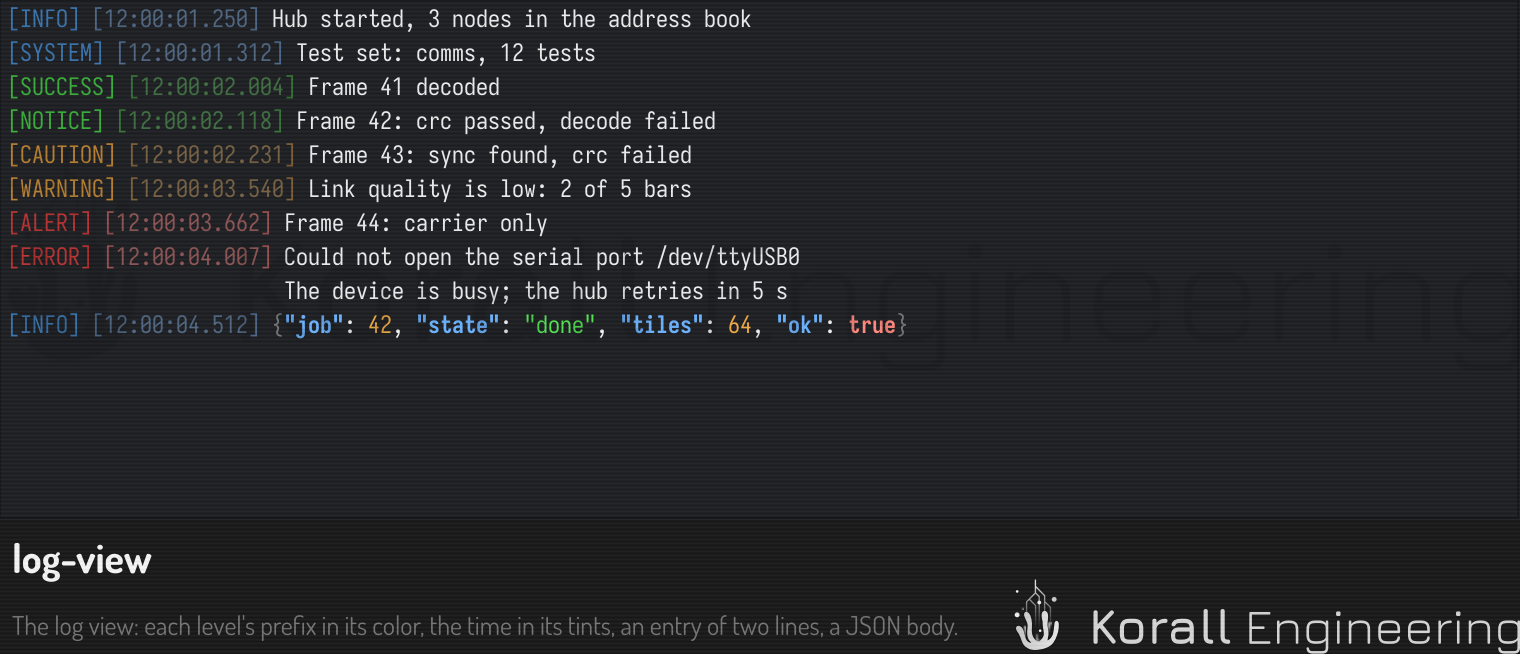
The application's own log view shows the same colors: the level's name in its color, the time in a tint, and a JSON body in the syntax colors.
For developers. A category can have its message body highlighted on the
terminal, for example as JSON, C++ or SQL. Call
LogHandler::setBodyLanguage("my.category", syntax::Language::Json) and the body
of each line of that category gets the syntax colors. It costs time per line, so
use it while you work on a problem, not in a release. The log file stays plain.
Capture it to a file, not to a terminal
hub > ~/hub.log 2>&1
# Windows: use cmd.exe redirection rather than PowerShell's
cmd /c "hub.exe > %USERPROFILE%\hub.log 2>&1"
On Windows this matters more than it looks. The log we write is UTF-8, and a
redirect to a file preserves it exactly. A PowerShell redirection re-encodes
through the console code page on the way, which mangles any non-ASCII character
in the output — so a log captured that way can show corruption that is not in
the application at all. If you have already captured one that way and see ?
or Ôäó where a symbol should be, that is the capture, not the bug.
What to send
- The log file.
- The version, from Help → About or
--versionon the command line. - What you did, in the order you did it. "Opened a scene, added a bounding box, it closed" is worth more than a stack trace with no context.
Let the program gather it for you
The quickest way is the report window. In the application, press Help on the toolbar and choose Send bug report…. The app puts the log of the run, the build, the system, the history of recent runs, your settings and a screenshot into one report, shows you every file, and sends it when you press Send. See Send a bug report.
If you would rather attach a file yourself, one task writes the same kind of zip:
hub --opal 'system.diagnostics.collect' -c
It writes diagnostics-<timestamp>.zip into the data directory and prints the
path. Inside is a manifest.json that lists every file it collected and every
file it looked for and did not find, each with the reason, so a gap in the
evidence reads as a gap rather than as nothing.
Full detail: Diagnostic bundle and OPAL system tasks.
By hand
If the application crashed rather than misbehaved, say so explicitly and include
the contents of process-health/ inside
your data directory. That is where the
crash marker lands, and it records which build the crash came from — which
is what makes the symbols resolvable. A program database from a different build
does not fail to resolve; it resolves to plausible wrong function names, which
is worse than no symbols at all.
Also include whatever Windows left in %LOCALAPPDATA%\CrashDumps. One caution about that
folder: Windows keeps at most ten dumps there by default and silently discards
new ones once it is full, so an empty-looking result may mean "full" rather
than "no crash". Clear it out before reproducing.
Where the log is
Every application writes its log to a file on every run, with no flag and no
setting to turn it on. The file is in logs/ in
your data directory, one file per
run, named <app>-<yyyyMMdd-HHmmss>-<pid>.log, where <app> is the program's
id, for example construct, and the time is the start time in UTC. Each application keeps its newest 10 runs, at most 96 MiB together. The
lines up to a crash are in the file even when the application dies without
cleaning up, so the log of a crashed run is still there at the next start.
The report window sends the log of the run for you. A redirect, as in Capture it to a file, is still useful when you want the output while the program runs, or from a build that predates the log file.
To make the file more detailed, set Log detail to Verbose in the
Diagnostics category of the settings page, or start the program with
--log-detail=verbose for one run.
The log also goes to stderr, at every severity. Before August 2026 debug
and info went to stdout, which is why older instructions say to capture both
streams. Capturing both still works and is fine for a bug report. But if you are
scripting against a program's output rather than reporting a problem, keep them
apart — stdout is data, stderr is diagnostics. See
Output streams.