Run a job on a schedule
Make the Hub start a batch job at fixed times, as every night at 02:00. A stored schedule fires at its times, waits for its last run, and catches up the runs that it missed while the Hub was off. The Clockwork reference has every rule and field.
Open the schedules
- Open the apps menu of the Hub.
- Push Schedules.
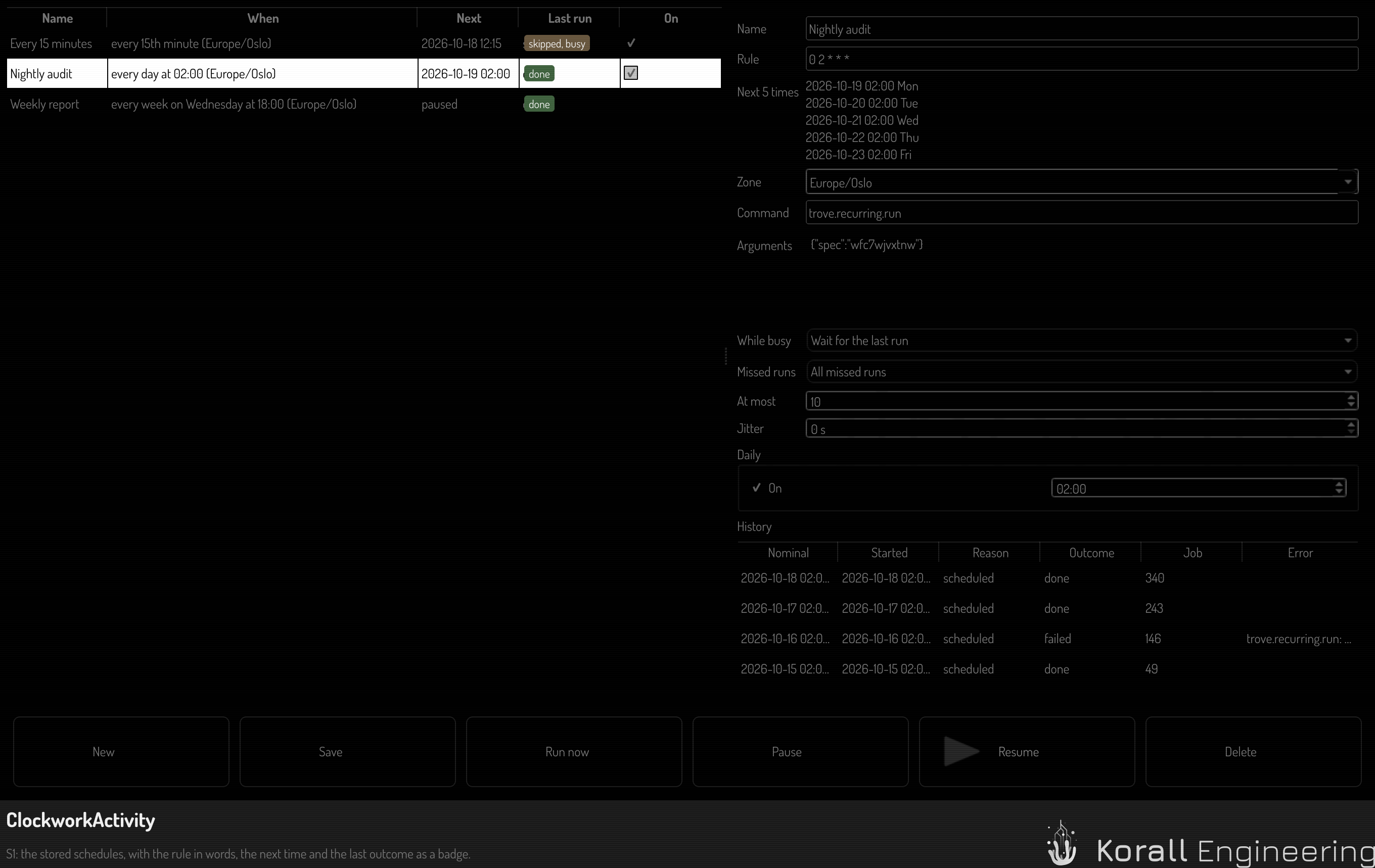
Each row shows the rule in words, the next time, and the outcome of the last run. The On box switches a schedule on and off.
Make a schedule
- Push New.
- Type a name.
- Type the rule. Use cron, as
0 2 * * *, or the every syntax, asevery(2).days.at(06:30). - Read the next 5 times below the rule. If the rule is refused, the editor names the field and the reason, and Save stays off.
- Choose the zone of the rule. The default is the zone of this computer.
- Type the command: the batch job type that a firing submits.
- If the job takes data, type it in Arguments as a JSON object.
- Push Save.
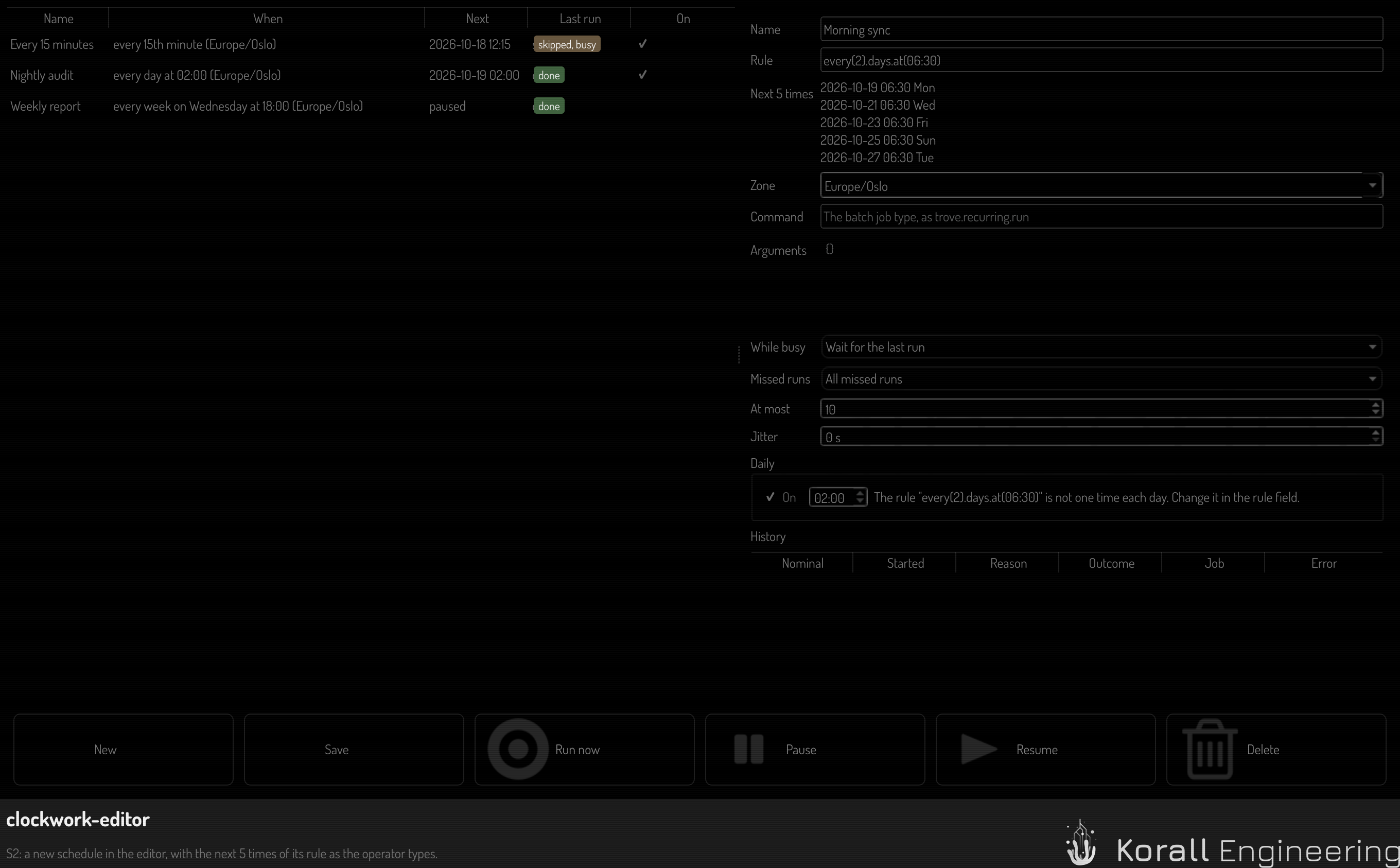
Fire at one time each day
For a rule that fires once a day, the Daily card has a switch and the time. Change the time there, and the rule changes with it.
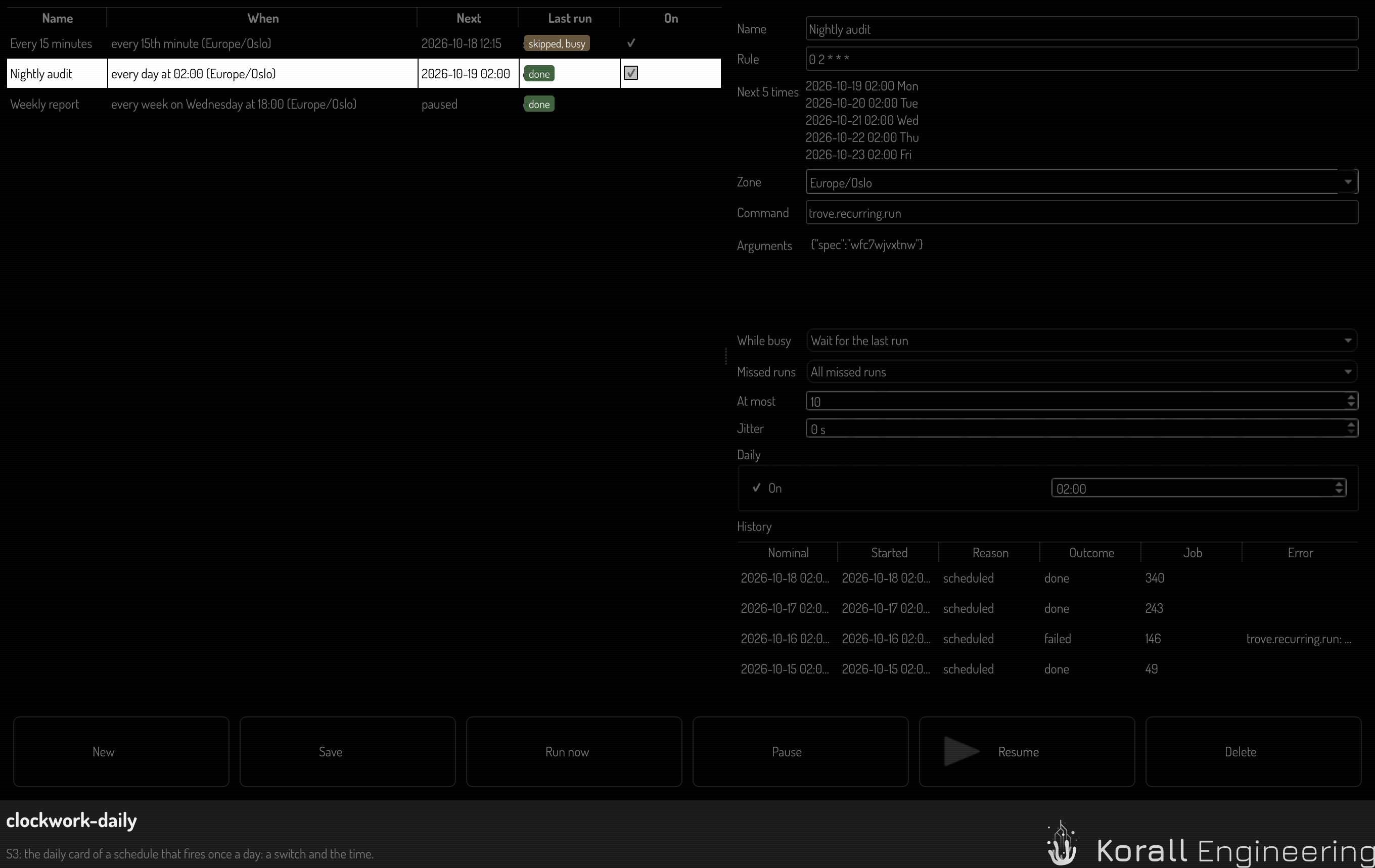
A rule that is not one time each day makes the card read-only. The card says why. Change that rule in the rule field.
Choose what happens when a run is late
- While busy: what a firing does while the last run of the schedule is busy. Wait for the last run is the default: one firing waits, and starts when the run ends. Skip while busy skips the firing. Run in parallel starts it at once.
- Missed runs: what starts for the runs that the Hub missed while it was off. All missed runs is the default: they start at once, oldest first, one after another, at most the number in At most. Once starts only the newest. None starts none.
- Jitter: a delay of up to this many seconds, drawn for each firing, so that many schedules do not start at the same second.
Read the history
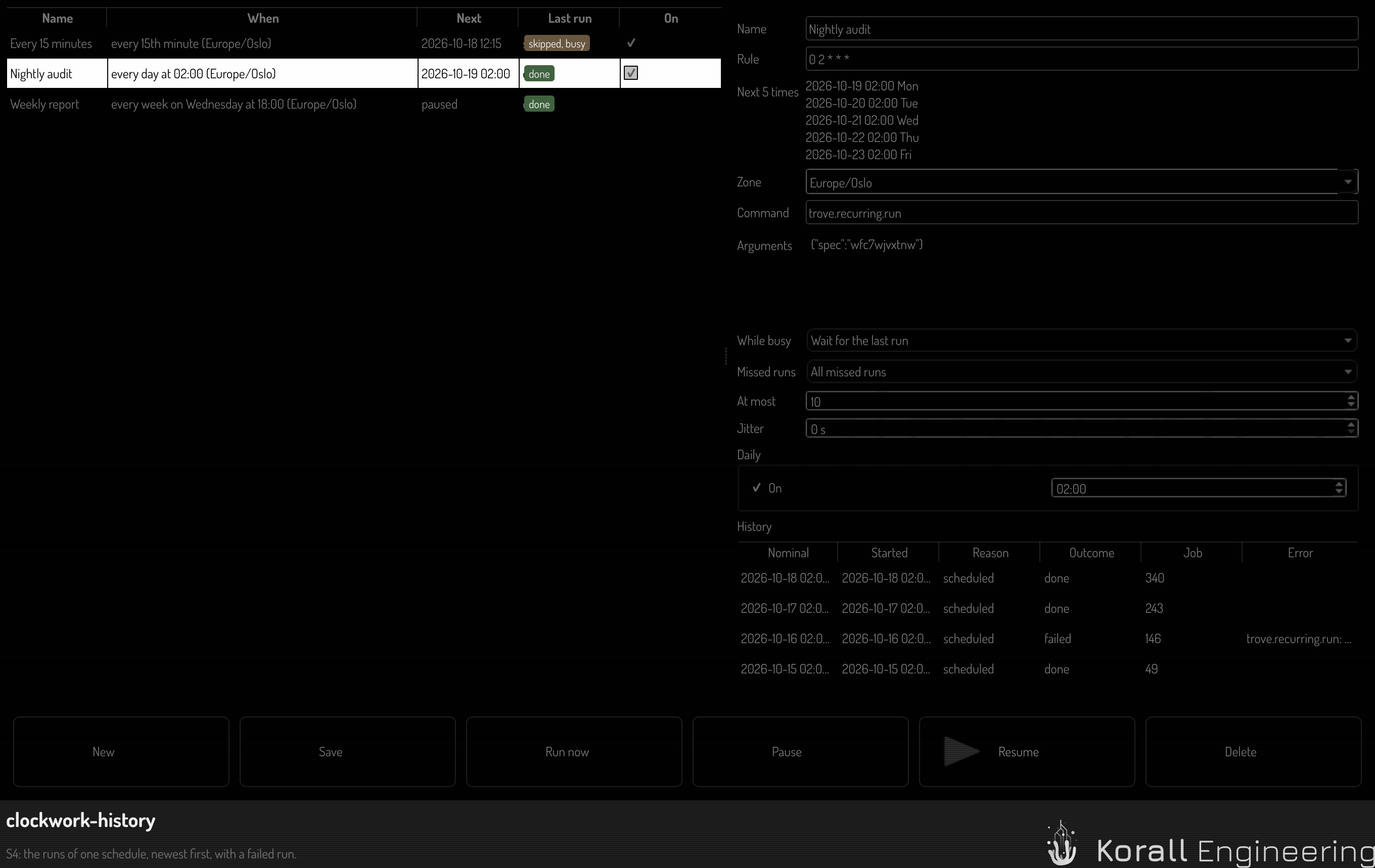
Select a schedule. The history lists its runs, newest first: the nominal time, the time that the job started, the reason, the outcome and the job. A double click on a run opens its job on the Batch page.
Fire, pause or delete
- Run now fires the schedule once, now. It follows the policy of While busy.
- Pause stops the firing. The time that the schedule is paused counts no missed run.
- Resume starts the firing again, from its next time.
- Delete asks first. A job that runs goes on to its end.
Do it through OPAL
The chat and a plan reach the same schedules with the clockwork.* tasks:
{"task": "clockwork.put", "args": {"name": "Nightly audit", "rule": "0 2 * * *", "command": "trove.recurring.run"}}
clockwork.preview shows the next times of a rule before you store it. See
the OPAL tasks.
If nothing fires
- If the page says that it is read-only, another node on the same base folder fires these schedules. The line names that node. This node takes over when the other one ends.
- If the page says that "Run stored schedules" is off, switch the node setting on in Settings, under Schedules.
- If the last run of a schedule stays running, no worker takes its job. Open the job on the Batch page: Why a job is not running tells you what to do.